Debugging Tips and Techniques: Basic Error Handling
Provided by: Luke Chung, FMS President
Professional applications need to include error handling to trap unexpected errors. By using a consistent error handler, you can make sure that when crashes occur, the user is properly informed and your program exits gracefully. Basic error handling just hides the default behavior and exits the program. Advanced error handling can include all sorts of features such as saving information about the cause of the error and the environment at the time, attempts to address the problem, and information for the user on what they need to do next.
Verify Error Handling Setting
Before you can use error handling, you need to understand the Error Trapping setting. VB/VBA lets you to determine how it should behave when errors are encountered. From the IDE, look under the Tools Options setting.
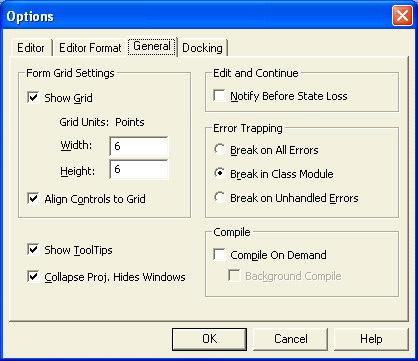
Make sure error trapping is not set to "Break On All Errors". That setting will cause your code to stop on every error, even errors you are properly handling with "On Error Resume Next".
"Break on Unhandled Errors" works in most cases but is problematic while debugging class modules. During development, if Error Trapping is set to “Break on Unhandled Errors” and an error occurs in a class module, the debugger stops on the line calling the class rather than the offending line in the class. This makes finding and fixing the problem a real pain.
We recommend using “Break in Class Modules” which stops on the actual crashing line. However, be aware that this does not work if you use raise errors in your classes via the Err.Raise command. This command actually causes an “error” and makes your program stop if Error Trapping is set to “Break in Class Modules”.
Unfortunately, users can modify this setting before launching your application so you should make sure this is properly set when your application starts.
Programmatically, the option settings can be viewed and modified using the Application.GetOption and Application.SetOption methods.
Function GetErrorTrappingOption() As String
  Dim strSetting As String

  Select Case Application.GetOption("Error Trapping")
    Case 0
      strSetting = "Break on All Errors"
    Case 1
      strSetting = "Break in Class Modules"
    Case 2
      strSetting = "Break on Unhandled Errors"
  End Select

  GetErrorTrappingOption = strSetting

End Function
Here's a procedure that helps you change the setting:
Sub SwitchErrorHandling(fInit As Boolean)
  ' Copyright (c) FMS, Inc.
  ' Comments: Set or reset error handling routines
  '           This should be called when the program starts and ends.
  '           Avoids problems if the user has Break On All Errors which causes
  '           On Error Resume Next code to fail.
  ' Params  : fInit TRUE for setting option, FALSE for resetting to original value

  Const cstrOptionErrorTrapping As String = "Error Trapping"
  Const cintBreakInClassModules As Integer = 1

  Static intErrorTrapping As Integer
  Static strSet As String

  If fInit Then
    strSet = cstrOptionErrorTrapping
    intErrorTrapping = Application.GetOption(cstrOptionErrorTrapping)
    Application.SetOption cstrOptionErrorTrapping, cintBreakInClassModules
  Else
    ' Do not reset error trapping if the static variable has been reset.
    ' This prevents an accidental reset to breaking on all errors
    If strSet = cstrOptionErrorTrapping Then
      Application.SetOption cstrOptionErrorTrapping, intErrorTrapping
    End If
  End If

End Sub
Always include code in your startup routines to set the appropriate error handling level. At the beginning of your application, call:
SwitchErrorHandling True
When your program finishes, reset this back to the original setting with:
SwitchErrorHandling False
 Additional Resources
- More tips: Microsoft Access, Office/VBA, and Visual Basic Debugging Tips and Techniques
- Source code from Total Visual SourceBook for:
Strategic Overview
Microsoft Access within an Organization's Database Strategy
How many simultaneous Microsoft Access users?
Blaming Microsoft Access instead of the Developer
History of Access
Microsoft Access Version Feature Differences
Microsoft Access Versions, Service Packs and Updates
Microsoft Office 365 Access Update Version Releases
Best Practices
Taking Over Legacy MS Access Databases

Winner of Every Best Access Add-in Award
Table Design
Set AutoNumber Starting Number Other than 1
Avoid Unnecessary or Duplicate Indexes
Query Design

Form Design
Copy Command Button and Keep Picture
Module VBA to Forms and Controls
Subform Reference to Control Rather than Field
Report Design
Suppress Page Headers and Footers on the First Page of Your Report
Annual Monthly Crosstab Columns
Design Environment
Add Buttons to the Quick Access Toolbar
Collapse the Office Ribbon for more space
VBA Programming
Avoid Exits in the Body of a Procedure
Send Emails with DoCmd.SendObject
Source Code Library

VBA Error Handling
Error Handling and Debugging Techniques
Error Number and Description Reference
Performance Tips
Deployment
Remote Desktop Connection Setup
Terminal Services and RemoteApp Deployment
Missing Package & Deployment Wizard

System Admin
Database Corruption
Remove 'Save to SharePoint Site' Prompt from an Access Database
Class Not Registered Run-time Error -2147221164
SQL Server Upsizing

Microsoft Access to SQL Server Upsizing Center
When and How to Upsize Access to SQL Server
SQL Server Express Versions and Downloads
Cloud and Azure
Deploying MS Access Linked to SQL Azure
SQL Server Azure Usage and DTU Limits
Visual Studio LightSwitch
Additional Resources
Connect with Us
 Email Newsletter
 Developer Team Blog
 Facebook
 X/Twitter
 Support Forum & Tickets


