


Product Guide for Total Visual CodeTools
Thank you for your interest in Total Visual CodeTools for Microsoft Visual Basic 6 (VB6), Office/Access/Excel, and VBA! We are pleased to provide you with this Reviewer’s Guide to assist you in your evaluation of this exciting new version of our award-winning code development tool set. The contents of this document are organized as follows:
- Introduction
- Rave Reviews
- Key Features and Benefits
- Code Cleanup
- Code Delivery
- Unused Variable Analysis
- Code Builders
- Additional Coding And Enterprise Standards
- General Information
- Conclusion
Additional documentation is included with the Total Visual CodeTools product, including a 166 page printed User’s Guide and online help system. A free demo is available to experience how the product works in your projects.
Introduction
Writing Better Code—writing error-free and maintainable code—is hard work. It requires a full time commitment to covering all the details. Total Visual CodeTools provides a robust set of tools to help developers in the day-to-day development of Visual Basic (VB6) and Visual Basic for Applications (VBA) code.
Total Visual CodeTools makes it easier for developers to:
- Write solid code
- Reduce the drudgery of common coding tasks
- Clean up inherited code and standardize existing code
- Rename variables to your naming convention
- Create maintainable code
- Find unused variables, constants, classes, user defined types, etc.
- Add sophisticated error handling and line numbering to pinpoint crashes
- Deliver code that is more difficult to decipher
The main features of Total Visual CodeTools are:
Code Builders
A set of code builders that create new code using simple point and click forms. All generated code adheres to the standards you define.
Code Cleanup
Modifies existing code to standardize visual style, indenting, error handling, commenting, naming conventions and more. Works according to the styles and conventions you define.
Code Delivery
Prepares your code base for distribution in non-compiled environments. For example, applications distributed with Microsoft Office applications are not compiled to EXE files, making it easy to break into source code. Code Delivery obfuscates and compacts code to make it run faster and more secure.
Unused Variable Analysis
Find unused variables, constants, procedure parameters, classes, and user defined types that are defined but never used.
Coding Tools
A variety of tools to make writing code in the Visual Basic/Office IDE easier such as the keystroke macro recorder.
Enterprise Standards Management
Your organization’s standards for error handling, commenting, variable naming conventions, and visual style can be centrally managed and enforced across your entire development group.
Rave Reviews
"Total Visual CodeTools is by far my favorite third-party product." - Alison Balter, Author, Conference Speaker, Instructor
"An amazing time saver. Completely customizable procedures, comments, and error handlers at the push of a button. At least a dozen other helpful development utilities. I don't know how I managed without it." -- Rob Bovey, MCSE, MCSD Application Professionals
"Return on investment can be measured in days - our developers write better quality code, adhering to our corporate standards, from day one - even in the prototypes." -- Ola Strandberg, Chief Technology Officer, Sweden
"One of the things I like about Total Visual CodeTools is that I can set it up to do all the standard work when creating a new procedure. I set it up once and I get all the standard information and error routines that I want and I can concentrate on writing better code. I sometimes wonder why it is called Microsoft Access and not FMS Access they write much better development tools." -- Hugo Pedersen, Denmark
"I have to maintain and enhance code from a variety of sources. Total Visual CodeTools lets me do this with a minimum of effort. It's cleanup feature has saved me hours of frustration dealing with poorly formatted code. It's also great for maintaining a consistent format across multiple developers. It's an absolutely wonderful product." -- Travis Gibson, Cumberland, WI
"Total Visual CodeTools is one of the essential development tools that I use on a daily basis. The procedure and property builders have helped me establish and maintain consistent names and code formats throughout my project while also saving me time by handling many of the tedious parts of coding. This tool makes it easy to adhere to the coding standards you've set for your projects. The improvements in the latest version are wonderful. Good Job!" -- Sandra Daigle, Microsoft MVP, Cleveland, TN
"It's hard to imagine many Access developers who couldn't benefit from this compendium of coding tools." -- Paul Litwin, Smart Access
"Finally! Someone has come up with a tool that actually helps you write code for your Access applications!" -- Craig Bobchin, Access/VB Advisor
Key Features and Benefits
For the Developer
- Total Visual CodeTools inserts comment blocks whenever you write new code, or on existing applications. Comments are completely configurable and support token expansion for the easy insertion of real-time data such as date, developer, modifications, etc. Never, ever, write another block of commenting code. Of course, no application can write meaningful comments--only you can do that. But Total Visual CodeTools can take care of the grunt work.
- Total Visual CodeTools can insert the error handling you define into every new piece of code you write, or add it to existing procedures that lack error handling. You have complete control over how the error handling works, and you can even define different error handling templates for standard modules, class modules, and form/report modules.
- Total Visual CodeTools adds variable naming conventions to code as you write it, and can add tags to existing code. You define the tags for you variable types and Total Visual CodeTools takes care of the rest.
- Total Visual CodeTools includes many tools to write new code with just a few mouse clicks. Need to create a new procedure? Simply open the New Procedure Builder, type in a procedure name and press OK. Total Visual CodeTools automatically builds the procedure with naming conventions, error handling, and commenting, and inserts it directly into your project! Total Visual CodeTools also has builders for creating ADO and DAO recordsets, converting SQL strings to code, copying event code from one control to another, visually creating message boxes, and simplifying the use of commands like Select Case, Format, and DateDiff.
- Total Visual CodeTools cleans up existing code with ease. Simply select a procedure, module, specific modules, or you entire project, specify your standards, and Go. You have complete control over all visual style settings, error handling, naming conventions, and commenting. Clean up an entire application in minutes.
- Total Visual CodeTools provides the Code Delivery tool as the final step to code deployment. For applications that must ship source code (like Excel), Code Delivery strips all whitespace and renames variables to meaningless names. The result is a smaller application that is harder to break into and decipher. Additionally, Code Delivery gives you the option to add line numbers to your application--perfect for having your error handler report the exact line of code where a failure occurs.
- Total Visual CodeTools works as an add-in in Visual Basic 6 as well as all Office/VBA programming environments. Simply select the tool you need from our toolbar or menu. Total Visual CodeTools understands the Microsoft IDE and can directly read and write code without the need for exports.
For the Enterprise
One of the most important features of Total Visual CodeTools is its ability to manage development standards for single developers, project teams, and an entire enterprise. As projects become more complex, and entail greater staffing requirements, the need for standards in development becomes crucial.
Total Visual CodeTools tackles this problem by offering a powerful and flexible architecture for managing your standards.
- As a single developer, you can use Total Visual CodeTools to ensure that all your projects conform to the development standards dictated by the project. With support for multiple standards templates, you can customize standards according to a specific client’s needs, or a particular project’s requirements.
- As a team or enterprise developer, Total Visual CodeTools standards allow you to develop projects without worrying about whether or not you are conforming to the defined project standard.
- As a development manager, you now have a tool to define development standards, and enforce them among entire project teams.
Code Cleanup
Code Cleanup is one of the most powerful features of Total Visual CodeTools. Code Cleanup standardizes the code in your project to your specifications. Add error handling to procedures that lack it, standardize code indentations, apply your variable naming convention, insert comment structures, sort procedures, and many other powerful features and more. The result is code that is more readable, robust, and maintainable.
As a software developer, chances are you occasionally inherit code from someone else that does not meet your coding standards making it very difficult to read much less maintain and enhance. Given tight deadlines and time constraints, even your own code may have inconsistent indentation, naming conventions, and comment structures, along with procedures without error handling and other problems. Trying to fix this manually is extremely time consuming and error prone.
The Code Cleanup tool addresses these problems by applying consistent formatting, adding error handling to procedures that lack it, and other features to any or all of your modules.
Visual Style
Standardizing the visual appearance of the code is probably the single most important factor for code maintainability. Choosing this option tells Code Cleanup to do the following:
- Standardize Code Indentation to a specified width with automatic indentation for programming constructs such as IF..ELSE..ENDIF, DO..LOOP, WITH..END WITH, etc.
- Split multiple lines on one line separated by colons into separate lines
- Split single line If statements into separate lines with a closing End If.
- Split Dim statements for multiple variables on one line into separate lines.
- Standardize number of blank lines between procedures
- Standardize maximum consecutive blank lines.
Procedure Sorting
Procedures can be inserted in any order in VB/VBA. This may be good, but it can also create a mess. Code Cleanup makes it easy to sort the procedures in your modules including property statements in class modules.
Module Comments
Add a standard module header to the top of each module such as a project name, creation dates, copyright notices, and ownership rights. A complete list of all procedure names and procedure definitions can also be added.
Procedure Comments
Add comment headers to each procedure. Although the program cannot determine what the code is actually doing and write the comments for you, it can take much of the drudgery out of the process of creating consistent comment headers for each procedure.
Property Comments
Inserts the specified property comment template into all the property procedures.
Error Handling
Error handling is one of the key attributes of robust applications. This feature inserts error handling code into your procedures that lack error handling, and allows you to specify separate error handling routines for regular modules vs. class modules. Error handling can also be added in a way to be automatically updated in the future.
Variable Naming Conventions
Rename your existing variables to conform to naming conventions based on the variable type (Integer, String, etc.). Every variable is given a prefix or suffix identifying its type with additional options for global and module level variables.
Option Explicit
Insert "Option Explicit" into the declarations section of every module that lacks it. One of the cardinal rules of writing reliable and maintainable code is to explicitly declare all of your variables. By adding "Option Explicit" to your module, you are telling Access to require variable declaration.
Remove Line Numbers
Removes the line numbers in your code. This is useful if line numbers were added to your code (say with the Code Delivery feature), and you now want to remove it.
Code Delivery
Code Delivery provides the tools for the final preparation of your code before distribution. Easily add line numbers to all of your code so you can take advantage of VB/VBA’s ability to pinpoint the exact line where an error occurs. You can also obfuscate your code for situations where you need to distribute your source code, but are concerned about its misuse. Code Delivery provides the following code operations:
- Line Numbering adds line numbers to every line of code. With this, if your error handler uses the ERL function, it can detect the exact line where a crash occurs
- Variable Scrambling lets you rename all your variables, constants, user defined types, and enum to nonsense names that another user would have great difficulty deciphering. An option is available to not modify public variables
- Remove Comments removes all your comments. There is a way to not delete certain comments if they are tagged
- Remove Blank Lines removes all blank lines
- Remove Indentations makes your code flush left
- Remove Debug Statements removes this debugging code
- Remove Stop statements removes stop commands
Unused Variable Analysis
As one writes code, variables are often created but not used or old code deleted without deleting the corresponding variable declaration. Total Visual CodeTools’ Unused Variable Analysis helps you detect and eliminate unnecessary code from your project. Not only does it make your code more compact, the analysis may highlight problems where you thought the code should be doing or tracking something that it is not.
The Unused Variable feature finds more than just variables:
- Variables defined with Dim, Public, Private, Static, etc.
- Procedure parameters
- Constants
- Classes that are not referenced
- User defined types (Type..End Type syntax)
- User defined type elements
The Unused Variable Analysis is based on the scope you specify: one procedure, one module, multiple modules, or the entire project.
Is it Important to Eliminate Unused Variables?
Getting rid of unused variables may seem like a waste of time. If it’s unused, why bother, since it’s not hurting anything? In a world with pressure to just get code to work, rather than “perfection”, it may seem unnecessary to worry about unused variables.
However, reviewing and eliminating unused variables can be helpful for many reasons:
- Eliminating unnecessary code makes your remaining code smaller, easier to maintain, and more readable
- Unused variables may indicate bigger problems. For instance, you created a variable and intended for it to do something but never implemented it. Discovering that it’s unused may require a fix to implement it rather than delete the variable.
- Unused procedure parameters (excluding mandatory parameters for event procedures) often indicate a bug. The procedure is allowing different values to be passed to the parameter, but its behavior never changes. Either get rid of the parameter or have it do what it’s supposed to do.
By running the Unused Variable Analysis feature on a regular basis, you’ll keep your code cleaner and apply Best Practices to your coding skills.
Code Builders
Total Visual CodeTools provides several useful builders for your day-to-day development efforts. While developing code for VB6 and VBA, there are many operations that are tedious and error-prone. Total Visual CodeTools builders allow you to automate and simplify these processes. The following builders are available in Total Visual CodeTools:
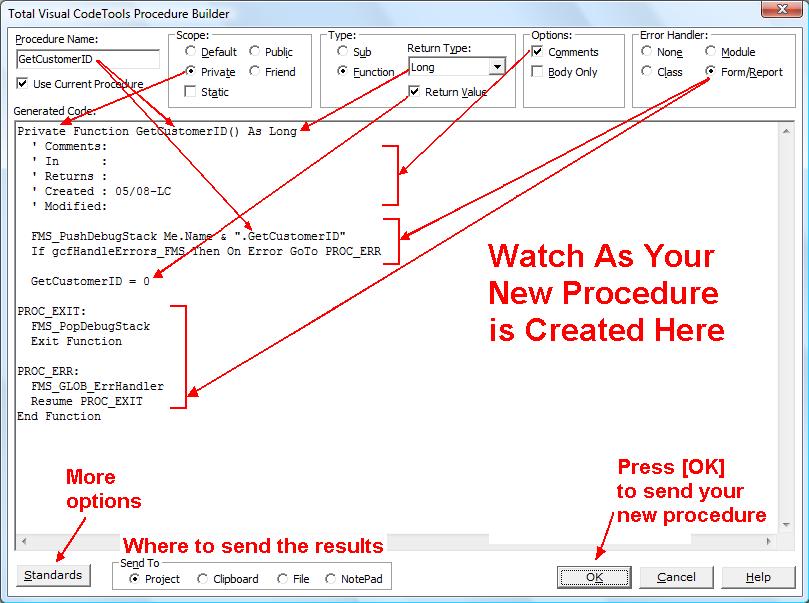
New Procedure Builder
Use the New Procedure Builder to quickly create new procedures with the custom commenting and error handling structure you want. Simply type in a procedure name, set the options you want, and press [OK]. Code is automatically generated so you can insert it directly into your project. Easily create consistent, professional procedures. Details...
Recordset Builder
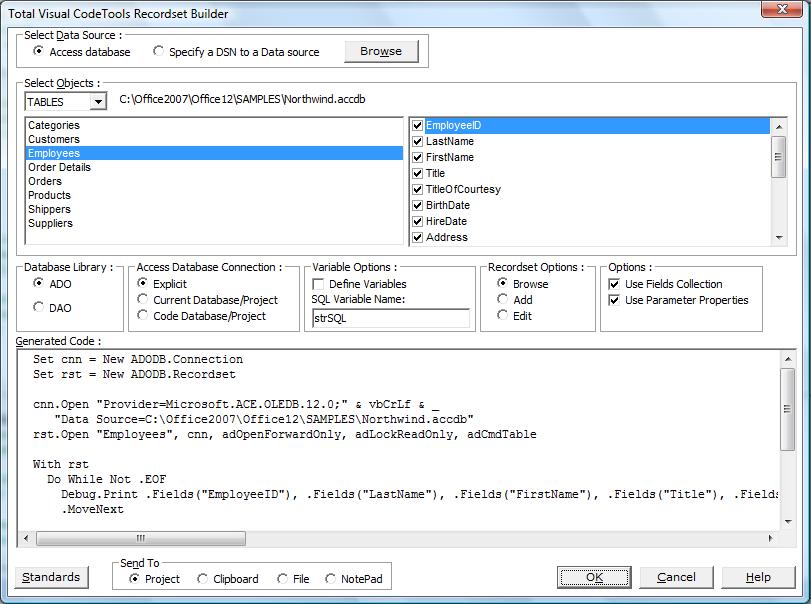
One of Total Visual CodeTools most powerful tools, the Recordset Builder, makes creating recordset code a snap. Point to any Access database or DSN data source such as SQL Server, select your table or query/view, and you're ready to go. Easily create ADO or DAO code with all its connection and recordset code. Quickly generate code to browse, add, or edit your records. Details...
Long Text/SQL Builder
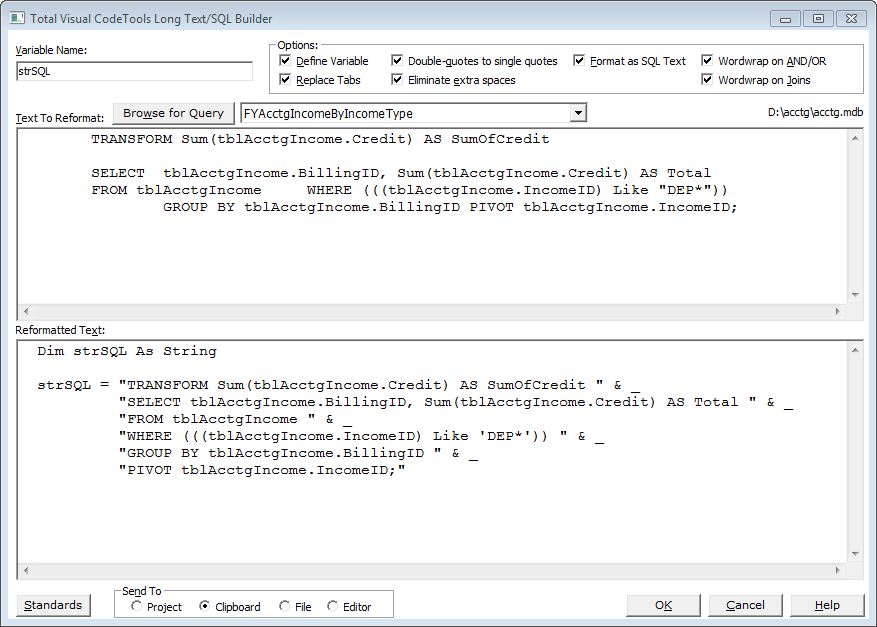
Many developers consider the Long Text / SQL Builder to be the most commonly used feature within Total Visual CodeTools. It's a very common need to convert SQL text from a query and assign it to a variable in your VB6/VBA code. But it's a real pain to manage issues like quotes inside quotes, word-wrapping, and formatting the text. Details...
The Long Text / SQL Builder handles these issues for your SQL strings or any text that you want to convert to a variable assignment. Simply paste your text in the top box, and it is automatically assigned to a variable and word-wrapped according to your settings. Our SQL parser understands SQL strings and can wrap SQL on key words like FROM, WHERE, GROUP BY, etc. to make it much more readable:
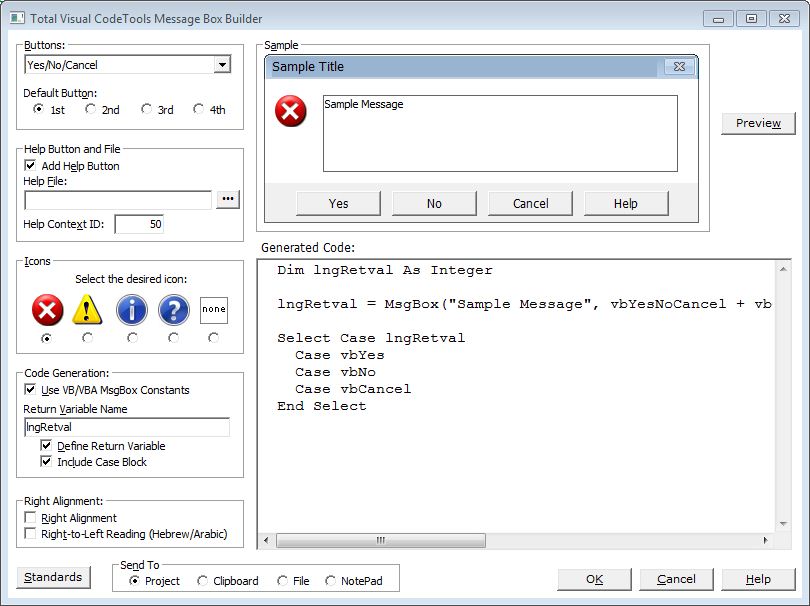
Message Box Builder
Use the Message Box Builder to graphically create message box statements. Enter the text you want to display in the title and body of the message box. Easily select button combinations and icons, while handling return values. You can even specify a help file and context ID.
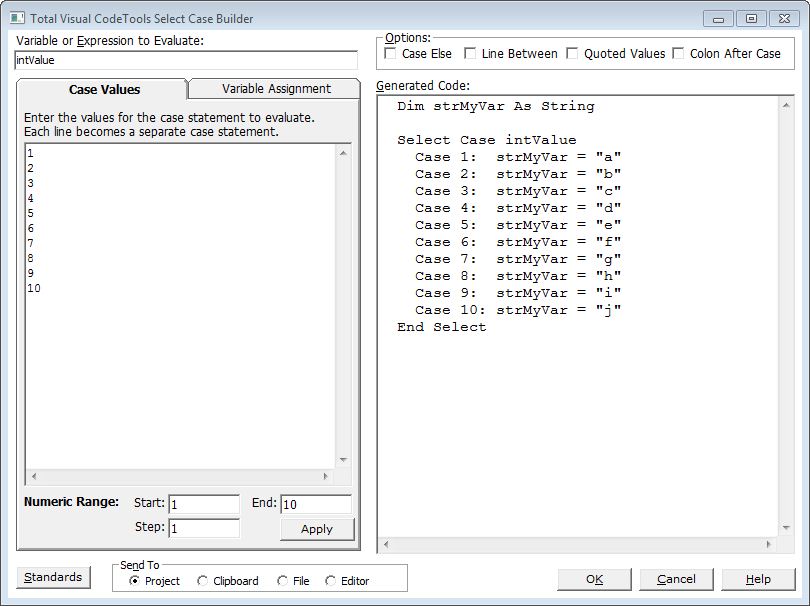
Select Case Builder
Something as simple as a Select Case statement should not be hard! Use the Select Case builder to quickly create multi-branching statements. Simply type in your variable name and test expressions and Total Visual CodeTools generates the code for you. Options let you specify the addition of an Else statement, formatting styles, and assigning a number to a new variable.
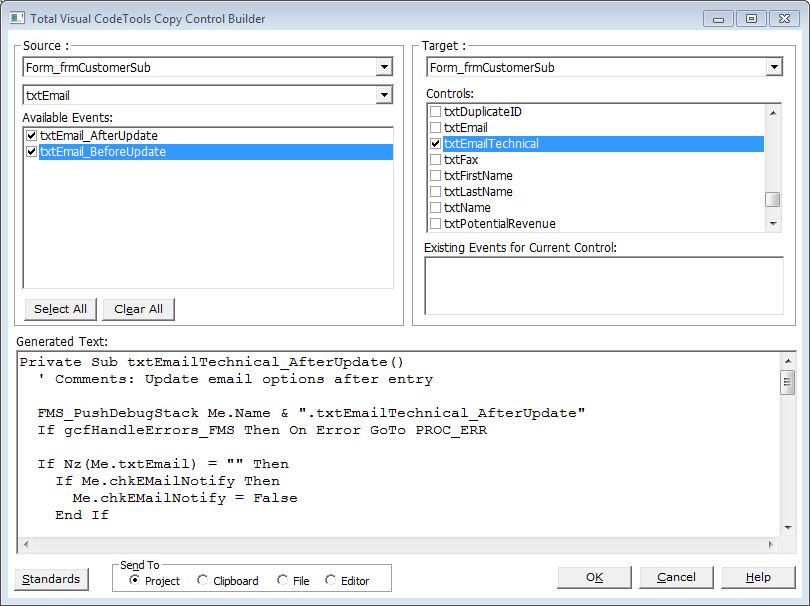
Copy Control Code Builder
When creating forms and reports, you can copy and paste a control but the code behind it does not get duplicated. For instance, if a combo box for the same list is on more than one form, chances are its events are similar if not identical.
Duplicating controls in one form or report object, or copying it between objects can be quite a pain and error prone.
The Copy Control Code Builder duplicates all the event procedures of one control to another in the same object or another. The procedure names are automatically updated to the new control's name along with references to the original name in the events. Use the Copy Control Code Builder to increase your productivity and accuracy.
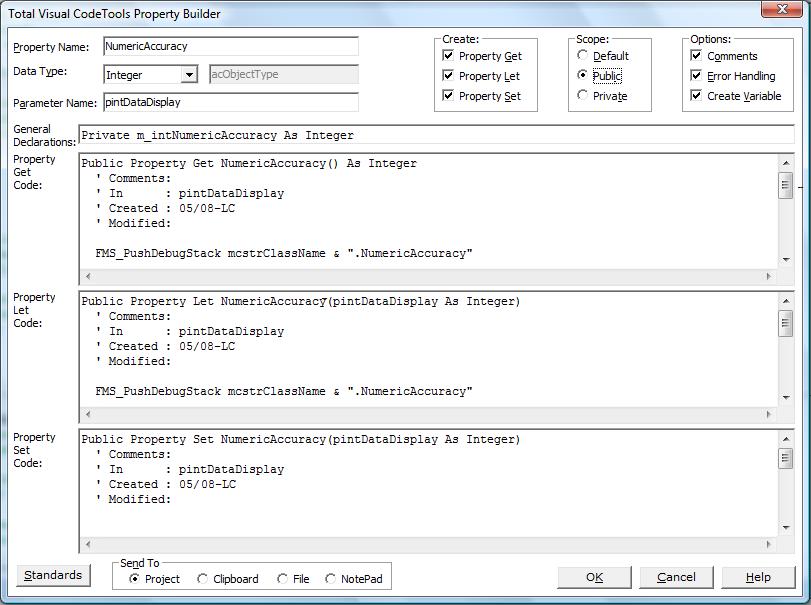
New Property Procedure Builder
When writing classes, use the New Property Procedure Builder to quickly create new Property Let/Get/Set procedures. Simply type in a property name, the data type, and whether to create Get, Let and/or Set statements. Specify the scope, and add your comment and error handling structures. You can even create a variable to hold the property value, which is created using your variable naming convention and added to the General Declarations section of your class.
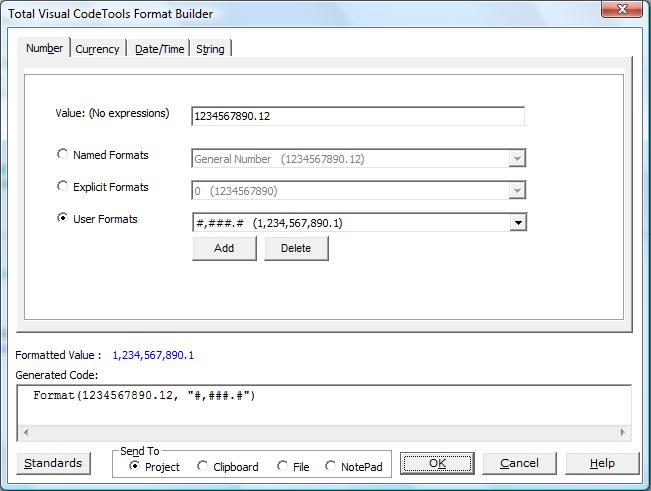
Format Builder
The VB6/VBA Format function allows you to customize the way values are displayed and printed. Unfortunately, it's difficult to remember all the arguments and syntax for this function. The Format Builder makes it simple to format expressions for numbers, currency, date/time, and strings. Use the formats we've provided or add your own. Select the options from the list and see how it is applied to your sample data. No more trial and error in the Immediate Window!
Date Difference Builder
The VB6/VBA DateDiff function calculates the time between two specified date/times. Unfortunately, it is difficult to remember the syntax and arguments of the function. The DateDiff Builder creates code to calculate date and time differences in years, quarters, months, weeks, days, weekdays, hours, minutes, seconds, and more. Set the options, put in your sample date/times, and see the results.

Additional Coding And Enterprise Standards
In addition to Builders, Cleanup and Deliver, Total Visual CodeTools offers additional tools to help your coding work.
- Macro Recorder: This utility increases your productivity and accuracy by recording your keystrokes to reduce repetitive typing. (Details)
- Close Code Windows: This tool makes it easy to clean your development environment of code windows.
- Clear Immediate Window: This tool makes it simple to clear the content of the Immediate window.
- Block Commenter: This utility provides a better option to comment your code.
- VBE Color Schemes: A tool that helps to visually organize the appearance of your Visual Basic Editor.
Enterprise Standards Management
Total Visual CodeTools uses Standards to define how your projects are created and updated. Standards define things like naming conventions, commenting style, and error handling. In order to use Standards effectively, it is important to understand the Standards architecture employed in the product.
Types of Settings
Total Visual CodeTools uses two types of settings to control how the product works and how standards are enforced.
- Shared Standards are the settings that are used throughout the Total Visual CodeTools tool set. These control development standards that can be shared by an entire team. Shared standards are stored in a central shared location so each developer using Total Visual CodeTools can seamlessly connect to the Standards repository and use the elements defined there. For example, naming conventions, commenting style, and error handling settings are Shared Standards. All Shared Standards are set and managed from the Total Visual CodeTools Standards form. This enterprise feature is extremely helpful in maintaining consistent coding styles across your development team, and is particularly effective for new members of your team or junior programmers.
- Local Settings are the settings that are assigned to a specific tool or developer and are unique to each installation of Total Visual CodeTools. These options are set by the developer from a specific tool’s form. For example, the procedure type setting in the New Procedure Builder is an option that shouldn’t be controlled centrally--it is up to the developer each time the tool is used. Another example would be the developer’s initials used when generating comments. Local Settings are stored in the Windows Registry on the computer running Total Visual CodeTools and are therefore private to that developer.
How Settings are Created
Total Visual CodeTools stores all Shared Standards in one or more Shared Standards files. When you first install the product, a default file is created in your Application Data folder. This file contains reasonable defaults--if you are a single developer and want to get started right away, the default settings will most likely be appropriate.
You can modify any Shared Standards to match your development style and standards. Additionally, you can save multiple settings in multiple Shared Standards files. This is helpful if you are working on several projects with different standards.
Finally, you can place a Shared Standards file on a shared network drive and have all installations of Total Visual CodeTools use this file. Because this file can be password protected, you can define and protect standards from undesirable modification.
Shared Setting Scenarios
The Total Visual CodeTools Shared Standards architecture is designed to be both easy to use and flexible. This section contains the information you need to get up and running in multiple situations.
Single Developer, Single Project
If you are a single developer using Total Visual CodeTools on a single project, you can start using the product immediately with the default Standards settings. However, it is worth the time to review the default values and adjust them according to your needs.
Single Developer, Multiple Projects
If you are a single developer working on multiple projects, you can use multiple Shared Standards files to accommodate the different requirements for each project. For example, you have a client who requires a particular type of commenting, while another requires a specific error handling format.
Multiple Developers, Connected to the Same Network
In this scenario, you have multiple developers who are connected to the same network or shared drive. Each developer has an installation of Total Visual CodeTools and you want to configure Shared Standards so every developer uses the same settings. To accomplish this, you must first configure the Shared Standards file, and then configure each installation of Total Visual CodeTools to use the same Shared Standards file.
Working in Disconnected Environments
Having all developers working with Total Visual CodeTools using a shared settings file is a great concept. But what happens when a developer disconnects his or her computer from the network? Developers often go offsite with mobile computers. What happens to the connection to the settings file in such a case?
To handle this scenario, Total Visual CodeTools automatically checks at startup to see if its connection to the Shared Settings file is available. If not, it automatically switches to a local copy. This means that Total Visual CodeTools can be used even when disconnected from a Shared Settings file located on a shared drive. The next time the disconnected developer connects to the shared drive and starts Total Visual CodeTools, the program automatically reconnects to the Shared Settings file on the shared drive.
Note that if you have assigned a settings file to the Shared Settings file, and a developer is working in disconnected mode, the developer will not be able to change any settings--this is the design of password protection. However, the developer, who may be at a remote site, may need to change certain settings in response to project requirements. In such a case, the developer can clear the password on his or her local copy using the Save As feature. See the following section on Password Protection for more information.
Managing Shared Settings Files
This section covers the management aspects of Shared Standards files, including password-protection, making backups, and restoring defaults.
Password-Protecting Shared Standards Files
In order to protect against unwanted changes to your standards, you can assign a password to Shared Standards files. By assigning a password, you are restricting certain values in the Standards form to be read-only, unless you have a password. This is not so much a security feature as it is a convenience feature. Even if you assign a password to a Shared Settings file, there is nothing to stop a developer from point to any other (non-password-protected) settings file. Instead, the password-protection feature is designed to prevent developers from making unintentional changes to the team or enterprise standards already defined.
Making Backups of Shared Standards Files
Because Shared Standards files contain a lot of information, recreating them manually in the event of a system failure would be a time-consuming process. To prevent this from happening, it is a good idea to make backups of your Shared Standards files. To do this, simply copy any .CTS files to your backup media.
Restoring Defaults
At any time, you can restore the current Shared Settings file to its default values by pressing the [Defaults] button at the bottom of the Standards form. Because this action overwrites any current values, you should use the [Save As] button (under Manage Settings) to save your current settings before restoring defaults.
General Information
Total Visual CodeTools has the same system requirements as that of the host product:
- 16 MB of free disk space to install the product (additional disk space may be necessary on a temporary basis while running the program, depending on the complexity of your modules).
- Visual Basic 6.0 or a VBA host such as Microsoft Office/Access/Excel.
Total Access CodeTools version 8.0 is available for Access 97 databases. Contact FMS for information about pricing and availability.
Product Packaging and Technical Support
Total Visual CodeTools ships electronically and includes extensive, context sensitive online help. You can also get a CD and professionally printed 166 page user’s manual shipped to you. Technical support is available by phone, fax, email, and through our newsgroups.
Licensing and Pricing
Total Visual CodeTools is licensed on a per developer seat basis. A single license is $299 and a 5-pack is $899. Owners of previous versions can upgrade for $199. Total Visual CodeTools is also part of FMS’ family of suites, including: Total Visual Developer Suite, Total VB Enterprise Suite, Total Access Developer Suite, and Total Access Ultimate Suite.
Conclusion
While developing code for Visual Basic 6 and VBA, there are many operations that are tedious and error-prone. Total Visual CodeTools allows developers to automate and simplify these processes. With its rich set of enterprise-enabled coding tools, Total Visual CodeTools increases productivity and allows an entire development team to share a consistent set of standards and rules.
Thank you again for taking the time to review Total Visual CodeTools. We invite you put the product through its paces, and contact us if we can provide any additional assistance in evaluating or deploying Total Visual CodeTools.
Microsoft Office Access 2016, 2013, 2010 Version
is Shipping

Supports Office/Access 2016, 2013, 2010, 2007, 2003, 2002, 2000, and Visual Basic 6.0!
Also available for
Access 97

Rave Reviews
"Total Visual CodeTools is by far my favorite third-party product."
Alison Balter, Author, Conference Speaker, Instructor

Best Visual Basic Add-In
Rave Reviews
CodeTools Info


Why CodeTools?
Additional Info