



Enhanced Buttons and Toggle Buttons for Microsoft Access Forms
Unlike the standard Microsoft Access command button (prior to Access 2007), the Enhanced Button lets you combine both a picture and caption.
With the Enhanced Button control, you can offer this feature to users across all versions of Access. Additionally, this button support toggle states with multiple graphics and captions. It can also be data bound to a field from your form's recordsource.
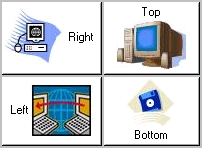

Using the Enhanced Button Control
Simply place the control on your form and size it. Then set its properties:
- Picture: bitmap, GIF, icon, or JPG formats
- Caption
- Caption location: left, right, top, or bottom
- Font, style, and size
- Text color
- Button back color
- Text style: normal, 3-D, shadow
- Option to set the cursor to hyperlink hand when it is over the button
Toggle Style Buttons
If the Toggle style is selected, the button retains settings to indicate True or False.
 You
can specify different values for the up or down state, including:
You
can specify different values for the up or down state, including:
- Different pictures
- Different caption text
A toggle style button can be bound to a Yes/No field.
Programmatic Features
Similar to the standard Access command button, the Enhanced Button offers and OnClick event. Just write the code you'd normally write for a button click.
Programmatically for Toggle buttons, you can check the Value property to see if it's True (the button is pressed) or False (the button is out).
All the properties including the graphics can be set programmatically. There are also events for mouse clicks and key presses.
Menus
 Icon Menus
 Popup Menus
Form Design
 Form Resizers
 Splitter Bars
 Tab Strips
 Cursors
 Timers
Relative Values
 Gauges
 Progress Meters
Data Entry
 Date Time Pickers
 Popup Notes
 Slider Bars
 Spin Buttons
Animation
 Bitmaps
 Marquees
Visual Effects
 Borders
 Clocks and Alarms
 Digital Displays
 Enhanced Buttons
 Rotated Text
Windows Dialogs
 About Box
 Browse for Folders and Printers
 Clipboard
 Common Dialogs
 INI Files
 Registry Settings
 System Information
Multimedia
 CD Player
 Music Sound File Player
 Video AVI Player
Supports Microsoft Access 2016, 2013, 2010, 2007, 2003, 2002, and 2000


