



Total Access Analyzer
Software review by Ted Martino, Eugene PC User Group (EPCUG)
This product, published by FMS Inc. (a leading developer of Microsoft add-ins), is a premier database analyzer which documents and suggests enhancements for your database. It is available for Access 2, and 97. It's not available for Access 95.
This program has been winning awards from top programming magazines since 1994. Among the publications to honor FMS are Visual Basic Programmers Guide, and Access/Office/VB Advisor. That last publication most recently awarded TAA the "Readers Choice, Best Access Add-In" (Gold) award.
So what does it do? Like the name implies, it analyzes your database (MDB). It looks for errors, finds orphans, and makes recommendations to enhance performance. (Orphans, which is my word, not theirs, is an object or code that is no longer being used). In the process it documents your database, both the structure and the security you have implemented.
Have you ever finished a database and then wanted to make some minor changes to it a few months later. If so you probably had a tough time remembering how you made the MDB work. Using TAA you get lots of documentation that shows how the parts are all inter-related. The Object Diagram (just one of about 225 reports available) can be sorted to show a graphical representation of your MDB. For example: which table a form uses to get it's data from is clearly shown. It also shows which query is used to build the form's recordset and what controls are on that form. All in one easy to read report.
We were given the Access 97 version of TAA to review. The manual is small and easy to read. It installed without any problems. Ours was on a CD, and the Manual only had instructions for how to install from floppies. But then I guess anyone who needs this program is a sophisticated enough user to figure it out on their own.
Before you analyze your MDB, there are a few things you need to do, which are clearly outlined in the manual. Like compiling all the code, and opening the MDB in exclusive mode. Most important of course is to backup your MDB!
To start the analyses you close everything except the MDB container. Pull down your Tools menu, choose Add -Ins and then pick Total Access Analyzer.
You will be presented with the opening screen and some choices. You can do a Quick-Doc which lets you select individual components to analyze. Otherwise you can choose a full documentation. If you choose the full documentation you are presented with a list. You can select "All" the items in your database, or groups of items, or individual items in any combination. (To save time I suggest you let TAA skip the Command bars, except those you built or modified.) Press Next and you are given more options about what kinds of analysis you want to do on the items you just chose. You can turn "on" or "off" the Security check for instance. You also have the option of changing your Performance Analysis settings from here. After making your choices press Next again and you are given an opportunity to change the location that TAA will store your analysis data in. There is nothing left to do but press "Finish" and let the program do its' job.
I analyzed a 2.5mb database front end on a 200 MHz Pentium machine in about 20 minutes, while a .3mg front end was completed in about 8 minutes. I didn't analyze the back-end tables for either of these MDBs for these benchmarks. Expect slower performance if you are using a slower CPU. FMS says you need at least the following to run the A97 version of TAA: 486 processor or better, 16 Mb RAM (32mb recommended), and 10mb free space on HD (for program installation).
You will need additional free space for the documentation files that the program generates. The .TDB files (what TAA generates for each MDB you analyze) for the large and small MDB were 6.3 and 3.3mb respectively!
Now that you are done with the analysis, you can view some of the information. FMS provides an Explorer interface for viewing (and for printing the reports, but there is also a separate printing facility provided). On the left you see the standard graphical listing of branching folders. Each folder represents some part of your MDB, like tables, forms, macros, etc. On the right are tabs for Summary, Details, Cross Reference, Errors, and Suggestions.
Among the things most useful in the programs output is it's highlighting of errors and its' performance enhancing suggestions. But like any artificial intelligence, this program will make a few misinterpretations. For example, I have a few buttons that are set to activate on a DOUBLE click because I want to be sure the user REALLY meant to press this button and didn't just bump his mouse. TAA told me that these buttons didn't do anything (because the On Click event was empty). This shows that it is important to not just blindly follow advice but give careful consideration (and make backups) before changing anything.
The volume of information about your database that TAA can provide is staggering. Beginners would probably be overwhelmed by most of the reports and may not understand how to deal with some of the suggestions. Intermediate to advanced users will get the most out of this program. And in fact FMS products are well known and respected in the Access Developers community. To stress this point I'd like to tell you about my experience at the Portland Access Users Group. I'm also a member of that group and attend every monthly meeting. A couple months ago they gave away a copy of TAA. There were about 50 members at that meeting. The first four names pulled out of the hat had to decline the free software because they already owned copies!
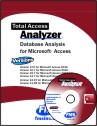
Microsoft Access 2019 / 365 Version is shipping!

Version 16.7 for
Microsoft Access 2016
Version 15.7 for
Microsoft Access 2013
Version 14.7 for
Microsoft Access 2010
Version 12.97 for
Microsoft Access 2007
Version 11.95 for
Microsoft Access 2003
Version 10.8 and 9.8 for
Access 2002 and 2000

Awards and Reviews



"Total Access Analyzer is an amazing product that I've relied on and recommended for years. It's a huge time saver."
Sal Ricciardi, Programming Writer, Microsoft Corporation
Analyzer Info


Why Analyzer?
Additional Info