



Microsoft Access Statistical Functions using VBA with Total Access Statistics
Microsoft Access has limited numerical analysis features. For more advanced number crunching, the MS Access community has relied on Total Access Statistics for over two decades.
With a wide range of statistical functions, Total Access Statistics makes it easy to generate the results you need. Best of all, the output is placed in Microsoft Access tables which you can use in your queries, forms, and reports.
Interactive Add-in Wizard
Total Access Statistics includes a Microsoft Access add-in that lets you analyze your data through a Wizard. The Wizard guides you through the process of selecting the data source, fields, and analysis to perform without any programming. After you specify your selections, they are automatically saved as a scenario in your database so you can run them again in the future when your data changes. You can also edit or copy the scenarios to easily create new ones.
Scenarios are stored in four tables:
- usysTStatScenarios
- usysTStatOptions
- usysTStatFields
- usysTStatParameters
These tables can be in the current database or you can have them in a back-end database and link to them.
No Complicated VBA Functions
Total Access Statistics makes it very easy to add and automate complex statistical analysis into your application. Rather than creating a complex language for each statistical function and all its options, Total Access Statistics lets you specify those options from the Interactive Add-in Wizard. The VBA interface simply runs the settings you've saved. This makes it very easy for you to specify, run, and test the analysis before adding to your project.
Each saved scenario has a unique number and you call the statistics function by passing the ID of the scenario you want to run. It couldn't be easier!
VBA Programmatic Interface
A VBA programmatic interface is available so you can generate your statistical calculations from code. You can easily run any saved scenario by calling a single procedure in the Total Access Statistics VBA library. The library includes a royalty-free runtime license so you can include it with your Access database and distribute it to non-Total Access Statistics owners.
Call the function from a button's OnClick event or other process, and the results are generated for you. You can even hide the built-in user interface so your users don't even know Total Access Statistics is running. They'll be amazed with your statistical analysis capabilities!
Add Total Access Statistics to Your References
To use a function in a library database, you need to create an explicit reference from your database to the library. Handle this by putting a module in design mode, and invoking the VBA Editor’s Tools, References menu:
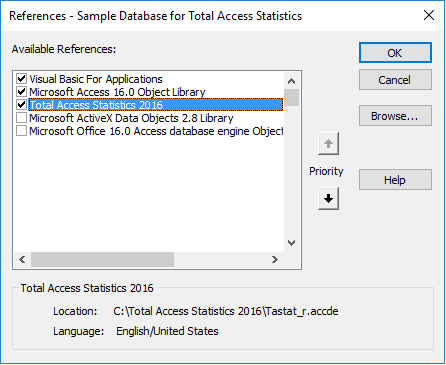
Different runtime libraries are available to support your Access version and database format. If you are using a MDB database, a MDE runtime library is used. If you are using an ACCDB database in Access 2007 or later, an ACCDE database is available. A 64 bit version of the ACCDE is available for the 64 bit versions of Access 2010, 2013 and 2016.
Total Access Statistics includes a special VBA function (TAS_Statistics) for your use in the runtime library. To add this to your code, follow these easy steps:
- Create the scenario in the database with the data to analyze.
- Determine the scenario number of the scenario desired.
- Make sure Total Access Statistics is properly installed and referenced by your database as a library database.
- Invoke the Total Access Statistics function.
The VBA statistics function definition is:
Function TAS_Statistics(
	ByVal lngScenarioNo As Long,
	ByVal strScenarioTbl As String,
	ByVal strFieldTbl As String,
	ByVal strOptionsTbl As String,
	ByVal fMessage As Boolean,
	Optional strDataSource As String = "",
	Optional strOutput1Tbl As String = "",
	Optional strOutput2Tbl As String = "",
	Optional strMessageTitle As String = "",
	Optional strParameterTbl As String = "")
As Boolean
That may seem complicated, but most of the parameters are optional and support situations when you store the scenario settings in your own tables or override the saved settings. Here's an example of run a scenario number 5) and letting it show progress to the user:
Dim fOK As Boolean

fOK = TAS_Statistics(5, "", "", "", True)
The function returns a True or False depending on whether it was successful.
To make it even easier to create the VBA code for your application, Total Access Statistics includes a Code Generator feature that creates a procedure for your currently selected scenario:
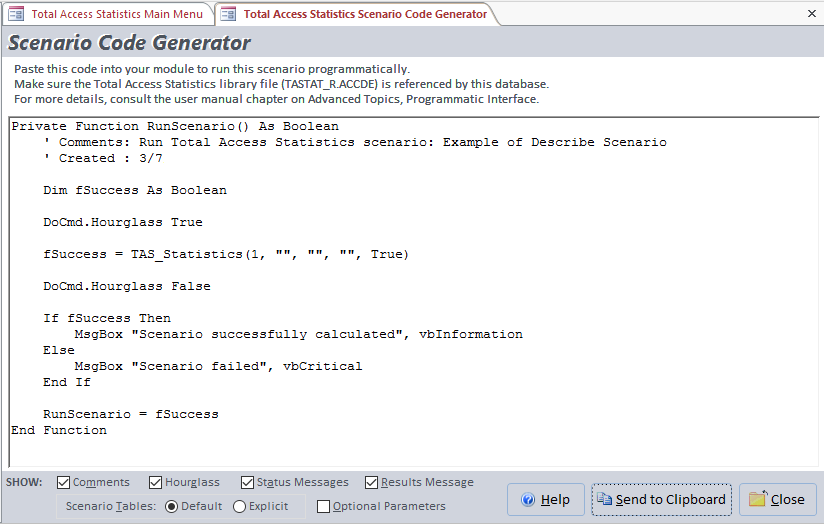
Simply paste it in your application and you're ready to go.
In addition to running Scenarios, Total Access Statistics also lets you incorporate the Probability Calculator in your VBA code. Easily generate probability values for Student's Z-Value, t-Value, Chi-Square, and F-Value with their corresponding degrees of freedom.
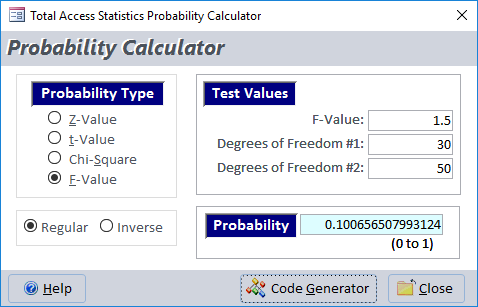
Probability Calculator in Total Access Statistics
The Probability Calculator also has a Code Generator to generate the code with a button click:
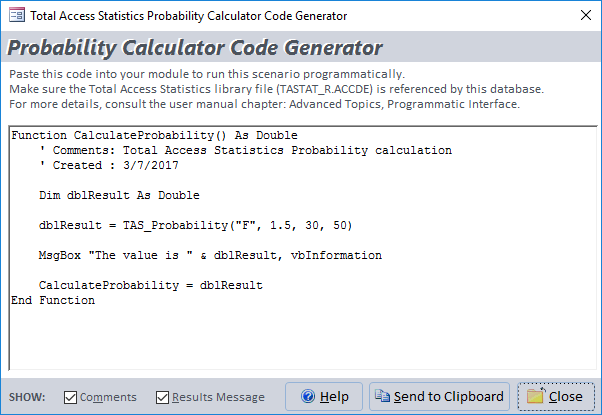
Probability function definition:
Function TAS_Probability(
	ByVal strProbType As String,
	ByVal dblTestValue As Double,
	Optional ByVal dblDF1 As Double,
	Optional ByVal dblDF2 As Double)
As Double
Sample Code
This example calculates the probability of an F-value of 1.5 for 30 and 50 degrees of freedom:
Dim dblProb as Double

dblProb = TAS_Probability("F", 1.5, 30, 50)
Similarly, if you know the probability value and degrees of freedom, the Inverse Probability function generates the test value for that probability.
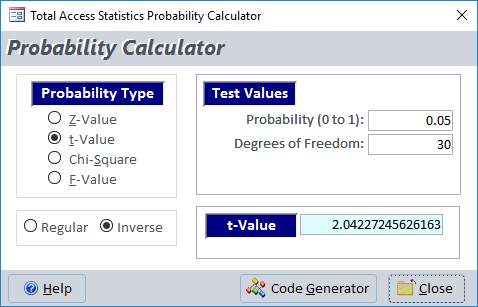
Inverse Probability Calculator in Total Access Statistics
Function TAS_ProbInverse(
	ByVal strProbType As String,
	ByVal dblProb As Double,
	Optional ByVal dblDF1 As Double,
	Optional ByVal dblDF2 As Double)
As Double
Sample Code
This example finds the t-value with a probability of 0.05 (5%) for a distribution with 30 degrees of freedom:
Dim dblValue as Double

dblValue = TAS_ProbInverse("T", 0.05, 30)
Additional Resources
For more information on the programmatic interface, the functions, and definitions of each parameter, refer to the Advanced Topics chapter of Total Access Statistics User Manual for Microsoft Access.
Microsoft Access 365/2016 shipping!

Version 14.1 for
Microsoft Access 2010
Version X.9 for
Microsoft Access 2007 and 2003
Version X.8 for
Microsoft Access 2002, 2000, and 97

Reviews
"Total Access Statistics performs a wide range of data analysis right inside Access. The product includes a Statistics Wizard to perform parametric, group, non-parametric, record analysis and more. The results are placed in Access tables that you can integrate into your forms and reports."
Alison Balter, Author

Statistics Info
 FAQs
FAQs
Additional Info