


Total Access CodeTools 97 - Detailed Product Specification Sheet
Total Access CodeTools is
another strong developer product...two of the tools are indeed remarkable--you won't find
utilities that clean up and obfuscate your Access Basic code like this anywhere.
--
Paul Litwin, Editor,
Smart Access Product Review
Write Better Code in Less Time!
- Write solid code
- Create maintainable code
- Clean up inherited code and standardize existing code
- Reduce the drudgery of common coding tasks.
Total Access CodeTools provides the features you need to create robust applications from beginning to end.
The Toolbar
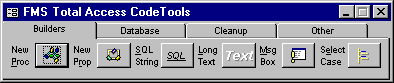
All of the features of Total Access CodeTools are accessed through the Total Access CodeTools Toolbar which floats above your workspace:
Builders Tab
Builders Tab
The following builders are available in Total Access CodeTools Builders Tab.
- Procedure
Builder
This builder allows you to quickly create new procedures that adhere to a set of standards that you define. It allows you to specify comment headers, error handling, indentation, naming conventions, and global procedure identifiers. - Property Builder
You can write property procedures in VBA that allow you to define properties of the objects you define in class modules. The process of creating such procedures can be difficult. You can use the Total Access CodeTools Property builder to quickly build the property procedures necessary to implement a property in a class module. - SQL
Builder
Adding a long SQL string into a module and easily viewing it usually requires breaking it into a multi-line statement. The SQL Builder automates this by allowing you to choose a saved query in your database and automatically convert it to a series of VBA lines that assign the string to a variable. - Long
Text Builder
Like SQL text, you may need to assign a long text string to a variable in your code. The Long Text Builder takes a string and automatically generates the multi-line code necessary to assign the text to a variable. - Message Box Builder
Message boxes are a common feature in Access applications. Unfortunately, Access does not provide tools for visually creating message boxes. Even experienced developers need to refer to the manual or help system to determine the values of icons and button options. The Message Box builder lets you visually create a message box statement or function. - Select Case Builder
Typing Select...Case statements can be a tedious process, especially when there are many conditions. The Select Case Builder allows you to quickly create such statements.
Procedure Builder
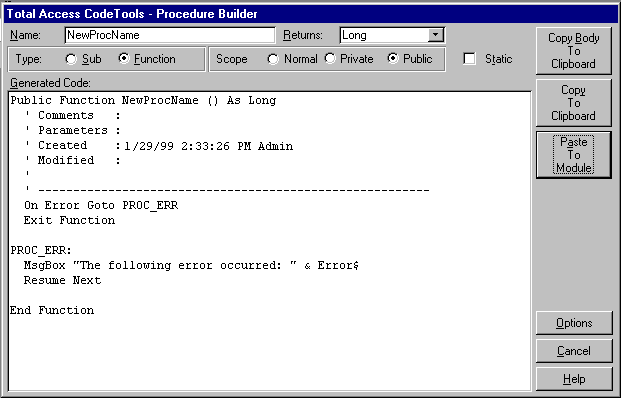
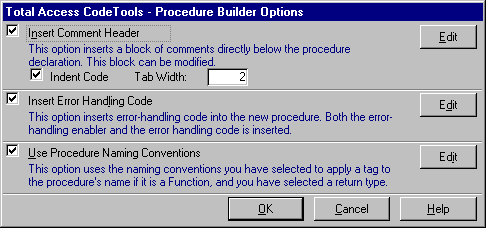
The Procedure Builder allows you to create new procedures that conform to a set of standards that you define. You can easily control the following aspects of the new procedure: Procedure name Procedure type: Sub or Function Procedure scope: Private, Public, or Default Return type for functions Comment structure Error handling code Naming conventions for function names
The following is an example of a procedure created by the Procedure Builder. This code was created by typing the procedure name "GetTable"—the builder took care of the rest:
Procedure Builder Form
Procedure Builder Options Form
Property Builder
Access 97 introduced the concept of class modules. Access 95’s form and report modules were also considered class modules, but they lacked the ability to create true objects that didn’t rely on an Access form. With class modules, you can create Property Statements that expose your class properties. Creating a property requires anywhere from one to three separate VBA procedures. The Total Access CodeTools Property Procedure Builder makes it easy to create property statements with a variety of options.
The following items are configurable in the Property Procedure Builder: Property name Property data type Option to create the module level variable to support the property Options to select the Let/Set/Get procedures Comment structure Error handling code
The following is an example of a procedure created by the Property Procedure Builder. This code was created by typing the procedure name "TableName"—the builder took care of the rest:
Private m_NewProperty As String

Public Property Get NewProperty() As String
  ' Comments :
  ' Parameters :
  ' Created : 1/29/99 2:41:11 PM Admin
  ' Modified :
  '
  ' --------------------------------------------------------

  On Error Goto PROC_ERR

  NewProperty = m_NewProperty

  Exit Property

PROC_ERR:
  MsgBox "The following error occurred: " & Error$
  Resume Next
End Property

Public Property Let NewProperty(NewValue As String)
  ' Comments :
  ' Parameters :
  ' Created : 1/29/99 2:41:11 PM Admin
  ' Modified :
  '
  ' --------------------------------------------------------
  On Error Goto PROC_ERR

  m_NewProperty = NewValue

  Exit Property

PROC_ERR:
  MsgBox "The following error occurred: " & Error$
  Resume Next
End Property
You can see from the above code that the property procedure statements for the Let, Get and Set operations are automatically generated, along with the declaration of the module-level variable to maintain the state of the property value.
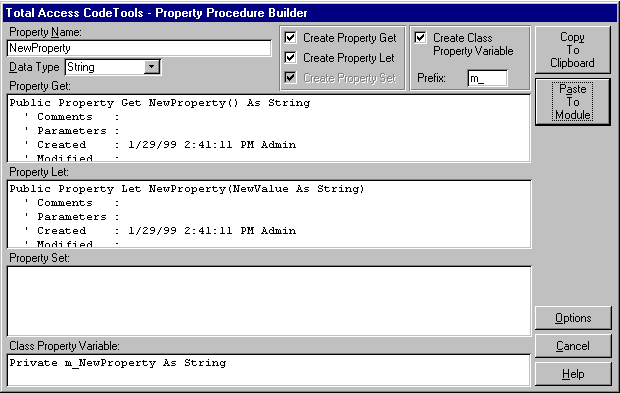
Property Procedure Builder Form
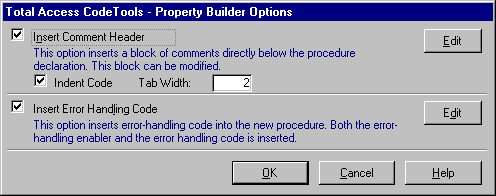
Property Builder Options Form
SQL Builder
Depending on your programming style, you may embed queries in your code or programmatically change SQL strings. The SQL Builder allows you to select an existing query in your database and easily convert its SQL string into one or more lines of VBA code.
You can, of course, just assign the SQL string to a variable in one line, but it is much easier to maintain and understand when broken into several lines and is completely visible on the screen. Additionally, some SQL strings contain double quotes that cause problems when you just surround the entire string with double quotes. There is an option that automatically converts double quotes to single quotes.
For example, assume your database contains a query with the following SQL string:
TRANSFORM Sum([Quantity]*[Price]) AS Sales SELECT ztblProducts.Product FROM ((tblOrders INNER JOIN ztblPrices ON tblOrders.PriceID = ztblPrices.PriceID) INNER JOIN ztblProducts ON ztblPrices.ProductID = ztblProducts.ProductID) INNER JOIN tblInvoices ON tblOrders.InvoiceID = tblInvoices.InvoiceID WHERE ((([Quantity]*[Price])<>0) AND ((ztblProducts.ProductGroup)="ACCESS") AND ((tblOrders.ShipDate) Is Not Null) AND ((tblInvoices.Cancel)=False)) GROUP BY ztblProducts.Product ORDER BY ztblProducts.Product, Year([tblOrders].[ShipDate]) PIVOT Year([tblOrders].[ShipDate]);The SQL Builder turns this to the following VBA code:
strSQL = "TRANSFORM Sum([Quantity]*[Price]) AS Sales " & _
         "SELECT ztblProducts.Product " & _
         "FROM ((tblOrders INNER JOIN ztblPrices ON " & _
         "tblOrders.PriceID = ztblPrices.PriceID) INNER " & _
         "JOIN ztblProducts ON ztblPrices.ProductID = " & _
         "ztblProducts.ProductID) INNER JOIN " & _
         "tblInvoices ON tblOrders.InvoiceID = " & _
         "tblInvoices.InvoiceID " & _
         "WHERE ((([Quantity]*[Price])<>0) AND (" & _
         "(ztblProducts.ProductGroup)='ACCESS') AND (" & _
         "(tblOrders.ShipDate) Is Not Null) AND (" & _
         "(tblInvoices.Cancel)=False)) " & _
         "GROUP BY ztblProducts.Product " & _
         "ORDER BY ztblProducts.Product, Year(" & _
         "[tblOrders].[ShipDate]) " & _
         "PIVOT Year([tblOrders].[ShipDate]);"
If you use the Line Continuation option, the above code looks like this:
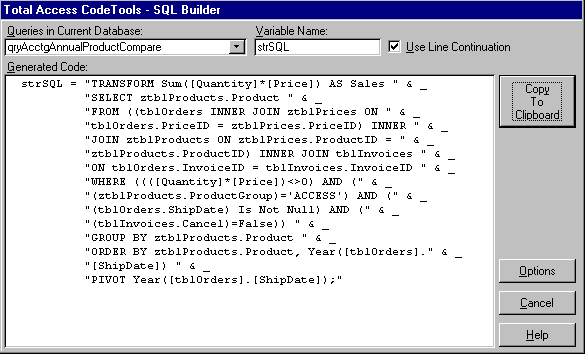
SQL Builder Form
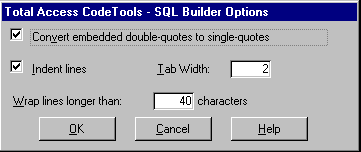
SQL Builder Options Form
Long Text Builder
There are many situations when you need to assign long text strings to variables. This usually occurs when you are coding error messages or prompts. However, splitting the variable assignment into multiple lines can be tedious.
The Long Text Builder allows you to enter a string and have it automatically word wrapped and converted to code that stores it in a variable. For example, the following text could be typed or pasted into the Long Text Builder:
As you change data in a database, the database file becomes fragmented and uses more disk space than necessary. Periodically, you can compact your database to defragment the database file: The compacted database is usually smaller. You can also choose to change the collating order, the encryption, or the version of the data format while you copy and compact the database.
The result is the following code:
strText = "As you change data in a database, the " & _
          "database file becomes fragmented and " & _
          "uses more disk space than necessary. " & _
          "Periodically, you can compact your " & _
          "database to defragment the database " & _
          "file: The compacted database is " & _
          "usually smaller. You can also choose " & _
          "to change the collating order, the " & _
          "encryption, or the version of the data " & _
          "format while you copy and compact the " & _
          "the database."
If you use the Line Continuation option, the same text results in this code:
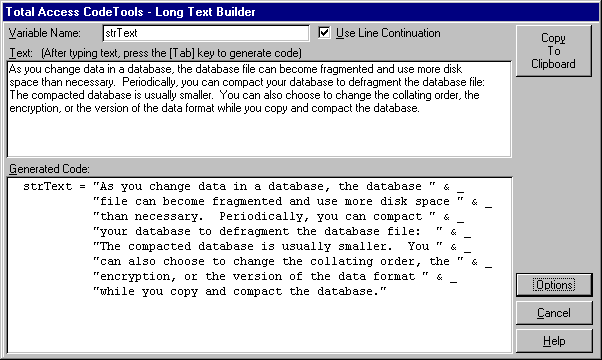
Long Text Builder Form
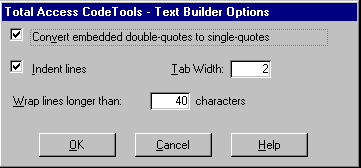
Long Text Builder Options form
Message Box Builder
Message boxes are simple user-interface elements that probably occur in several places in your application. Unfortunately, the syntax for coding one is difficult to remember. You could dig through the help file and add up constant values, or you can use the Message Box Builder.
The Message Box builder provides a visual tool for designing message boxes. As you use the mouse and keyboard to "draw" your message box, the builder lets you see the results and generates the corresponding VBA code.
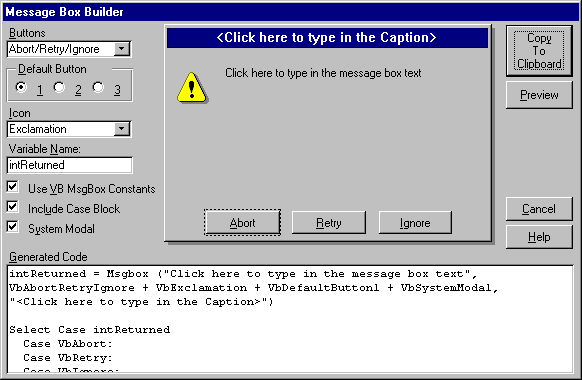
Message Box Builder Form
Select Case Builder
Building Select Case statements with more than a few values can be a hassle. Especially when you consider how many times you do it in an application with a lot of code. The Select Case Builder allows you to specify values and a variable name, and then quickly generate the VBA code for the Select Case statement.
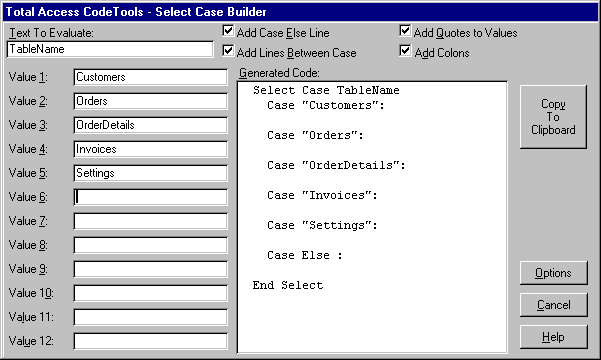
Select Case Builder Form
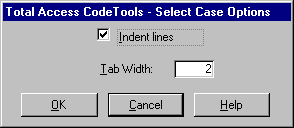
Select Case Builder Options Form
Database Tools
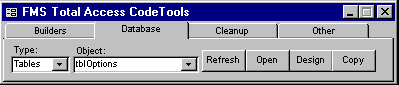
Database Tab
Imagine the scenario where you are deep in the process of writing code. You have several modules open, a few forms in design view, and the database window is obscured by all the open objects. As you are writing code, you realize you need the name of an object. So you hunt around for the database window, click on tabs and scroll through to find the object. You then open the object in design view to find the object’s definition. A lot of steps for a seemingly simple task.
The Database Tools feature of Total Access CodeTools simplifies these operations by always keeping the toolbar above your workspace and giving you an easy way to select objects. These tools are provided:
- Open - Opens the selected object. Tables, Queries, Forms, and Reports are opened in browse mode. For reports, this means Preview mode.
- Design - Opens the selected object in design view
- Copy - makes a copy of the selected object with an automatic default for the copy’s name
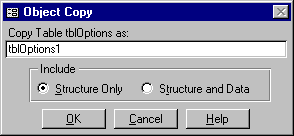
Object Copy Dialog
Code Cleanup
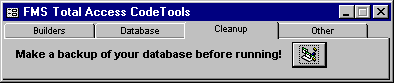
Cleanup Tab
As a software developer, chances are you have old code or occasionally inherit code from someone else that does not meet your coding standards. Given tight deadlines and time constraints, even your own code may have inconsistent indentation, naming conventions, and comment structures. The Code Cleanup tool addresses these problems by applying consistent formatting and other features to all your modules. Take your existing modules and apply these transformations:
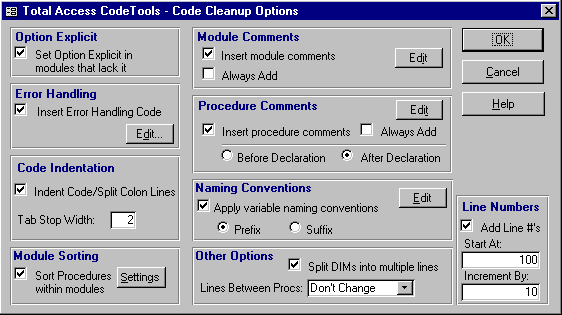
Code Cleanup Options
Add Option Explicit
Insert "Option Explicit" into the declarations section of every module
that lacks it. One of the cardinal rules of writing reliable and maintainable code is to
explicitly declare all of your variables. By adding "Option Explicit" to your
module, you are telling Access to require variable declaration.
Insert Error Handling
Error handling is one of the key attributes of robust applications. This feature
inserts error handling code into your procedures and allows several user-defined
formatting options.
Apply Standardized Code Indentations
Automatically indent code according to the tab stop width you specify. Every loop
and branching structure (If..End If, For..Next, Do..Loop, Select Case, etc.) is indented.
This makes your code more maintainable and easier to read.
Add Module Comments
Add a standard module header to the top of each module such as a project name,
creation dates, copyright notices, and ownership rights. A complete list of all procedure
names and procedure definitions can also be added.
Add Procedure Comments
Add comment headers to each procedure. Although the program cannot determine what
the code is actually doing and write the comments for you, it can take much of the
drudgery out of the process of creating consistent comment headers for each procedure.
Apply Variable Naming Conventions
Rename your existing variables to conform to naming conventions based on the
variable type (Integer, String, etc.). Every variable is given a prefix or suffix
identifying its type with additional options for global and module level variables.
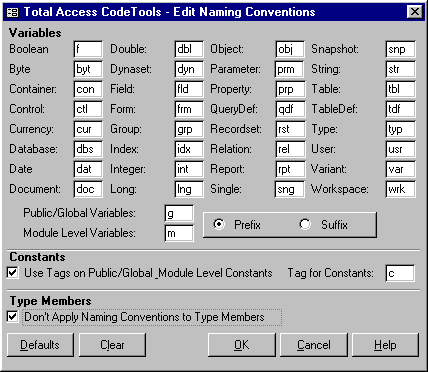
Edit Naming Conventions
Sort Module Procedures
In Access 2.0, when you entered a procedure into a module, it was automatically
sorted alphabetically by procedure name. In Access 97, this feature is gone allowing you
to insert procedures in any order. This may be good, but it can also create a mess. Code
Cleanup makes it easy to sort the procedures in your modules including property statements
in class modules.
Adding Line Numbers
Code Cleanup can add line numbers to your code to support the VBA Erl() function.
This function returns the number of the source code line where a runtime error occurred.
This number can help in debugging the program code.
Other Options
You can also use Code Cleanup to: - Convert multiple Dim statements
on one line to multiple lines for readability and robustness. - Specify the number of
blank lines between procedures in your module code.
Other Tools
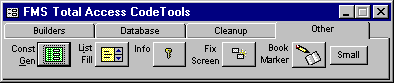
Other Tab
The following tools are available on the "Other" tab of the Total Access CodeTools toolbar.
- Constants
Generator
This tool makes it easy to generate module code that declares constants for each of the objects in your database. You can then use these constants to refer to objects in your database instead of hard-coding object names throughout your code. - List Fill Function Builder
The Access List Fill functions make it easy to fill List Box and Combo Box controls with data from your program’s code. The List Fill Function Builder makes the construction of these functions easy. - Access
Information
This utility provides detailed information about your Access environment, including data on your installation of Access, your database, file versions, and various performance statistics. - Fix
Screen
During system development, the hourglass cursor may be turned on and echo mode turned off. If your code crashes, it can be difficult to get Access back into a usable, debuggable state. The Fix Screen utility solves this by providing a simple button to restore Access’s echo and cursor state. - BookMarker
The BookMarker tool makes it easy to keep simple development notes in your database. You can keep notes about pending tasks, bugs, and unimplemented features, attaching each note to a specific object.
Constants Generator
The Constants Generator creates code that assigns constants for each object in your database. You can then use these constants to refer to objects in your database instead of hard-coding object names throughout your code. For example, the following code shows a typical reference to an object using a hard-coded reference:
Set rst = db.OpenRecordset("Customers")
The use of constants changes the code to:
Const tblCustomers = "Customers"
Set rst = db.OpenRecordset(tblCustomers)
The advantage of having a constant defining each object in your code is that it eliminates typos when referencing an object in more than one place, and if you change the object name, you can change it in one place. Of course, this does not affect non-code references to objects in forms, reports, queries, etc. However, it can significantly reduce the number of changes you need to make in your modules when you change an object’s name.
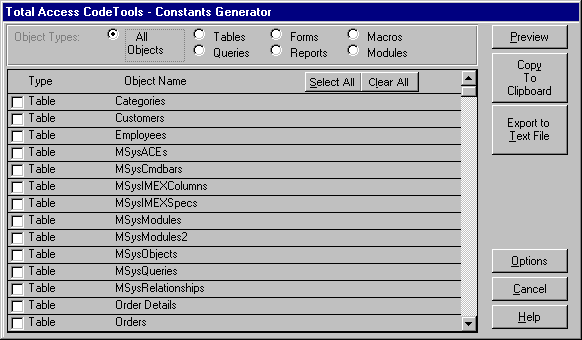
Constants Generator Form
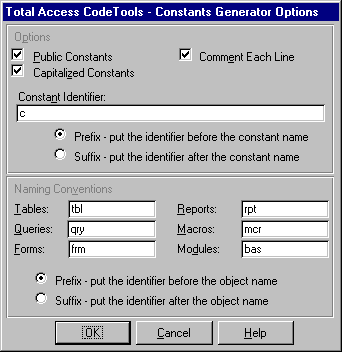
Constants Generator Options Form
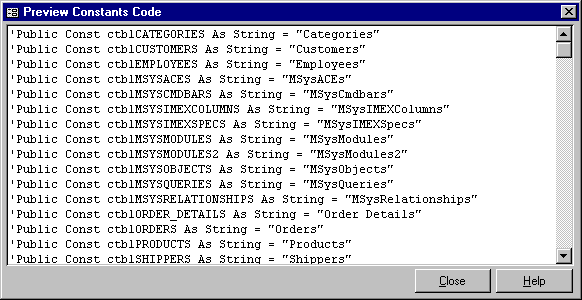
Constants Generator Preview Code
List Fill Function Builder
List fill functions provide a powerful mechanism for programmatically filling a combo box or list box. They are also difficult to write because they have a specific set of parameters and return values that Microsoft Access expects to see.
As described in the Access help file, you can write a VBA function that fills a list box or combo box with values. Although this is generally a more complicated way to fill either type of box, it enables you to design a list box or combo box in which the options are constantly changing or are not stored in the database. For example, you could write a function that presents a list of dates in a list box, each one a specific number of days after the current date.
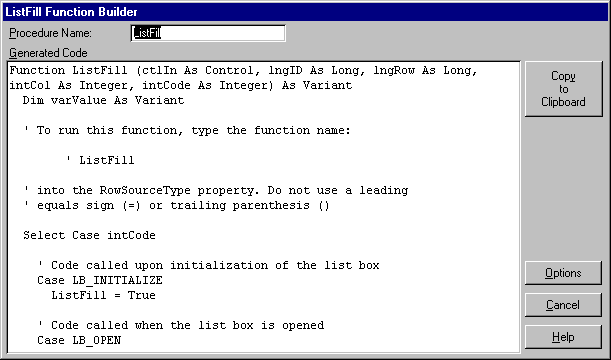
List Fill Function Builder Form
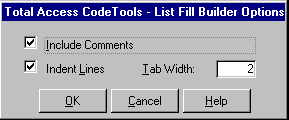
List Fill Function Builder Options Form
Access Information
Often when you are debugging Access applications, your code fails to run as expected even though there are no errors in the code. This can be caused by many factors, including settings in Access, and the Access application’s current state. Getting information about these factors can be difficult because it requires an intimate knowledge of Access and Windows. Total Access CodeTools makes this information available through the Access Information tool.
The Access Information tool shows information about your installation of Access, your database, operating system settings and more. The following section describes each of the items shown.
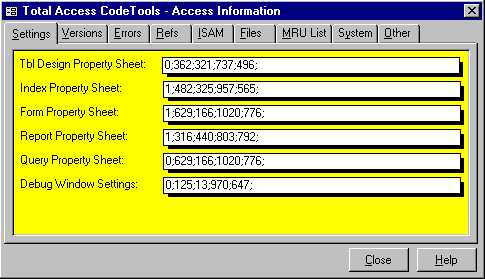
The Access Information Form
Settings Tab
Shows the settings for the various design windows available in Access. For example,
Table Design Property Sheet value shows whether or not the Property Dialog is enabled when
you are in table design and the coordinates where the Property sheet is to be displayed. A
value of 0;371;222;778;483; shows that the property sheet is turned off (the first
number=0, turned on would be 1), and the following four numbers are the top, left, width
and height settings for the window.
Versions Tab
Even though you are using version 8 of Access (Access 97), the actual files that
make up the product vary widely in their version numbers. For example, the original
version of Access 97 that shipped with Office 97 has different version numbers than the
latest version. This is usually caused when you download service packs or install new
software. The Versions tab of the Access Information tool shows you the versions of
various things as Access reports them, and also shows the actual file versions.
Access Version
The version of Access as reported by Access. This value is an overall product
version and will almost certainly always be 8.0 for Access 97, regardless of the updates
or service packs applied.
Database Access Version
The version of the Jet database engine used to create the database. The following
table shows the possible values and how they relate to other products that use the Jet
engine:
| Microsoft
Jet Version (year released) |
Microsoft Access | Microsoft Visual Basic | Microsoft Excel | Microsoft Visual C++ |
| 1.0 (1992) | 1.0 | N/A | N/A | N/A |
| 1.1 (1993) | 1.1 | 3.0 | N/A | N/A |
| 2.0 (1994) | 2.0 | N/A | N/A | N/A |
| 2.5 (1995) | N/A | 4.0 (16-bit) | N/A | N/A |
| 3.0 (1995) | ‘95 (7.0) | 4.0 (32-bit) | ‘95 (7.0) | 4.x |
| 3.5 (1996) | ‘97 (8.0) | 5.0 | ‘97 (8.0) | 5.0 |
Jet Version
The version of the Jet database engine installed on your system. Like the Access
Version value, this value does not reflect service packs and updates, and will almost
certainly return a value of 3.5 for the Access 97 product.
Runtime Version
Whether or not you are running Access 97 in runtime mode. Note that Access 95 and
Access 97 do not have a separate runtime executable like Access 2.0 did. They use the same
program as a standard copy of Access, but invoke it in a special runtime "mode".
Access EXE Version
The actual internal file version of Access. Use this number to determine if the
current copy of Access has had any service packs installed. Note that FMS cannot provide
information on the various releases of file versions—only Microsoft has that
information.
Jet DLL Version
The actual internal file version of the installation of the Jet database engine.
COMCTL32.OCX Version
The internal file version of the Windows Common Control ActiveX control. This file
changes often as you install new versions of Microsoft development products.
Errors Tab
This tab shows the description, number, associated help file, and help context id
of the last VBA error that occurred. For more information on these values, search Access
online help for Err Object.
References Tab
This tab shows the total number of VBA project references in the current database,
including how many are valid and how many are broken. For more information on VBA project
references, search Access online help for References.
ISAM Tab
This tab shows various performance statistics for the Jet database engine,
including the number of disk reads and writes, the number of cache and read-ahead cache
reads, and the number of locks placed and released. These numbers start incrementing from
the time you start Access.
Files Tab
This tab shows information on files and paths.
Current DB Name
The name and extension of the current database.
Current DB Path
The path (without the name and extension) of the current database.
Code DB Name
The name and extension of the currently running library database.
Code DB Path
The path (without the name and extension) of the currently running library
database.
INI File
The value of the Access SysCmd INIFile command. Note that INI files are no longer
used in Access 97, so this value points to an imaginary file for backward compatibility.
Profile
The name of the profile (if any) in use. Access allows the use of User Profiles by
implementing the /profile startup key. For more information, search Access online
help for Startup command-line options.
Workgroup File
The path and name of the workgroup information file (also known as the security
database) currently in use.
MRU List Tab
This tab lists the values of each of the entries in the Access "Most Recently
Used" list. This list shows up on the Access file menu.
System Tab
This tab shows information about your computer’s hardware, memory, operating
system version, and operating system directories.
Other Tab
This tab contains miscellaneous information about your database
Database Under SCC
Tells you if the current database is under Source Code Control through Microsoft
Visual SourceSafe.
Access Window Handle
The numeric handle to the Access main window.
Current User
The name of the currently logged in Access user.
Database Compiled
Whether all the module code in the database is compiled. Search Access online help
for IsCompiled for more information.
User Control
The value of the Access UserControl property.
Database Replicated
Whether or not the current database is a replica (using Access database
replication).
Fix Screen
A common requirement in Access application development is controlling how the screen looks at certain points while your application is running. The two most common operations your program will make in this area are: Setting the cursor to an hourglass cursor (to show that the system is busy) by using the DoCmd.Hourglass True command./ Temporarily suspending screen updates to hide screen activity, by using the DoCmd.Echo False or Application.Echo False commands.
Unfortunately, as you are debugging your application, these two operations can lead to big problems. For example, if an error occurs in your application while you have the hourglass cursor turned on and screen updates turned off, it is impossible to see the code or forms on the workspace. To solve this, you have to find the Access Debug window (which may itself be turned off) and type in the appropriate commands to re-enable screen updates and turn off the hourglass cursor.
The Total Access CodeTools Fix Screen tool makes these steps as easy as pressing a button. If you find yourself in this state, simply press the Fix Screen button and Access is restored to a usable state. Fix Screen does the following:
- Turns the hourglass cursor off
- Turns screen painting on
- Restores and refreshes the database window
- Restores and refreshes the Access title bar
Bookmarker
As you develop an Access application, you need to keep track of pending items, undone tasks, bugs, and other pieces of development information. You may keep these in a NotePad file, a Word document, or even in a paper notebook. Total Access CodeTools can help with its BookMarker tool.
This tool provides you with a simple user-interface to add, edit and delete notes about specific objects in your database. Best of all, the notes are stored in an Access table in your database. That way, the notes always travel with the database.
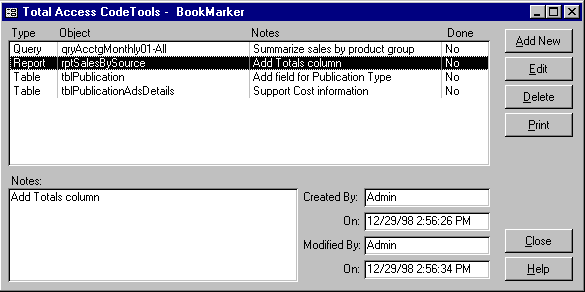
BookMarker Form
System Requirements
Total Access CodeTools is implemented as a Microsoft Access library database and runs within Access. As such, it has the same system requirements as Microsoft Access:
- Pentium processor or better
- 32+ MB RAM
- 10 MB of free disk space to install the product. Additional disk space may be necessary depending on the complexity of your modules.
- Windows 95, Windows NT 3.51 or later. If you are using NT version 4, you should have service pack 2 (or later) installed. If you are using Windows NT 3.51, you should have service pack 5 (or later) installed.
- Total Access CodeTools 8.0: Microsoft
Access 97 (Access 8.0)
Total Access CodeTools 2.0: Microsoft Access 2.0
Where Can I Go To Learn More?
The following resources are available to help you learn more about Total Access CodeTools:
- Main Total Access CodeTools Page
- Independent Product Reviews
- Order Total Access CodeTools
- Request a Product Catalog
- Order and pricing questions? Email sales@fmsinc.com
- Technical questions? Email support@fmsinc.com
Microsoft Office Access 2016, 2013, 2010 Version
is Shipping

Supports Office/Access 2016, 2013, 2010, 2007, 2003, 2002, 2000, and Visual Basic 6.0!
Also available for
Access 97

Rave Reviews
"Total Visual CodeTools is by far my favorite third-party product."
Alison Balter, Author, Conference Speaker, Instructor

Best Visual Basic Add-In
Rave Reviews
CodeTools Info


Why CodeTools?
Additional Info