Eliminate Extra Excel Worksheets
Provided by Luke Chung, FMS President
By default, a new Excel spreadsheet includes three worksheets:

Typically, most users only need to have one worksheet available. Having the extra worksheets does not matter, but if you give the spreadsheet to someone else, they may need to look at the extra worksheets to verify nothing is there, or may miss something the few times you put information there.
Follow the steps below to modify the default behavior to include only one worksheet. (Note: You can always add additional worksheets as you need them.)
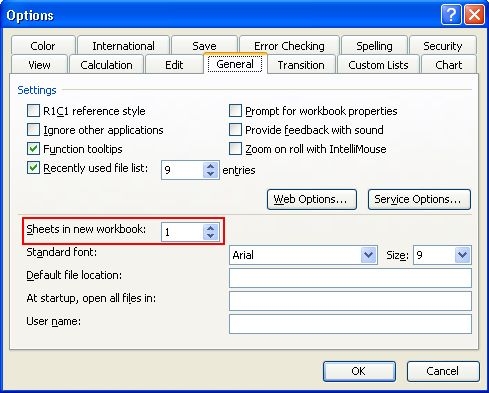
In Microsoft Office Excel 2003 and Earlier
- From the Excel menu, select Tools -> Options to open the Options dialog.
- Switch to the General tab, and change the "Sheets in new workbook" option to 1:
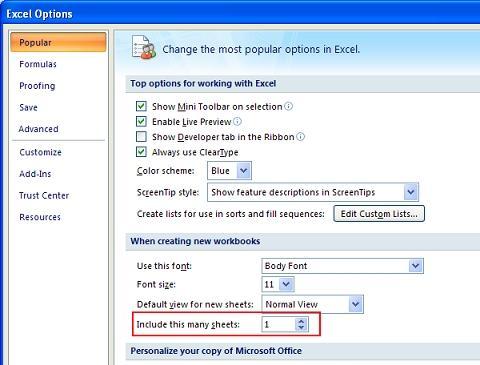
In Microsoft Office Excel 2007
- Click on the Office button (in the upper left corner), and select "Excel Options" to open the Options dialog.
- With "Popular" selected in the Left Menu, change the "Include this many sheets" option to 1.
If you should need additional worksheets:
- Right click on a worksheet tab
- Select "Insert..."
- Select "Worksheet" and click the OK button, or double-click on "Worksheet".
 Latest Newsletter
 Demos
Demos
 Microsoft Access Developer Help Center
 Microsoft Access Query Help Center
 MS Access to SQL Server Upsizing
 Microsoft Outlook Tips
 Technical Papers
 Tips and Techniques
 Videos
Connect with Us
 Email Newsletter
 Developer Team Blog
 Facebook
 X/Twitter
 Support Forum & Tickets
Additional Resources
 Book
Book Links to Related Sites
 My FMS
Thank you! Thank you! I just finished reading this document, which was part of a link in the recent Buzz newsletter. I have printed it for others to read, especially those skeptical on the powers of Access and its capabilities.
Darren D.
 All Our Microsoft Access Products



