Viewing Different Sections of a Document Simultaneously
Provided by Molly Pell, Senior Systems Analyst
Using the Microsoft Word “Split Window” feature, you can view two sections of a document in the same window. I use this feature often to:
- Make sure different sections use consistent terminology and formatting.
- Compare “Contents” sections to the actual document.
- Compare different views of the document.
- Work on two sections at once.
To see two sections at the same time, select Window | Split from the Word menu, and the splitter appears. Just click where you want the document split, and then use the splitter bar to resize the sections.
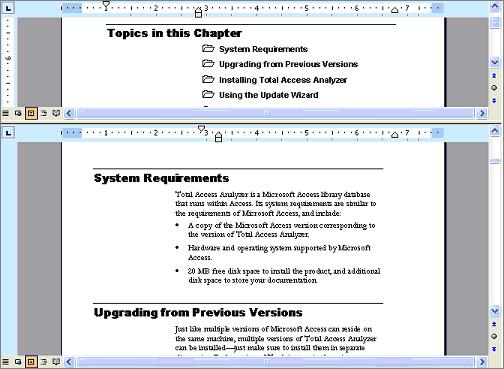
Or even easier, grab the splitter bar, which is positioned above the vertical scroll bar. Just drag it to the location where you want the split
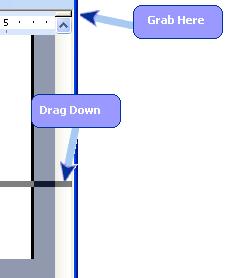
To remove the split, select Window | Remove Split from the menu, or drag the splitter back up to the top.
 Latest Newsletter
 Demos
Demos
 Microsoft Access Developer Help Center
 Microsoft Access Query Help Center
 MS Access to SQL Server Upsizing
 Microsoft Outlook Tips
 Technical Papers
 Tips and Techniques
 Videos
Connect with Us
 Email Newsletter
 Developer Team Blog
 Facebook
 X/Twitter
 Support Forum & Tickets
Additional Resources
 Book
Book Links to Related Sites
 My FMS
Thank you! Thank you! I just finished reading this document, which was part of a link in the recent Buzz newsletter. I have printed it for others to read, especially those skeptical on the powers of Access and its capabilities.
Darren D.
 All Our Microsoft Access Products



