Create Shortcut Text for Web Sites in Internet Explorer
Provided by Molly Pell, Senior Systems Analyst
By creating a registry key, you can add keyword shortcuts for those long or hard-to-remember web addresses. (Of course you can use the Favorites feature, but often I find it easier to remember a keyword than to dig through my Favorites list.)
Here’s how to add a keyword shortcut:
NOTE: Use extreme caution when modifying your registry as changing some values may affect your computer adversely. Prior to changing anything in your registry, you may want to consider making a backup of the registry first.
- Open the registry editor by clicking on Start, Run, and typing "regedit" (without quotes).
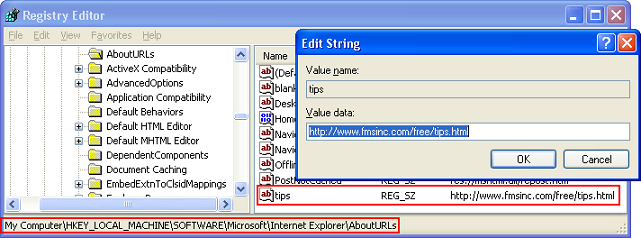
- Navigate to: HKEY_LOCAL_MACHINE\SOFTWARE\Microsoft\Internet Explorer\AboutURLs
- Add a string value.
- For the value name, enter the text that you want to use as the shortcut. No spaces are allowed in the name.
- For the value data, enter the web site address.
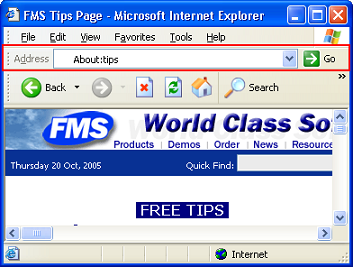
In the Internet Explorer address bar, type about:ShortcutText to go to the web site.
For example, add a string value named “tips” with value data http://www.fmsinc.com/free/tips.html.
Then in the Internet Explorer address bar, type “About:Tips,” and you are redirected to the web site.
 Latest Newsletter
 Demos
Demos
 Microsoft Access Developer Help Center
 Microsoft Access Query Help Center
 MS Access to SQL Server Upsizing
 Microsoft Outlook Tips
 Technical Papers
 Tips and Techniques
 Videos
Connect with Us
 Email Newsletter
 Developer Team Blog
 Facebook
 X/Twitter
 Support Forum & Tickets
Additional Resources
 Book
Book Links to Related Sites
 My FMS
Thank you! Thank you! I just finished reading this document, which was part of a link in the recent Buzz newsletter. I have printed it for others to read, especially those skeptical on the powers of Access and its capabilities.
Darren D.
 All Our Microsoft Access Products



