Using Quick Watch
Provided by the FMS Development Team
The Quick Watch allows you to monitor the value of any variable, property, object, or expression as your code executes. Additionally, the Quick Watch allows you to specify a condition to allow the execution of the code to enter a break mode. This break mode will allow you to examine the code and/or values.
The context types allow you to specify the range for which to monitor the variable, property, object or expression. For example, if you have a global variable that you need to monitor, you can narrow your focus to a specific Module and/or Procedure to see if the value changes or remains the same.
- Procedure - Select “(All Procedures)” or specify a specific procedure to monitor the variable or expression.
- Module - Select “(All Modules)” or specify a specific module to monitor the variable or expression.
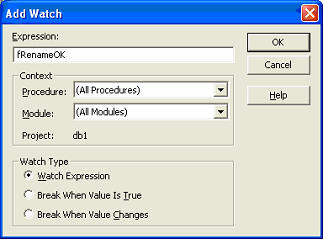
There are 3 types of Watch expressions:
- Watch Expression - Monitor the variable, property, object or expression as the code executes.
- Break When Value Is True - The code execution halts when the expression entered evaluates to True.
- Break When Value Changes - The code execution halts when the expression entered changes its value.
Suppose you have a variable that changes values at many locations in your code. What should you do if the value you are expecting is not the value the variable contains? Instead of littering your code with many message boxes or break points to watch the variable, the Quick Watch monitor can perform this action for you.
For example, you define a Boolean variable ‘fIsOK’. A True value will allow the application to process the customer’s order. However, the value never gets set to True. To see where the value gets set to False, you can set the Quick Watch as such:
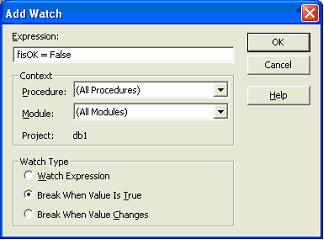
Run your application. When the expression fisOK equals False, your application will halt at the line of code. From this point, you can evaluate your code to resolve the problem.
The Access help file provides step-by-step instructions on how to open the Quick Watch window. Search for "Debug your Visual Basic code". The subtopic is called "Add, modify, or delete a watch expression in the Watch window of the Microsoft Visual Basic Editor".
 Latest Newsletter
 Demos
Demos
 Microsoft Access Developer Help Center
 Microsoft Access Query Help Center
 MS Access to SQL Server Upsizing
 Microsoft Outlook Tips
 Technical Papers
 Tips and Techniques
 Videos
Connect with Us
 Email Newsletter
 Developer Team Blog
 Facebook
 X/Twitter
 Support Forum & Tickets
Additional Resources
 Book
Book Links to Related Sites
 My FMS
Thank you! Thank you! I just finished reading this document, which was part of a link in the recent Buzz newsletter. I have printed it for others to read, especially those skeptical on the powers of Access and its capabilities.
Darren D.
 All Our Microsoft Access Products



