Quickly Reformat HTML in Visual Studio 2005
Provided by Dave Juth, Senior Systems Architect
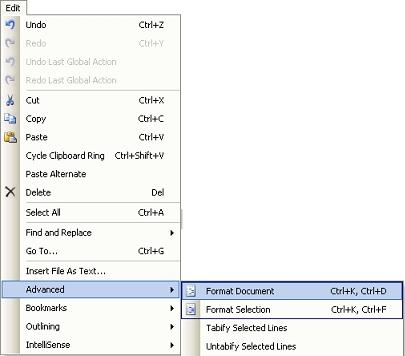
The Visual Studio 2005 HTML editor has a feature that lets you automatically format HTML code with your preferences. From the Visual Studio Edit menu, select "Advanced", and then choose "Format Document" or "Format Selection" (or use the shortcuts "Ctrl+K, Ctrl+D" or "Ctrl+K, Ctrl+F" respectively):
Alternately, you can highlight the code that you want to format, right-click, and select “Format Selection”:
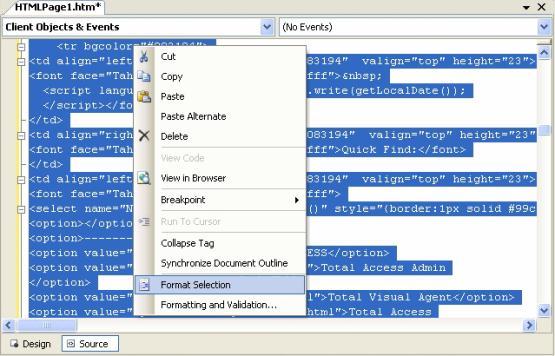
This applies the rules defined in Visual Studio for HTML code. You can customize the rules to suit your preferences by choosing the “Formatting and Validation” option from the right-click menu.
This opens the Options dialog to the HTML Format pane:
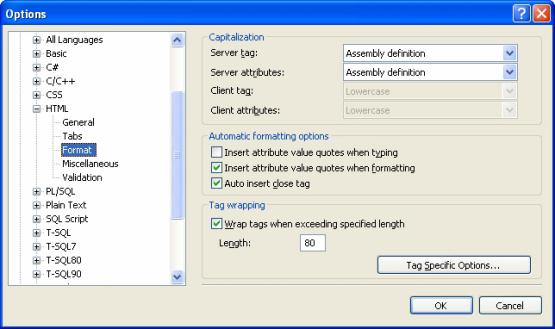
The following options are available on the HTML Format pane:
- Capitalization options for Server tag, Server attributes, Client tag, and Client attributes.
- Automatic formatting options to insert attribute value quotes when typing, insert attribute value quotes when formatting, and automatically insert close tags.
- Text wrapping options to let you specify whether to wrap text, and to specify the length before wrapping.
- Tag-specific options to customize how the HTML designer formats markup for individual tags.
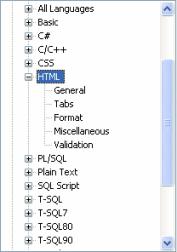
Additional options are available on the other HTML panes:
For more information, visit General, HTML, Text Editor, Options Dialog Box.
Additional Resources
 Latest Newsletter
 Demos
Demos
 Microsoft Access Developer Help Center
 Microsoft Access Query Help Center
 MS Access to SQL Server Upsizing
 Microsoft Outlook Tips
 Technical Papers
 Tips and Techniques
 Videos
Connect with Us
 Email Newsletter
 Developer Team Blog
 Facebook
 X/Twitter
 Support Forum & Tickets
Additional Resources
 Book
Book Links to Related Sites
 My FMS
Thank you! Thank you! I just finished reading this document, which was part of a link in the recent Buzz newsletter. I have printed it for others to read, especially those skeptical on the powers of Access and its capabilities.
Darren D.
 All Our Microsoft Access Products



