Resolving Slow Web Site Performance from Only One Location
Provided by: John Litchfield, Database Analyst
Why Does a Web Site Perform Slowly from One Location?
Have you ever experienced a case where a particular offsite web server delivers a painfully slow response when you access it from your work network? You may have already attempted to troubleshoot this issue by assessing the web server itself, only to unsuccessfully pinpoint any helpful information or indication that this server is having any technical issues.
Even more bizarre, the web site delivers a “lightening fast” response when accessed from other locations like your home. “Hmmm…it must be a problem with my network at work”, you start to think. But after loading other websites (from work), you notice that these other websites load perfectly fast. You then (again) attempt to access the problematic offsite web server from work, but again it still takes forever to load, confirming the original issue.
At first glance, these symptoms appear to conflict with each other. Could there be an issue with the particular route being used for data transmission between these two sites? The answer is yes indeed!
Problems Associated with Routing
A slow response from a website or web server indicates data packet loss. The larger the number or percentage of packets that are lost during a transmission, the slower the response is from the server that you are accessing. How does one troubleshoot or fix a problem like this?
Very simple.
The first step for determining data packet loss is documenting the actual route being taken (that is, which routers are currently responsible for the data packet transmission). There is a native Microsoft Windows command entitled “tracert” that you can use. This command returns a list of the routers and router locations that are used for the data packet transmission. Simply execute this command using any Windows computer system from your site and append the web server IP address as the parameter. For example:
C:\>tracert 64.233.167.99
…where “64.233.167.99” is the IP address of your web server.
Pictured below is an example of a sample output using tracert:
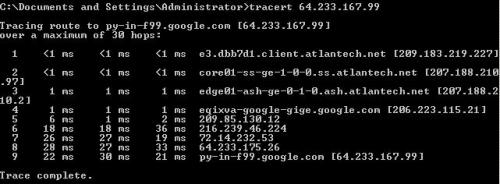
From the screenshot above we can see the IP address of each router that takes a part in the data packet transmission.
The second step is to use the Windows Ping command to isolate any routers that may be responsible for packet loss. Packet loss manifests itself in a sporadic nature. On a random basis, some data packets are successfully transmitted while others are not. We can use the ping command to send an assortment of test packets and measure the percentage of successful transmissions. The larger the number of test packets being transmitted, the greater the probability that there is packet loss during your test. It also follows that the larger the packet size transmitted, the greater the probability that there is packet loss. The ping command is executed in the following manner:
C:\>ping –n 25 -1 500 209.190.220.139
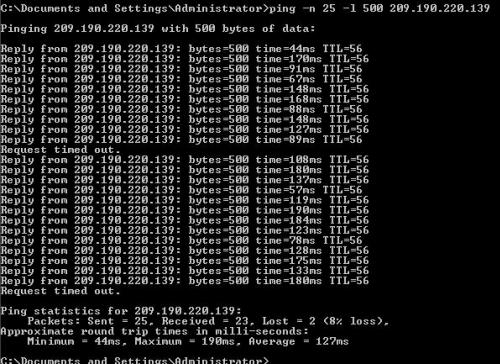
The statement above is an instruction to send 25 data packets, each 500 bytes in size to the IP address of “209.190.220.139”. In most cases, a byte size of 500 being transmitted 25 times to a given router is significant enough to discover data packet transmission problems (or packet loss) if there is in fact a problem.
The screenshot below illustrates an actual case where data packet loss was discovered by using the ping command. There is an 8% loss of data in this case.
If you isolate the issue to one or more routers, you need to notify the responsible parties. In most cases, this is your ISP. A simple explanation of your test results with screenshots is very helpful to them. Be sure to include your tracert report as well as your ping tests.
One last final note: You may want to bear in mind that the results of your ping tests could be time dependent based on the rate of other traffic passing through these public routers. In cases like this, you might benefit from the implementation of various tests at different times of the day or evening since the time periods of higher traffic will return a higher rate of data packet loss during transmission when there is a problem.
Special thanks to David O’Leary of Better World Telecom for helping us to diagnose and resolve this issue.
 Latest Newsletter
 Demos
Demos
 Microsoft Access Developer Help Center
 Microsoft Access Query Help Center
 MS Access to SQL Server Upsizing
 Microsoft Outlook Tips
 Technical Papers
 Tips and Techniques
 Videos
Connect with Us
 Email Newsletter
 Developer Team Blog
 Facebook
 X/Twitter
 Support Forum & Tickets
Additional Resources
 Book
Book Links to Related Sites
 My FMS
Thank you! Thank you! I just finished reading this document, which was part of a link in the recent Buzz newsletter. I have printed it for others to read, especially those skeptical on the powers of Access and its capabilities.
Darren D.
 All Our Microsoft Access Products



