Easily Organize Multiple Spreadsheets to Open Together
Provided by Molly Pell, Senior Systems Analyst
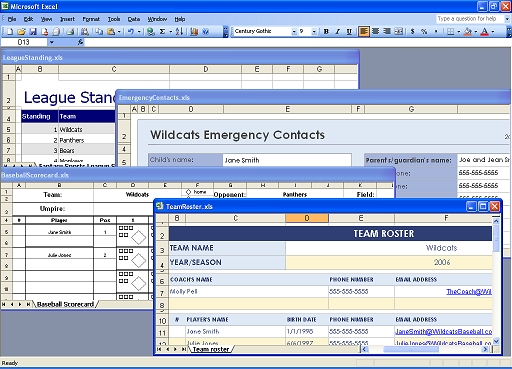
If you always open a group of spreadsheets together, you can create an Excel workspace that simplifies this task. Using Excel Workspaces, you can open and organize a set of related workbooks, and save the arrangement for later use. Just open the workbooks that you use together, arrange them, and save the workspace. Later on, open the workspace file (*.xlw) to pick up where you left off. Think of workspaces as a shortcut to a group of files in a particular view. The workspace does not contain the workbooks, it just points to them.
Consider coaching a sports team. You may have separate workbooks for the team roster, emergency contacts, scorecards, and stats. These files may be saved in various locations on your computer, but you often need to open them all at once.
Instead of locating and arranging each of the files when you need them, follow these steps to create a workspace:
- Open the workbooks that you use together, and arrange them in the Excel window.
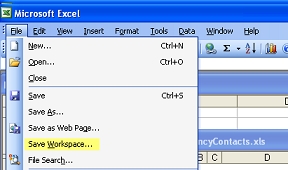
- From the Excel menu, select File > Save Workspace:
- On the dialog that appears, notice that the file type changes to “Workspaces (*.xlw)”:
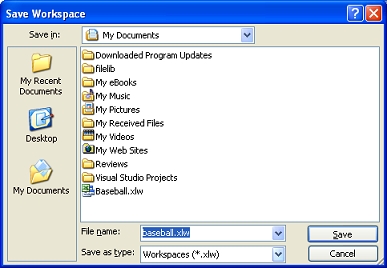
- Select an appropriate name and location for the workspace, and click “Save.”
The next time you need to open the group of files, just open the workspace that you created. The group of workbooks opens and is arranged just how you left it. Remember that the workspace does not contain the files themselves. That is, if you need to copy the workbooks to disk, you can’t just copy the workspace—you’ll need to copy the actual workbooks.
 Latest Newsletter
 Demos
Demos
 Microsoft Access Developer Help Center
 Microsoft Access Query Help Center
 MS Access to SQL Server Upsizing
 Microsoft Outlook Tips
 Technical Papers
 Tips and Techniques
 Videos
Connect with Us
 Email Newsletter
 Developer Team Blog
 Facebook
 X/Twitter
 Support Forum & Tickets
Additional Resources
 Book
Book Links to Related Sites
 My FMS
Thank you! Thank you! I just finished reading this document, which was part of a link in the recent Buzz newsletter. I have printed it for others to read, especially those skeptical on the powers of Access and its capabilities.
Darren D.
 All Our Microsoft Access Products



