Keep your Favorite Documents Handy using the Word Work Menu in Microsoft Office Word 2003, 2002, 2000, and 97
Provided by Molly Pell, Senior Systems Analyst
Microsoft Office Word (version 2003 and earlier*) has a really handy built-in way to keep track of your favorite documents, but it’s mysteriously almost undocumented by Microsoft. The Work menu is similar to the Most Recently Used (MRU) file list, but it lets you decide which documents to keep (like a Favorites list) instead of keeping track of every document that you open.
*Microsoft Office Word 2007 does not include the Work menu, but it includes a new feature that lets you pin your favorite items to the MRU list.
Follow these steps to add the Work menu to Microsoft Word:
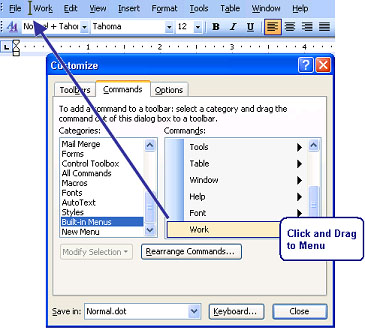
- From the Tools menu, click Customize.
- Select the Commands tab.
- In the Categories list (on the left), select “Built-In Menus”.
- In the Commands list, locate Work and drag it to your toolbar.
- Close the Customize dialog.
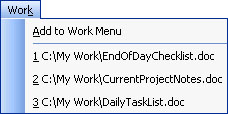
Adding documents to the menu is easy—just open the document and select Work, Add to Work Menu. Removing documents, however, is a little trickier.
To remove items, you have two options:
- Open the Customize dialog as explained above, and drag the "ToolsCustomizeRemoveMenuShortcuts" item (from the "All Commands" category") to the Work menu.
- Use the keyboard shortcut for removing menu items (in English versions ofWord, the shortcut is Crtl+Alt+Hyphen).
When you use either of these options, the mouse cursor changes to – and allows you to click and remove any item from any menu. Be careful not to click on the wrong menu item, though, or it’s gone!
Limitations of the Work Menu
While incredibly useful, this feature does have several limitations, which is perhaps why it's not fully documented as a feature. For example:
- As noted above, removing menu items is not intuitive, and it’s easy to accidentally remove the wrong menu item by mis-clicking.
- Like the MRU list, the Work list is limited to 9 entries. Try to add a 10th, and an item is removed from the bottom of the list.
- You can’t reorder the list. Like the MRU list, the Work list is always sorted in the order that you add the documents.
- The Work menu stores shortcuts. If you move or delete a document, the Work menu shortcut no longer works.
- Sub-menus are not supported.
If you know about these limitations, however, you can work around them and make great use of this little-known feature.
For more information, just search Google for "Word Work Menu," and you'll find hundreds of opinions and articles about how to make the most of this feature.
 Latest Newsletter
 Demos
Demos
 Microsoft Access Developer Help Center
 Microsoft Access Query Help Center
 MS Access to SQL Server Upsizing
 Microsoft Outlook Tips
 Technical Papers
 Tips and Techniques
 Videos
Connect with Us
 Email Newsletter
 Developer Team Blog
 Facebook
 X/Twitter
 Support Forum & Tickets
Additional Resources
 Book
Book Links to Related Sites
 My FMS
Thank you! Thank you! I just finished reading this document, which was part of a link in the recent Buzz newsletter. I have printed it for others to read, especially those skeptical on the powers of Access and its capabilities.
Darren D.
 All Our Microsoft Access Products



