 Synchronize Two Related Subforms on a Microsoft Access Form
Provided by Luke Chung, FMS President and John Litchfield, Database Analyst
Sample Database: LinkingTwoSubforms.zip (26K)
Microsoft Access makes it easy to see related records on forms. A simple Access form has a record source displaying data from a table or query. The form can be displayed in:
- Single Form showing one record with each field formatted and aligned exactly where you like it
- Continuous Form where each field is formatted and aligned like the Single Form, but multiple records are displayed to the height of the form
- Datasheet which displays all the records like viewing a table
One of the most powerful features of displaying data is the use of subforms. A subform is a form with its own data source that is embedded in another "master" form.
Subforms provide a powerful way to easily see related data, especially one-to-many relationships, without writing code. Access automatically filters the data in the subform based on data in the master form. This is accomplished by setting the Link Master Fields and Link Child Fields properties of a subform.
- The Master Field is the name of the control on the main form that the subform is filtered on
- The Child Field is the name of the field (not the control) in the subform
In the sample database, the form frmSimple shows an example where the form's recordsource is the master table (tblMaster) and the subform (subDetail) displays its corresponding records:
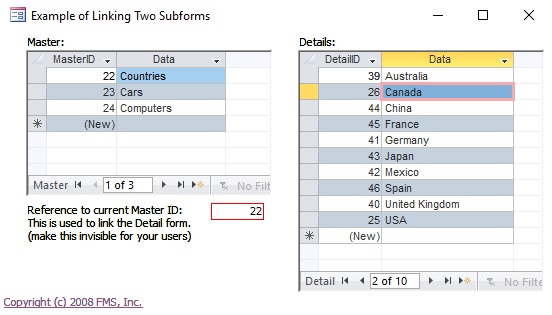
The subform only displays the records for one value in the MasterID field. To do this, we:
- Rename the control for the MasterID field to txtMasterID. This differentiates between referencing the control or the underlying field. We want to reference the control.
- Assign this control to the subform's Link Master Fields property
- Assign the field in the subform's recordsource, MasterID, to the Link Child Fields property
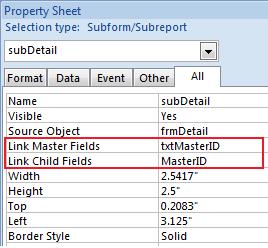
Example of Setting Link Master and Link Child Fields
For situations where you want to filter on more than one field, the Link Master Fields and Link Child Fields can contain values separated by semicolons. Just match them in the order desired.
Link Master Fields Reference Controls Rather than Field Names
As a habit, one should always reference the control name rather than the field name for the Link Master Field. For more information, read Microsoft Access Subforms Master Link Fields.
What if you want to show a list of the "master" records and the corresponding detail records of the current master record?
For instance, you may want to show all the master records and as the user moves through the list, the corresponding records appear in the detail subform:
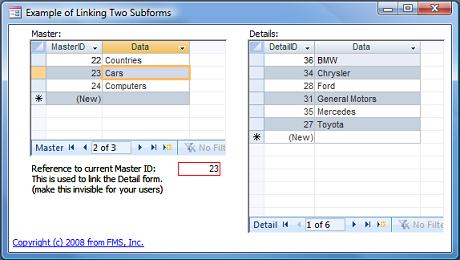
Fortunately, you can easily do this by just setting some properties without writing any VBA code!
To do this, we create an unbound (no recordsource) form and put two subforms in it (look at the frmParent form in the sample database).
The first subform (frmMaster) is the list of master records, and the second (frmDetail) contains the details.
We synchronize the subforms using the Link Child Fields and Link Master Fields properties of the detail subform.
A Subform Cannot Link to Fields in a Subform of its Parent
In a regular main to subform design, the Link Master Fields property would be based on a control on the main form. In the two subforms scenario, the second subform is filtered on a value in the first subform. Unfortunately, the subform's Link Master Fields property cannot directly reference a field in the first subform. It can only reference a field in its parent form.
Fortunately, there's a simple workaround. Create an intermediate text box on the main form for the LinkMaster value. This references the current record in the master subform, then the detail subform can link to that value. By making this control invisible, your users won't see this link.
To reference a value in a subform, use the following syntax for the text box's Control Source property:
=[subFormName].[Form]![ControlName]
where subFormName is the name of your master subform control, and ControlName is the name of your control that the detail records are filtered.
In the sample database, this becomes:
=[subMaster].[Form]![txtID]
Now that the master value is exposed, we call this control 'txtMasterID' and use it as the Link Master Field for the second subform.
It's good to keep this text box visible while you design and test the form. Once it's working, set its Visible property to No so your users don't see the magic you've created!
Good luck!
Strategic Overview
Microsoft Access within an Organization's Database Strategy
How many simultaneous Microsoft Access users?
Blaming Microsoft Access instead of the Developer
History of Access
Microsoft Access Version Feature Differences
Microsoft Access Versions, Service Packs and Updates
Microsoft Office 365 Access Update Version Releases
Best Practices
Taking Over Legacy MS Access Databases

Winner of Every Best Access Add-in Award
Table Design
Set AutoNumber Starting Number Other than 1
Avoid Unnecessary or Duplicate Indexes
Query Design

Form Design
Copy Command Button and Keep Picture
Module VBA to Forms and Controls
Subform Reference to Control Rather than Field
Report Design
Suppress Page Headers and Footers on the First Page of Your Report
Annual Monthly Crosstab Columns
Design Environment
Add Buttons to the Quick Access Toolbar
Collapse the Office Ribbon for more space
VBA Programming
Avoid Exits in the Body of a Procedure
Send Emails with DoCmd.SendObject
Source Code Library

VBA Error Handling
Error Handling and Debugging Techniques
Error Number and Description Reference
Performance Tips
Deployment
Remote Desktop Connection Setup
Terminal Services and RemoteApp Deployment
Missing Package & Deployment Wizard

System Admin
Database Corruption
Remove 'Save to SharePoint Site' Prompt from an Access Database
Class Not Registered Run-time Error -2147221164
SQL Server Upsizing

Microsoft Access to SQL Server Upsizing Center
When and How to Upsize Access to SQL Server
SQL Server Express Versions and Downloads
Cloud and Azure
Deploying MS Access Linked to SQL Azure
SQL Server Azure Usage and DTU Limits
Visual Studio LightSwitch
Additional Resources
Connect with Us
 Email Newsletter
 Developer Team Blog
 Facebook
 X/Twitter
 Support Forum & Tickets


