Pinpointing the Exact Line Where A Crash Occurs in VB6 or VBA
Provided by Luke Chung, President of FMS, Inc.
Whether you're writing Microsoft Access or Visual Basic applications, a comprehensive error handling architecture is critical to a professional solution. Error handling in your VB6/VBA code lets you trap unexpected errors and gracefully exit your application without causing an end user to suffer an unhandled crash on their own.
Ideally, your error handler documents what went wrong so that you can diagnose the problem and quickly fix it.
Since we've created applications in use by customers around the world, and cannot physically visit them to deal with issues, we've created a very robust error handling architecture to best address unexpected behavior with the goal of taking care of customers and constantly improving our products.
One of the most important parts of this is documenting the line where a crash occurs. By knowing the error message and offending line, one can often determine the problem without asking the user for more information. Information the user may no longer remember or recall accurately.
Simple things like, "Oh, that's where I need to trap for Null", or "That's where division by zero happened" are addressed by knowing this basic information.
It also makes it clear that the developer is at fault -- not the user -- which can be half the battle (and I speak from experience as a developer who has never but still thinks he can write bug free code).
The Error Object (Err) provides vital information when a crash occurs.
- Err.Description gives the error description
- Err.Number the error number (useful if users are in another language).
With the Error object, you can usually understand what the error is. That's a start. Unfortunately, it does not reveal the module or procedure name, which needs to be handled manually but is beyond the scope of this tip.
Less well-known is the ERL function which gives you the line number where an error occurs. Most developers don't use this because this function returns 0 if the crashing line isn't numbered.
The trick is to number all your lines before you deploy your application to your users. If you do that, the ERL function identifies exactly where a crash occurs:
Sub SampleErrorWithLineNumbers()

     Dim dblNum As Double
     Dim dblRnd As Double

10   On Error GoTo PROC_ERR

     ' Randomly crashes on a line below:
20   dblRnd = Rnd()

30   Select Case dblRnd
       Case Is < 0.2
40       dblNum = 5 / 0
50     Case Is < 0.4
60       dblNum = 5 / 0
70     Case Is < 0.6
80       dblNum = 5 / 0
90     Case Is < 0.8
100      dblNum = 5 / 0
110    Case Else
120      dblNum = 5 / 0
     End Select

130  Exit Sub

PROC_ERR:
140  MsgBox "Value: " & dblRnd & vbCrLf & _
            "Error Line: " & Erl & vbCrLf & _
            "Error: (" & Err.Number & ") " & Err.Description, vbCritical
End Sub
In the silly example above all the dblNum equations crash because of division by zero. The Rnd function gives a random number between 0 and 1, and based on the value dies on one of the lines in the Select Case statement. The ERL function identifies which line and displays a message box:
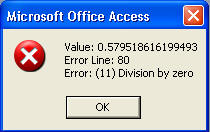
In this case, the value was 0.57, and we see it dies in the section < 0.6.
Obviously, this is just an example of how ERL works. In a real application, we'd have a global error handler invoked in the PROC_ERR section, where the error information would be written to a file along with any other information about the environment.
Total Access Emailer 2022
Email Everyone in Your Access List!

Total Visual Agent 2021
Automate Access Database Chores!

Updated Microsoft Access to SQL Server Upsizing Center with whitepapers, resources, and SQL Server Express Downloads
 Latest Newsletter
 Blog with us
 Follow us on Twitter
As for adding line numbers to code, we do that after we've finished writing our application as one step in our delivery process (we don't write code with line numbers). Other delivery steps include emptying temporary tables, resetting default values, setting the version number, etc.
We use our Total Visual CodeTools product to apply the line numbering. It's part of its Code Delivery feature and is one of the most important steps we take to build quality into our applications. Its New Procedure Builder is also very helpful for creating procedures with the error handling and commenting structure we like. Finally, its Code Cleanup feature lets us apply our error handling to all procedures that lack error trapping which is great for taking over an existing application.
The use of line numbers and ERL have been critical to resolving many obscure issues and improving our products over time.
For more information on better code writing and debugging, read my paper on Microsoft Access, VBA, and Visual Basic Debugging Tips and Techniques
Here are some additional resources that may help you create faster Access databases and/or create them in less time:
Automated Database Analysis for Best Practices

For automated analysis of your databases, check out our Total Access Analyzer program which is designed to examine every object in your database in detail, provide documentation to help you understand what's in it, how the objects interact, and offer suggestions for applying Microsoft Access Best Practices. It finds hundreds of types of errors, suggestions, and performance tips specific to your database objects.
Microsoft Access Source Code Library

Why write all the code yourself? Get our Total Visual SourceBook code library with 100,000+ royalty-free lines of code you can insert into your Access, Office and VB6 projects. Written exclusively for this professional code library, there's code you won't find anywhere else. More info on Microsoft Access code.
Simplify Writing, Taking Over, and Delivering VBA Module Code
If you want to write better VBA code and do it in less time, learn about our Total Visual CodeTools program which works with Access, Office, and VB6. Total Visual CodeTools includes code builders, tools to standardize existing code (indentations, variable names, adds error handling, etc.), and tools for you to deliver more robust solutions. Learn more about our Microsoft Access coding tools.
Microsoft Access Consulting Services
FMS also offers custom software development services. If you're in over your head or just don't have time, contact our team to see how we can help you maintain, enhance, speed up and/or migrate your Microsoft Access applications.
Here's more on our Microsoft Access Developer Services.
Strategic Overview
Microsoft Access within an Organization's Database Strategy
How many simultaneous Microsoft Access users?
Blaming Microsoft Access instead of the Developer
History of Access
Microsoft Access Version Feature Differences
Microsoft Access Versions, Service Packs and Updates
Microsoft Office 365 Access Update Version Releases
Best Practices
Taking Over Legacy MS Access Databases

Winner of Every Best Access Add-in Award
Table Design
Set AutoNumber Starting Number Other than 1
Avoid Unnecessary or Duplicate Indexes
Query Design

Form Design
Copy Command Button and Keep Picture
Module VBA to Forms and Controls
Subform Reference to Control Rather than Field
Report Design
Suppress Page Headers and Footers on the First Page of Your Report
Annual Monthly Crosstab Columns
Design Environment
Add Buttons to the Quick Access Toolbar
Collapse the Office Ribbon for more space
VBA Programming
Avoid Exits in the Body of a Procedure
Send Emails with DoCmd.SendObject
Source Code Library

VBA Error Handling
Error Handling and Debugging Techniques
Error Number and Description Reference
Performance Tips
Deployment
Remote Desktop Connection Setup
Terminal Services and RemoteApp Deployment
Missing Package & Deployment Wizard

System Admin
Database Corruption
Remove 'Save to SharePoint Site' Prompt from an Access Database
Class Not Registered Run-time Error -2147221164
SQL Server Upsizing

Microsoft Access to SQL Server Upsizing Center
When and How to Upsize Access to SQL Server
SQL Server Express Versions and Downloads
Cloud and Azure
Deploying MS Access Linked to SQL Azure
SQL Server Azure Usage and DTU Limits
Visual Studio LightSwitch
Additional Resources
Connect with Us
 Email Newsletter
 Developer Team Blog
 Facebook
 X/Twitter
 Support Forum & Tickets


