



Start the Right Version of Microsoft Access and Your Database Every Time
Total Access Startup guarantees that your users always launch the right version of Microsoft Access with the right version of your Access database.
Centrally Manage Microsoft Access and Your Databases
From one place, you can specify and change how your Access applications are deployed.
-
Always Start the Access Version You Specify
For example, you can ensure your users always run Access 365/2016 with your database, regardless of the Microsoft Access versions installed on their machine or what Windows considers the default for ACCDB, MDB, or ADP file types. You can even allow a range of acceptable Access versions. -
Specify the Access Bitness
Microsoft Access 2010 introduced the 64-bit version of Access. Users can have the 32 or 64-bit version installed, but your database may only work with one of them (VBA code, API calls, ActiveX controls may be bitness specific). Total Access Startup lets you limit which bitness version your database supports so users without it are gracefully prevented from opening it. - Keep it Private: Users Never Need to Know Your Database Information
By giving your users a simple shortcut to launch your Microsoft Access application, you hide the database name, security settings, location of your files, etc., and can change these at any time. - Easily Deploy Front-End Databases to Each Desktop
The first time your user launches your program, Total Access Startup installs a copy of your database on their machine in the folder and database name you specify. Easily specify user, desktop and profile folders. - Keep the User Database Updated
You can choose to replace the user's database each time they launch your application, or only when you release an update. - Display a Professional Splash Screen NEW!
While your program loads, display your custom splash screen graphic to give your application a more professional look. It can even hide the Microsoft Access splash screen. - Support Terminal Server and RemoteApp Deployments
For multiple users running your Access application on one machine and Terminal Server/RemoteApp deployments, easily deploy each user's front-end copy of your database into their private user profile folder. - Support Legacy Versions of Access
By controlling the Access version for your database, you can ensure your database runs with the Access versions you've approve even if users install a new version. Centrally manage the constraints and easily update the setting when you're ready to support a new version.
Everything is centrally stored so you can deploy your database consistently across all your users and easily manage it over time.
Deployment Design
As the administrator, you run the Total Access Startup Wizard to specify how your application is deployed. Once completed, simply email the shortcut that Total Access Startup generates to your users and you're done! None of Total Access Startup is installed on your users' machines!
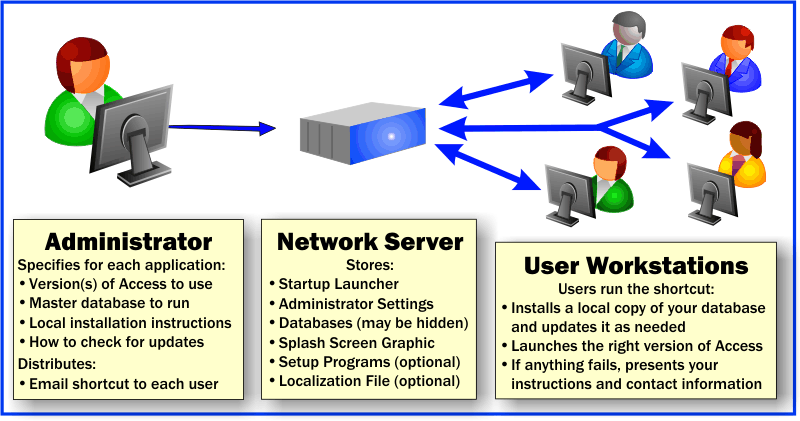
Overview of how Total Access Startup simplifies launching Microsoft Access applications
Your users just launch the shortcut and it loads the right version of Microsoft Access with the latest version of your database. If your user doesn't already have a copy of the database or it's out of date, it is installed on their machine.
When you update your database or change the Access version, it's all handled centrally. When the user clicks on their shortcut, they automatically use your latest database and specifications. Eliminate the need to make manual changes to any user's machine.
Focus on enhancing your application and stop wasting time manually distributing your updates to each user!
Easily Support Split Database Architectures
Multi-user Access databases should be divided into a front-end and back-end database. The front-end is where the application resides and what the user runs. This generally includes queries, forms, reports, macros, and modules.
The back-end database contains the data (tables), and the front-end database simply links to those tables. This split Access database architecture separates the application from the data and provides many benefits:
- Development and Deployment is easier because you can create a new version of your application (front-end) and distribute it without trying to stay in synch with the user's latest data (back-end). If the back-end data needs to be modified, that can be done in one place.
- Performance is significantly enhanced if each user has their own database on their desktop rather than sharing a database on the network
- Temporary Tables. For MDB and ACCDB databases, local tables in the front-end database are private to each user and can keep temporary data. For ADPs, use the #TableName syntax for private session tables in Microsoft SQL Server.
For more information, read our technical paper on Splitting Microsoft Access Databases to Improve Performance and Simplify Maintainability.
Whether it's an ACCDB, MDB or ADP database format, Total Access Startup makes it ideal for managing and deploying your front-end database to every desktop. Support extends to any database name supported by Access including *.ACCDE, *.ACCDR, and *.MDE file extensions.
 Support RemoteApp Deployment of Microsoft Access Databases
If you are using the Windows 2008 R2 or later, you can use the RemoteApp feature to deploy your Microsoft Access applications and have users launch it from another PC in your network or through Terminal Services. For more information, read our paper Using Terminal Services and RemoteApp to Extend Your Microsoft Access and other Windows Applications Over the Internet.
To manage this in a multiuser environment, each user should have their own profile and copy of the front-end database in their own folder. Total Access Startup lets you easily and automatically deploy copies based on each user's profile.
How Total Access Startup Simplifies Access
 Automatically Install New Builds of Your Application
When users run your application for the first time, Total Access Startup installs the database for them. If other files are required, you can launch a batch file or setup program. Specify the folder and file name of the user's copy of your database. It can be in a specific folder name (e.g. C:\MyApp) or a Windows user name folder such as MyDocuments, Desktop, or Users that's based on their login.
Automatically Install Updates of Your Application
When you create a new version of your database and update its version number, Total Access Startup automatically distributes it. Every time Total Access Startup is launched by a user, it compares the master copy to the user's local copy. If they are out of synch, the local copy is replaced. You can also launch a batch file or setup program if additional files (e.g. ActiveX controls) need to be installed. The update setup can be different from the initial installation setup.
Always Launch the Correct Version of Access
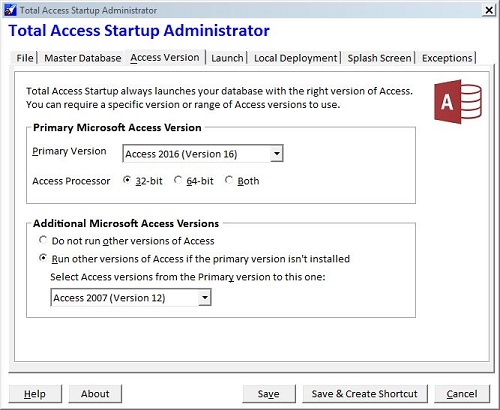
Total Access Startup always launches the correct version of Access with your database regardless of how many versions of Access are installed or what Windows considers the default for ACCDB, MDB or ADP files. Many environments require multiple versions of Access due to the cost of converting old Access databases to the latest version of Access. With Total Access Startup, you can maintain your investment while easily supporting new Access versions. It knows how to find the correct version of Access even if it's installed in a different directory on every machine. You can also specify the acceptable processor bitness of the Access (32, 64, or both).
Support a Specific Range of Access Versions NEW!
Current Access versions support the Access 2000 MDB and Access 2007 ACCDB format. Older versions can still open those databases, but your application may have features that don't exist in the older versions. Rather than settling for the lowest (oldest) common version, Total Access Startup lets you specify the preferred version, and a range of acceptable versions. For instance, you can specify Microsoft Access 2016 down to Access 2007. When the user launches your database, they'll use Access 2016 (32-bit), if they don't have it, it'll search for Access 2013, then 2010, and finally 2007. A warning appears if they don't have any of them. Of course, your application must be able to run in the versions you specify.
Add a Splash Screen when Your Program Loads NEW!
You can now specify a graphic file that appears while your program and Access loads to give it a very professional look:
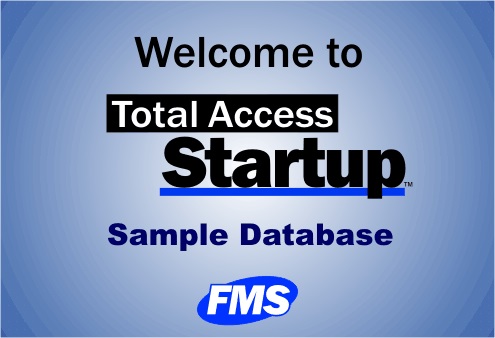
Create and display your own graphic file in BMP, GIF, JPG, and PNG formats. It can replace the Microsoft Access splash screen from appearing to your users.
Gracefully Handle Problems
If problems occur like the user not having the specified Access version installed on their machine, Total Access Startup displays a customized message showing the error along with your contact information. This gracefully handles the problem and prevents users from being confused or inadvertently converting the database.
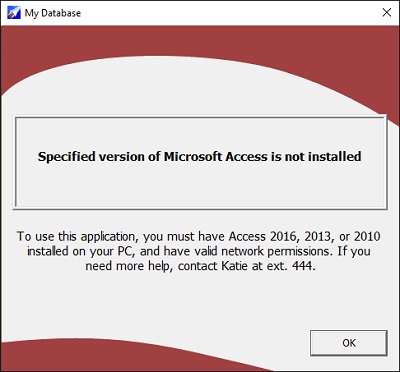 Customizable prompt for your users if they don't have the correct version of Microsoft Access installed
How Total Access Startup Works
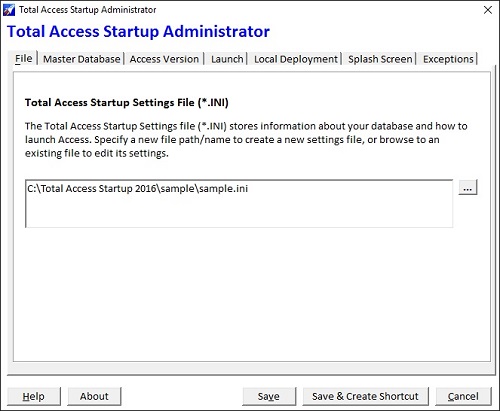 Total Access Startup includes three programs:
- Administrator Wizard specifies the Microsoft Access version, database and other options, then creates the shortcut to distribute to your users
- Startup program residing on the server that is invoked by the shortcut
- Redistributable Launcher to distribute to users disconnected from your network
Administrator Program
This Wizard lets you specify the Access version and database you want your users to use. You can specify:
- Master database location and security settings (if any)
- The allowable versions of Microsoft Access to run
- For Access 2010, 2013 and 2016, the 32-bit, 64 bit, or either version
- Access 2007, 2003, 2002, 2000, 97, or 95
- The range of acceptable Access versions, if any
- The user's installation of Access versions may be retail or the free runtime version
- Whether the master database is run directly or copied to each user's PC in the folder you specify, plus the startup macro
- For local deployment, whether the database is always replaced or only replaced if the master database indicates a new version
- Startup graphic file or text to display while the program loads NEW!
- Optional setup program or batch file to run when the database is created on the local machine (useful for the first launch of the application)
- Optional setup program or batch file to run when the local copy is updated (in case you need to install other files, such as ActiveX controls)
- Contact information and explanations if your user can't start the program
When you complete the Wizard, Total Access Startup creates a small INI file and shortcut link in the network location you specify. The file includes your specifications, and the shortcut launches your database using those specifications:

Example of Files in the Distribution Folder
Startup Program
A small executable launches your database with the specifications set by the Administrator program. This is stored in one place on your network. An additional file is included to support the 64 bit version of Microsoft Access 2010 and later. The Total Access Startup program is written in C++ with no dependencies, so nothing is installed or required on your users' machines. They only need the shortcut pointing to the INI file you created on the network.
All the program's messages can be customized if you don't like our wording or want to support a non-English language. Customize our Localize.ini text file for the best experience for your users. NEW!
Royalty-Free Distributable Launcher
Total Access Startup is also useful if you are not on a network and want to ensure users always run the correct version of Access with your database even if they install new versions of Access in the future. This is ideal for laptop computer users and distributed applications. A royalty-free, redistributable launcher is included for supporting users not on your network. The Redistributable Launcher ensures that users who are not connected to your network launch your application with the correct version of Microsoft Access. Distribution is subject to the terms of the License Agreement.
Cost Effective, Powerful Solution
One copy of Total Access Startup supports an unlimited number of databases and users across your entire network. Simply create a separate settings file for each database you deploy. Easily support local copies on each user's machine for optimal performance, and manage it centrally.
Pricing and Microsoft Access Versions
Total Access Startup comes in one version that supports multiple Microsoft Access versions including Office 365/Access 2024, 2021, 2016, 2013, 2010, 2007, 2003, 2002, 2000, 97, and 95. This includes support for both 32 and 64 bit versions of Access 2010 and later.
|
Total Access Startup Pricing for Microsoft Access |
||
| Licenses | Price | All Access Versions |
| Single | $499 | Buy Now |
| 5-Seat | $1,499 | Buy Now |
|
Upgrades |
||
| Single | $299 | Buy Now |
| 5-Seat | $899 | Buy Now |
|
Premium Support Subscription |
||
| Single | $299 | |
| 5 Seat | $999 | |
|
Also Available as part of: |
||
|
Total Access Ultimate Suite |
||
|
Runtime/Redistributable Version |
||
| A royalty-free, distributable file is included to launch your database with the right version of Microsoft Access for people disconnected from your network. | ||
|
Licensing Information |
||
|
Licensing is based on the number of copies of Total Access Startup installed. Each copy requires
a separate license. One installation can manage an unlimited number of databases called by an unlimited number of users on that network. |
||
Enterprise Ready
 Total Access Startup was independently tested by
VeriTest and awarded the Designed for Microsoft Windows XP, 2000, ME, 98 logo from Microsoft. Total Access Startup is the first application designed exclusively for
Microsoft Access to receive this designation. Support for Windows 10, 8, 7 and Vista for both 32 and 64 bit versions are now included.
Total Access Startup was independently tested by
VeriTest and awarded the Designed for Microsoft Windows XP, 2000, ME, 98 logo from Microsoft. Total Access Startup is the first application designed exclusively for
Microsoft Access to receive this designation. Support for Windows 10, 8, 7 and Vista for both 32 and 64 bit versions are now included.
With VeriTest's rigorous testing and verification, you can be assured that Total Access Startup supports the challenging environment of your enterprise. Get Total Access Startup today to ensure all your Access applications and versions are deployed correctly every time!
Maintaining and Migrating Legacy Microsoft Access Applications
If a Microsoft Access 97 database is opened with a later version, the database format may be upgraded and prevent Access 97 from opening it again. With Total Access Startup, your Microsoft Access 97 databases are always run with Access 97 to prevent accidental database conversions. When you migrate your Access 97 databases to a later format, simply update the settings file to specify the new Access version and new master database. The next time your users launch it, they get the new version and won't be allowed to run Access 97 on it. You don't even need to send out a new shortcut!
Total Access Startup is Shipping!

Supports Microsoft Office 365/2016, 2013, 2010, 2007, 2003, 2002, 97, and 95

Reviews
"Total Access Startup is an amazing product and an incredible value. It's not only made my job as a developer easier but it provides a great service to our users"
M. Killough, a happy customer
Startup Info

Additional Info