


Put Clean, Consistent Code in your Access Toolbox
 Total Access CodeTools offers award-winning coding help
By Craig M. Bobchin
Access Advisor, May 1998
Copyright © Advisor Publications. All rights reserved.
Finally! Someone has come up with a tool that actually helps you write code for your Access applications! Total Access CodeTools is a set of utilities designed to make it easier to create code for events and modules. The product has tools that might contribute to other aspects of your Access development, but its primary focus is on code. Total Access CodeTools is the winner of a Silver Award in the 1998 Access-Office-VB Advisor Readers' Choice Awards, announced last month.
Installation & Overview
Total Access CodeTools comes on a single 3.5 MB disk, and when fully installed, takes a relatively small five megabytes of hard drive space. Installation is easy and when complete you see a new entry on the Tools>Add-ins menu. Just click on Total Access CodeTools and you see a small, floating window with four tabs and a variety of buttons. Each of the tabs contains a set of tools (figure 1 below).
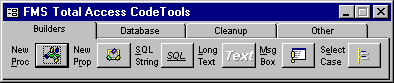
Figure 1: New Toolbar - Total Access CodeTools features a
small, unobtrusive interface.
The Builders
The Total Access CodeTools builders help you create functions, subroutines, and other source code objects. The builders help you create procedures that adhere to a set of standards you can define. Specify comment headers, error-handling code, indentation, naming conventions, and global procedure identifiers that you want to appear in your code.
The Procedure Builder relieves you of the tedium of creating procedures that contain proper documentation and error handling:
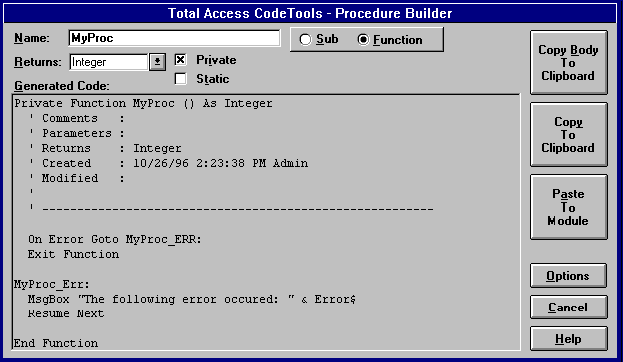
figure 2: Useful tool - Procedure Builder creates procedure
templates complete with error handling.
Notice the name of the function has been specified as "MyFunction," yet the Procedure Builder has applied a prefix to the procedure name indicating this function returns a long value. The prefixes applied to variables and functions are completely customizable.
Another useful tool is the Property Builder that helps build the procedures necessary to implement a property in a class module. You have the option of creating the property GET or property LET procedure. The Property Builder is smart enough to know that unless the property is a Variant or Other type, you don't need a property SET.
It can be a chore to add a SQL statement or long string into code. It usually entails breaking the statement into multiple lines that concatenate the long SQL statement into a single string variable. If the SQL statement requires variable criteria, it's even worse. The SQL and Long Text Builders let you choose a query from your database and convert the query's design to a string that's assigned to a string variable. The Long Text Builder does the same thing for text strings. The only complaint I have about the SQL Builder is that it requires you to save your query before you can convert it. It would be nice if you could simply type in the SQL statement to be converted.
Message boxes are commonplace in Windows applications. Unfortunately, Access doesn't offer any way to create message boxes except by manually typing in the code. The Message Box Builder in Total Access CodeTools pops up an image of a message box on the screen, and lets you type in the text you want. You then select the icons and buttons from dropdown lists and save the message box in your code as a call to the MsgBox function. This tool itself is almost worth the price of the product, because it will be used so frequently and save time for developers:
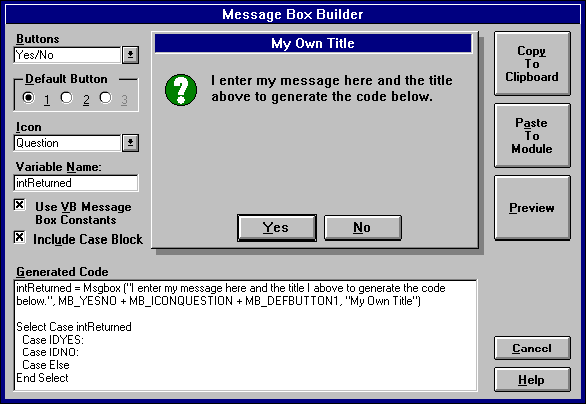
figure 3: Easy message boxes - Message Box Builder makes it
easy to create complicated message boxes.
The Select Case Builder helps you create Select...Case statements. It presents you with a dialog that lets you type in the expression you're evaluating for and up to a dozen cases. The builder also automatically adds a Case Else option if you want. You still have to add the code that runs when the case is matched.
With most of the builder tools, you have to copy the code created to the Windows clipboard, then paste it into the module. The Procedure and Property Builders let you paste their contents directly into the module, as long as the module is open first.
Tools on tabs
How many times have you been in the middle of working on some code and forgot the name of an object, such as a form or control, and had to dig for it? If you've had to do this as many times as I have, you're going to love the Database tool. Once you are on this tab, you are no more than three mouse clicks away from any database object. If you need to open a form in design mode while you are four levels deep in another form's code, simply select the form from the drop-down list and click on the Design button. Your form is displayed and you have complete access without having to dig for the Access database window and sort through tabs. From the same tab, you can open the object or copy it. You can not however, create new objects from here.
The Cleanup tab has only one tool on it, but you'll probably use this tool toward the end of every project. The Cleanup tool applies consistent formatting, naming conventions, and error handling to all your code. For example, you can insert Option Explicit into the declarations section of every module that lacks it. You can add error-handling code into your procedures, and apply user-defined formatting. You can automatically indent code according to the tab stop you specify. Every If..End If, For..Next, Do..Loop, and Select case statement is indented, for example. You can also add a standard header to the to of each module. This header can be whatever you select.
More tools
The Constant Generator creates code that assigns constants for objects in your database. You can use these constants to refer to objects in the database, instead of hard-coding the object names every time you need them. The List Fill tool makes it easy to fill list boxes and combo boxes with data via your code. The Access Information tool shows information about your installation of Access, your database, operating system settings, and more. The Fix Screen utility restores the Access cursor and hourglass states to their default values, so debugging is easier. The BookMarker lets you keep development notes in your database. You can track bugs, unimplement features, and pending tasks. Each note can be attached to specific database object, such as a screen or report.
All the tools worked as expected, and I encountered no bugs. I do wish that more of the tools were able to paste directly into the code. You may run into a problem if you're using Visual SourceSave (VSS) with Total Access CodeTools, since the Cleanup tool makes changes to all of the code modules in the database. You need to check out all the objects to use the Cleanup tool with VSS.
Documentation and Help
The printed documentation and online Help covered the same material, and I saw no difference between them. I was pleased to see both contained a guide delineating what constitutes good coding practice. This is a must-read section for most developers. Help and the manual also deal with problems you might encounter, and tell you how to call for technical support right up front, instead of burying the information.
Add it to your Access toolbox
As I used Total Access CodeTools, I was reminded of a similar tool for Visual Basic called VBAssist 5.0, by Sheridan Software (reviewed in the April 1998 issue of this magazine). Both provide the same type of productivity enhancements for different platforms. Although I probably won't use all of the tools in Total Access CodeTools every time, I'll frequently use most of them, and I expect my productivity to increase. I won't have to do a lot of tedious work, and I'm sure my code will be cleaner and more consistent. This is a tool that has found a place in my Access toolbox.
Craig M. Bobchin has more than 150 articles to his credit, and is the author of PowerPoint 4 for Windows Quickstart (Que.). Craig is a database applications consultant in Austin, Texas, and has a B.S. in information systems from the University of Redlands.
Microsoft Office Access 2016, 2013, 2010 Version
is Shipping

Supports Office/Access 2016, 2013, 2010, 2007, 2003, 2002, 2000, and Visual Basic 6.0!
Also available for
Access 97

Rave Reviews
"Total Visual CodeTools is by far my favorite third-party product."
Alison Balter, Author, Conference Speaker, Instructor

Best Visual Basic Add-In
Rave Reviews
CodeTools Info

Why CodeTools?
Additional Info