


Total Access CodeTools: Access Coding Made Easy
 Microsoft Office and VBA Developer Magazine,
October 1998
Microsoft Office and VBA Developer Magazine,
October 1998
by Lisa Morgan
There are only three groups of people who will benefit from using FMS Inc.'s Total Access CodeTools: people who are writing Access code, people who plan to write Access code, and people who have written Access code. If you fall into one of these categories, this Access 97 add-in is for you. In the course of just one week of full-time Office development, I found a use for just about everything this program does. The four categories of Total Access CodeTools are: Builders, Database, Cleanup, and Other:
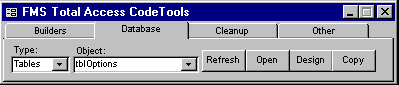
Figure 1: One of four categories into which Total Access CodeTools' features are divided.
For my purpose, I classified the features in this program in either of two ways:
- time-savers I've been wishing for, and
- features I'd never wish for, but am glad someone else thought of
For this review, I'll look at the features according to the more utilitarian categories designated by the program's authors.
Builders
The first two builders, the Procedure Builder and the Property Builder, greatly expedite the creation of subroutines and property procedures, eliminating the cut, past, and edit shortcuts most developers create for themselves in the early stages. For procedures, the user specifies the type - Sub or function - name, scope, and argument for the procedure or property, and a return type for functions. The Property Procedure Builder dialog box allows users the options of selecting Create Property Get, Create Property Let, and Create Property Set; it also gives users the option of selecting Create Class Property Variable. The dialog boxes for creating procedures and properties also show previews of the results of all these choices:
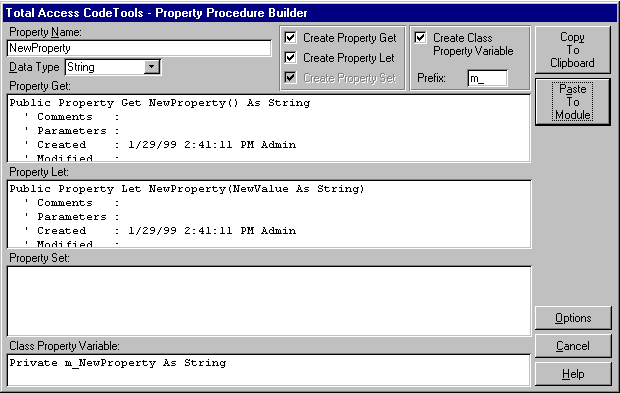
Figure 2: You can preview your choices in the Property Procedure Builder dialog box.
As with almost everything in this program, these builders are customizable to conform to developers' preferences, while offering defaults that conform to common programming practices in the Office/VBA developer community. Clicking the Options button opens the Procedure Builder Options dialog box, which allows users to customize the builders. Here, users have three options:
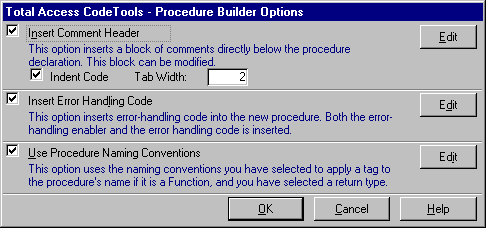
Figure 3: You have three plans of attack from which to choose in the Procedure Builder Options dialog box.
- Clicking Insert Comments Header inserts a block that can be modified below the procedure declaration.
- Clicking Insert Error Handling Code inserts error-handling code into the new procedure, as well as the error-handling enabler.
- Clicking Use Procedure Naming Conventions assigns naming conventions users select to apply a tag to the procedure's name - if it's a function and users have selected a return type.
Once any of these options is selected, they can be further customized. The comments header, error-handling code, and naming conventions can be tweaked to satisfy the most demanding individualist (see FIGURE 4). Changes to elements used in the builders are also applied in the code-cleanup utility, providing excellent consistency across old and new sections of the code.
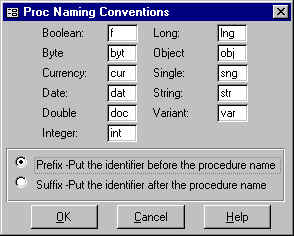
Figure 4: Whichever option you choose, there is still plenty more customizing you can do to get it just right.
The SQL Builder takes the SQL statement underlying an existing query and assigns it to a string variable. At the same time, it creates a more readable form of the SQL statement, either by building the string up through concatenation, or using a line continuation character, as the user prefers (see FIGURE 5). Best of all, this builder makes it easy to get the syntax of the SQL string right the first time, with single and double quotes inserted correctly and other punctuation in place. For heavy DAO users, this feature alone ought to save enough time to pay for the package.
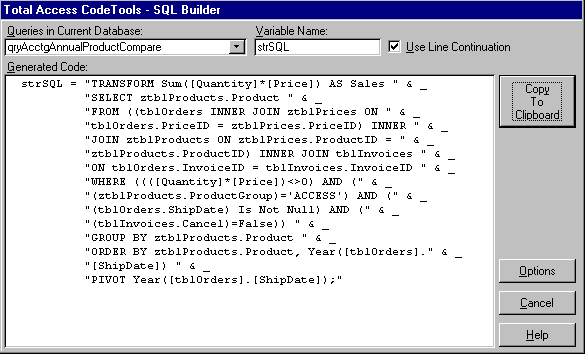
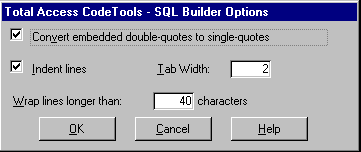
Figure 5: While the SQL Builder is working, it simultaneously creates a more readable form of the SQL statement.
The Long Text Builder allows users to type a string into the builder to be assigned to a string variable. As with the SQL Builder, users have the choice of building up the string by concatenating the next section with the existing string, or using line continuation characters.
The Message Box Builder quickly creates message boxes from a dialog box:
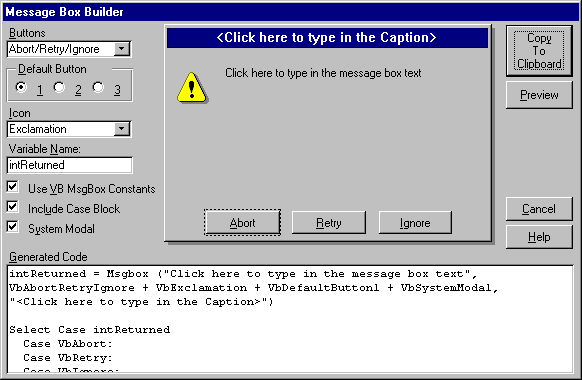
Figure 6: The Message Box Builder offers you the functionality to create custom message boxes quickly.
It allows users to enter the message text and caption and specify Buttons and the Default Button, Icon, and a Variable Name to hold the return value if one is desired. The Message Box Builder also allows users to select whether to Use VB MsgBox Constants, Include Case Block to respond to various button selections, or make the message box System Modal. My only aggravation with the Message Box Builder is that it doesn't handle long message text as well as it does long SQL strings, or even text entered into the Long Text Builder. Instead, the code extends into a single line, and must be formatted manually to fit in the module window.
Database
While I quickly found uses for each of the builders I found I rarely used the tools contained in the Databases category. These timesavers duplicate the functions available from the database window, eliminating the need to exit the code window before opening, designing, or copying a database object.
Cleanup
For database applications already in progress, most users will want to start with Clean Up. While you may only use this feature once for a given project, I think it's the most fun. The effect is like getting that junior assistant programmer you've been wanting to hire to go behind your brilliant, creative code and add all the grunt work: comment headers, error handlers, and proper naming conventions.
The Cleanup feature is very powerful, and if you haven't read the manual car5efully, you may find that you made some unexpected changes in your database. Like most intermediate users, I jumped right in without reading the entire manual, and found that I was glad I had taken their advice to make a backup first. Luckily, the manual is well written, making it easy for me to customize the Cleanup functions to my exact tastes -- once I broke down and cracked the cover.
The options offered in the Code Cleanup Options dialog box cover almost every aspect of users' code:
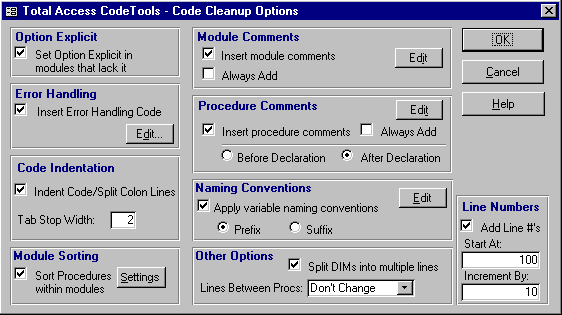
Figure 7: The Code Cleanup Options dialog box allows you to manipulate code in a number of ways.
They work on it behind forms and reports, as well as on standard and class modules. Cleanup will add comment blocks to each module and procedure, and insert an error handler in procedures that are missing error-handling code. All variable names that have been declared with a specific type can have a prefix, suffix, or both added. In addition to Error Handling, Code Indentation, Module Comments, and Procedure Comments, the Code Cleanup Options dialog box offers the option of splitting DIMs into multiple lines, setting Option Explicit in modules lacking it, and sorting procedures within modules. This is all to make the code easier to read.
If All Else Fails
Finally, there is a class of tools simply labeled Other. The first tool in this group falls squarely in the category of features I never would have missed, but could really come to like. This is the Constants Generator (see FIGURE 8), which creates a module containing constant declarations for each of the objects in users' databases. As with all the features in this program, the Constants Generator is highly customizable, allowing users to select the form the constant name will take, as well as which objects will be included. The Constants Generator also allows users to choose to have each constant declaration line created as a comment, so they can uncomment the ones they decide to use.
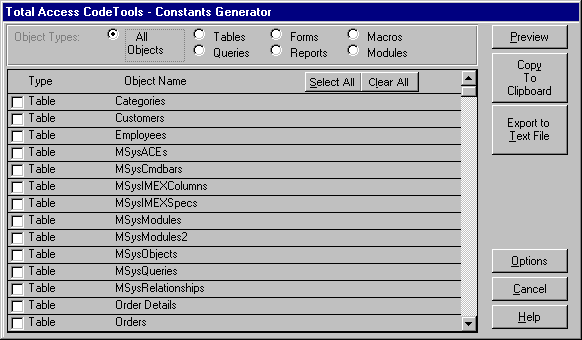
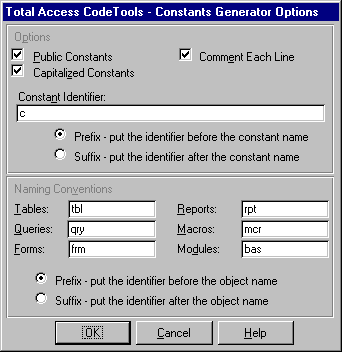
Figure 8: The Constants Generator dialog box allows users to select the form
the constant names will take, as well as which objects will be included.
The next item in this group is actually a builder, though the folks at FMS put it in with the miscellaneous tools. This is the ListFill Function Builder (see FIGURE 9). This handy feature automates the process of creating the specialized function needed to fill list and combo boxes programmatically. Because I usually just use saved queries as row sources for these controls, I had no idea the process of creating a ListFill function was so complicated. Fortunately, Total Access CodeTools makes it a much smoother process.
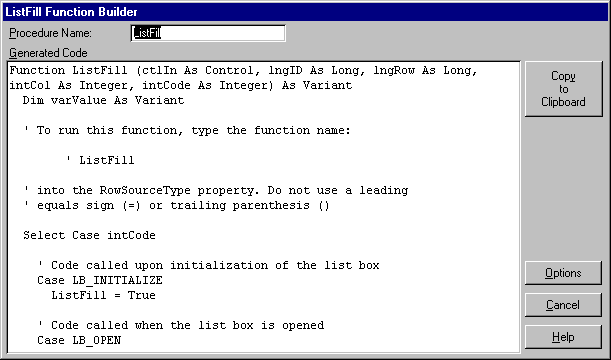
Figure 9: The ListFill Function Builder automates the process of creating
functions needed to fill list and combo boxes.
The other tools in this group include a system information feature, providing details on all the Access environment settings; a bookmarker, which is really just a table to track a user's location in a given task; and a button to reset the screen and cursor to normal in case users leave the procedure in break mode with the hourglass on.
Conclusion
At first glance, this package seems like a nice little add-in to save a bit of repetitive typing. But at a retail price of US$199, it seems a bit over-priced for what it does. Regardless, when users realize the hours of work saved, the program's true value will become apparent.
Additional comments from Lisa Morgan after writing the review:
"I am using Total Access Code Tools. I recently reviewed the product for Microsoft Office and VBA Developer Magazine, and I only wish I could have written it after this current project. It was a favorable review, but a week of working with the features is not the same as trying to get real world work done. If I had known how the time savings really adds up over the course of a long project, I'd have used more vehement language in my praise."
Lisa Z. Morgan is a Systems Analyst for the Mid-Atlantic Agency Division of Lawyers Title Insurance Corporation, where her primary purpose is to make Microsoft Office obey management's every whim. She also does freelance Office programming as owner of Lairhaven Enterprises.
Microsoft Office Access 2016, 2013, 2010 Version
is Shipping

Supports Office/Access 2016, 2013, 2010, 2007, 2003, 2002, 2000, and Visual Basic 6.0!
Also available for
Access 97

Rave Reviews
"Total Visual CodeTools is by far my favorite third-party product."
Alison Balter, Author, Conference Speaker, Instructor

Best Visual Basic Add-In
Rave Reviews
CodeTools Info

Why CodeTools?
Additional Info