Localizing Microsoft Access Applications
by Dan Haught, Executive Vice President of FMS, Inc.
All rights reserved
Originally published in Smart Access
Pinnacle Publishing, Inc.
P.O. Box 888
Kent, WA 98035-0888
Tel 206-251-1900, Fax 206-251-5057
Today's global market provides unparalleled opportunities for software developers. Foreign markets are continually opening up, and the demand for applications continues to grow. To tap this market, your development efforts need to take foreign language versions of Microsoft Access into account. Through the process of internationalization, you can create applications that work correctly regardless of the language environment. In this article we will cover the major issues of this process with an emphasis on Access Basic solutions.
Language localization (internationalization) is made up of two phases: compliance and translation. Compliance involves making sure that your application will run under a specific foreign language version of Microsoft Access. A compliant application correctly interprets the messages that Access generates, and is aware of the differences in the interface. Translation is the optional step of translating your application's messages, form labels, on-line help and printed documentation to a specific language. Depending on the complexity of your application, this phase can consume more time and resources than Compliance, so you must determine whether its implementation is necessary for the success of your product.
For the purpose of this article, we will use the term foreign language version to refer to a copy of Microsoft Access for a language other than English. The term local language is used to refer the language of the currently executing copy of Access.
Microsoft has released foreign language versions of Access 1.1 in English, French, German, Spanish, Italian, Portuguese and Swedish. The program behaves in much the same way regardless of the language. There are however, key areas where your application must take differences into account:
Menu Items are in the same sequence and location in all language versions of Access. However, the menu text and short-cut keys are different. For example, the menu sequence File Import in the English version becomes Fichier Importer in the French version.
Error messages are in the local language. For example, error messages in the French version of Access are presented in French, not English. (We will exploit this fact later to determine the local language using an Access Basic function.)
The short-cut keys in Access and common dialog boxes are different from the English version.
Access supports a variety of database sort orders. The user's sort order may be different from the sort order of your database.
The first operation your internationalized application needs to perform is to determine the local language. The following Access Basic function relies on the fact that error messages are returned in the local language. It determines the language based on the text returned by the Error command. Error 255 is always a user-defined error, so we can reliably check the string returned against a known set of values:
Function GetLanguage () As String
  Select Case Error (255)
    Case "Benutzerdefinierter fehler"
      GetLanguage="German"
    Case "Erreur définie par l'utilisateur"
      GetLanguage="French"
    Case "Errore definito dall'utente"
      GetLanguage="Italian"
    Case "Användardefinierat fel"
      GetLanguage="Swedish"
    Case "Erro definido pelo usuário"
      GetLanguage="Portuguese"
    Case "Error definido por el usuario"
      GetLanguage="Spanish"
    Case "User-defined error"
      GetLanguage="English"
  End Select
End Function
After the language has been determined, all successive operations that are in potential problem areas should take the language into account. You should run this function as part of your application's initialization routine and store the result in a global variable. That way, the local language is readily available to all parts of your application.
Your application undoubtedly contains macros or Access Basic code that accomplish tasks by working through the user interface. Using the DoMenuItem and Sendkeys actions, your application "presses" keys and initiates menu picks through the interface. Fortunately, Microsoft designed the DoMenuItem action to work without problems across all languages. Because DoMenuItem arguments are stored internally as numbers rather than text, Access will always pick the correct menu item.
The same can't be said for the SendKeys action. The use of Sendkeys can account for many of your internationalization problems. As we discussed earlier, menu item text and short-cut keys are not set in stone, they depend on the local language. If your application uses SendKeys, it will almost certainly fail in other language versions of Access. For example, to turn the Status Bar off in Microsoft Access, you may use the following Sendkeys action:
Sendkeys "&VOno{Enter}"
This example relies on the menu text and shortcut keys found in the English version of Access. When executed under another language, it will behave in a completely different way. At best, it will present the user with a series of beeps as invalid keys are pressed; at worst, it will perform undesired operations in the application. The best way to eliminate this problem is to avoid using the Sendkeys action altogether. There are non-Sendkeys solutions to most problems, and if you eliminate Sendkeys, your application will be considerably more robust. If your application must use the Sendkeys action, try to recode the keystrokes to work without using short-cut keys. Knowing that menu items are always in the same position allows us to recode the above example to work in all versions of Access:
Sendkeys "{F10}{Right 2}{Down}{Up}{Enter}%{Down}{Down}{Enter}"
While this solution is slightly longer than the previous version, it will work reliably regardless of the local language. The main drawback to this approach is that it contributes to unreadable code. Looking at the above line, you would be hard pressed to explain what it does without stepping through the Access menus. Finally, if your application must use SendKeys actions with short-cut keys, make sure you send the keystrokes appropriate for the local language. To do this, make the keystrokes you send conditional on the local language using logic such as the Select Case statement:
Select Case GetLanguage()
  Case "English"
    Sendkeys "%V0", True
  Case "French"
    SendKeys "&AO", True
End Select
As you develop your application, you may create a large number of text strings that are used for error messages and user prompts. As you start to internationalize the application, you will find yourself constantly searching through your modules for specific text to translate. With strings scattered throughout multiple modules, this can be a time-consuming and error-prone operation.
A good practice in application design is the use of a localization table. While useful in all applications, this practice becomes crucial in international applications. The concept is simple: store your application's text strings in a single table. When a string is required, you call a function that looks up a value based on a code and returns its text value. The advantage is obvious: you now have a single place to maintain your strings. No more searching through endless module code. When you are ready to implement a foreign language version of the application, simply replace the strings in your localization table with the appropriate text.
There are two approaches to this technique. The first involves having a separate localization table for each of the language your application supports. Each localization table has two fields: ID and Text. The ID field is a unique key for the text string, and the Text field contains the actual string. This results in a simpler table structure but requires a table for each support language and increases maintenance time. A more robust approach is to have a master localization table the contains all strings in all languages that your application will support. By adding a third field called Language, you can easily retrieve the desired record. The disadvantage to this approach is a potentially large table. If your application has 1000 messages and you support seven languages, you can end up with a large localization table. You should weigh the tradeoffs of both approaches and implement the one best for your application.
To see this concept at work, create your localization table similar to this: (Notice that we use text codes instead of numeric codes. This makes it easier to read the Access Basic Code that calls a specific message.)
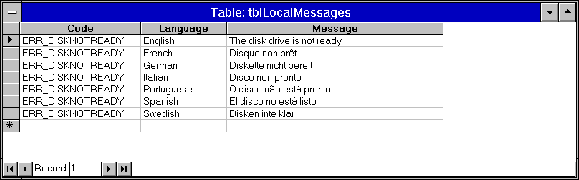
The following function reads the localization table, determines the local language, and returns the appropriate message.
Function GetMessage (strCode As String) As String
  Dim dbCurrent As Database
  Dim dsMsg As Dynaset
  Dim strCriteria As String
  strCriteria = "Code='" & strCode & "' AND Language='" & GetLanguage() & "'"
  Set dbCurrent = DBEngine.Workspaces(0).Databases(0)
  Set dsMsg = dbCurrent.CreateDynaset("tblLocalMessages")
  dsMsg.FindFirst strCriteria
  If Not dsMsg.NoMatch Then
    GetMessage = dsMsg![Message]
  Else
    GetMessage = "<error>"
  End If
  dsMsg.Close
  dbCurrent.Close
End Function
Microsoft Access supports a variety of sort orders to accommodate the sorting conventions of different languages. Sort Orders are enforced at the database level: all tables in a database follow the same sort order. You specify a database's sort order using the Options dialog box under the View menu. The value you specify for sort orders only affects new databases: Changing the sort order under Options does not change the sort order of a database. To change the sort order of an existing database, select the desired sort order in the Options dialog box and then Compact the database. To ensure that your application uses the local sort order, you may want to have the end user compact your database under their local version of Microsoft Access.
Microsoft Access uses Windows settings for determining the format for a variety of operations. In Windows, the Control Panel application allows the user to set the units of measurement, date and time format currency format and number format. These settings are used by Access wherever date, time, measurement or number data is displayed. Fortunately, the use of these settings is automatic in forms and reports. Your application will automatically use the local settings in most cases.
If your application uses macros or Access Basic to manipulate or display these types of values, you may want to incorporate routines that check the Control Panel settings. When you format values for display or storage, you take these international settings into account. Getting the information is a fairly easy task using standard Windows API functions. These Control Panel settings are stored in the [Intl] section of your WIN.INI file. Using the GetProfileString and GetProfileInt functions, you can programatically retrieve any of the values in this initialization file. As an example, the following function returns the current setting for the long date format:
Function GetLongDateFormat () As String
  Dim strSection As String
  Dim strKey As String
  Dim strDefault As String
  Dim strReturned As String
  Dim lngSize As Long
  Dim intLen As Integer
  strSection = "intl"
  strKey = "sLongDate"
  strDefault = "No Value"
  strReturned = Space$(255)
  lngSize = Len(strReturned)
  intLen = GetProfileString(strSection, strKey, strDefault, strReturned, lngSize)
  GetLongDateFormat = strReturned
End Function
As you examine the [Intl] section of the WIN.INI file, you will likely find the Language entry. This raises the question, why don't we read the value there to determine the local language? Surely that's easier than relying on the return value of an error message. This won't necessarily work because Access does not require a specific language version of Windows: you can easily install the French version of Access under the German version of Windows. Therefore, the error message approach is the most reliable method of obtaining the local language.
When you translate text from English, you should expect an increase in length of approximately 30%. This makes the screen space available in forms, controls, and other windows more critical. You may encounter difficulties in fitting foreign language text into the same area that easily contains English text. You should also choose your short-cut keys carefully. Some international keyboards use the Alt key in conjunction with other keys to enter special characters. Also be careful when using punctuation characters in short-cut key combinations. Some punctuation characters may not exist on all international keyboards. Finally, your application should be usable and aesthetically pleasing at all Windows resolutions. An application designed for 1024x768 resolution will not work in countries where standard VGA or EGA is the norm.
While internationalization goes far beyond the Access-specific topics related here, you should now have a good understanding of the key issues. By applying these techniques, you can minimize the amount of time spent internationalizing your application. Other issues of importance are cultural and language differences that transcend the technical nature of programming. You might want to consider teaming up with a consultant of developer in your foreign target market. This can provide valuable insight that you won't find in any books or magazine articles. Good luck!
Copyright © 1998, FMS Inc. All rights reserved. This information may not be republished, reprinted or retransmitted in any form without the express written permission of FMS Inc. The information provided in this document is provided "as is" without warranty of any kind.
 Latest Newsletter
 Demos
Demos
 Microsoft Access Developer Help Center
 Microsoft Access Query Help Center
 MS Access to SQL Server Upsizing
 Microsoft Outlook Tips
 Technical Papers
 Tips and Techniques
 Videos
Connect with Us
 Email Newsletter
 Developer Team Blog
 Facebook
 X/Twitter
 Support Forum & Tickets
Additional Resources
 Book
Book Links to Related Sites
 My FMS
Thank you! Thank you! I just finished reading this document, which was part of a link in the recent Buzz newsletter. I have printed it for others to read, especially those skeptical on the powers of Access and its capabilities.
Darren D.
 All Our Microsoft Access Products



