 Microsoft Access 95 VBA Internals
by Dan Haught, Executive Vice President of FMS, Inc.
The inclusion of Visual Basic for Applications (VBA) in Access 95 raises many important issues for Access developers. There are many architectural issues involved in using VBA, and this session covers them. The following topics will be discussed:
- How VBA is Hooked into Access
- Code Storage and Tokenization
- The Compiled State and How to Use It
- Problem With Error Handling
- Advanced Coding Techniques
- Overloaded Functions
Access 2.0 uses its own private version of Access Basic, which is a derivative of the embedded Basic used in Visual Basic 2.0. Because it is a private version, it is a distinct dialect of Basic that has constructs that have no analog in other products. For example, the DoCmd statement, essential to most Access programming doesn't exist in any other dialect. As another example, the Access Basic Eval statement doesn't exist in VB.
The obvious problem with this approach is that Access Basic represents "Yet Another Dialect Of Basic" (the YADOB syndrome). It is not easy to leverage your Access Basic skills to other development products, such as VB, without making mental shifts each time you move.
Microsoft' solution to this dilemma is Visual Basic for Applications (VBA). VBA is designed to be the common language component driving each of the Office applications. In Office 95, Access and Excel support VBA, but Word doesn't. VB4 (both the 16 and 32-bit versions) host VBA, and offer some advanced features (like class modules) not available in Access or Excel.
So, how does this integration work? In a nutshell, where Access 2 used to call its own private language interpreter (MSABC200.DLL), Access calls the common VBA interpreter (VBA232.DLL). The key difference here is that Access 2.0 could define how Access Basic worked to suit the needs of Access. With Access 95, VBA is a separate component that is used in other applications, so Access itself has to change in response to the existing behavior of VBA. This is the area where many of the issues in migrating programming code to Access 95 appear.
Viewing the VBA DLL Type Library
If you want to view the exposed interfaces of the VBA232.DLL library, you can use a utility such as Microsoft's OLE2VIEW.EXE or a commercial product such as Apex's wonderful VBA Companion utility.
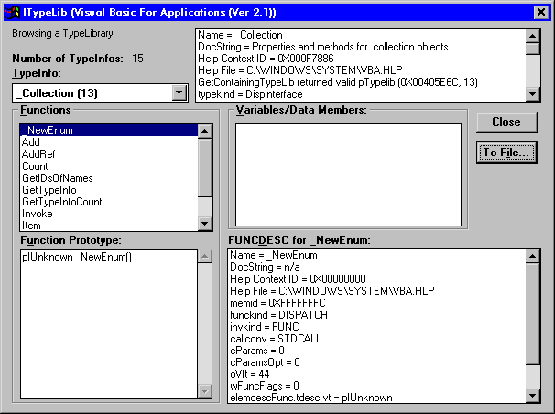
Figure 1 - The OLE2View TypeLib Browser
As and example, here is a section of OLE2View's output of the VBA232.DLL library:
'===============================================================
' Type Library: VBA, Library Version 2.001
' GUID: {000204EF-0000-0000-C000-000000000046}
' LCID: 0X00000009
' Documentation: Visual Basic For Applications
' Help: C:\WINDOWS\SYSTEM\VBA.HLP (Help ID: 0X000F6791)
'===============================================================
'===============================================================
' Type Info: Constants, TypeInfo Version 0.000
' GUID: {343DB180-2BCC-1069-82D4-00DD010EDFAA}
' LCID: 0X00000009
' TypeKind: Module
' Documentation: Predefined constants
' Help: C:\WINDOWS\SYSTEM\VBA.HLP (Help ID: 0X000F6EBD)
'---------------------------------------------------------------
' Variable/Constant: vbEmpty
' Documentation: Return value constant for VarType
' Help: C:\WINDOWS\SYSTEM\VBA.HLP (Help ID: 0X000F732F)
'
Const vbEmpty As Integer =
' Variable/Constant: vbNull
' Documentation: Return value constant for VarType
' Help: C:\WINDOWS\SYSTEM\VBA.HLP (Help ID: 0X000F732F)
'
Const vbNull As Integer =
' Variable/Constant: vbInteger
' Documentation: Return value constant for VarType
' Help: C:\WINDOWS\SYSTEM\VBA.HLP (Help ID: 0X000F732F)
'
Const vbInteger As Integer =
' Variable/Constant: vbLong
' Documentation: Return value constant for VarType
' Help: C:\WINDOWS\SYSTEM\VBA.HLP (Help ID: 0X000F732F)
'
Const vbLong As Integer =
' Variable/Constant: vbSingle
' Documentation: Return value constant for VarType
' Help: C:\WINDOWS\SYSTEM\VBA.HLP (Help ID: 0X000F732F)
'
Const vbSingle As Integer =
While using such utilities does require a bit of knowledge about the internal workings of OLE Type Libraries, a wealth of under-documented (and un-documented) information can be gleaned from their outputs.

Those looking to find a free lunch in VBA will be disappointed with Access 95. With the inclusion of VBA in Access 95, we have a whole new box of coding toys. But the architectural model of VBA is different enough from Access Basic that it causes performance problems if you don't understand it.
Access Basic, as implemented in Access 2.0, was a tokenized, interpreted language. This means that module code was converted into tokens, then interpreted and executed one line at time. VBA, as implemented in Access 95 is a much more complex and interesting component. Indeed, there are 12 different levels of compilation that VBA offers (these levels are not exposed to the developer which is probably a good thing since only a few people at Microsoft understand them anyway). VBA compiles your code into an executable format. Although it is not a native code compiler like C or Pascal, it is compiled to be run in an executable format through the virtual machine that VBA defines. While all this is interesting, the important thing to understand is that there are fundamental differences in the way you should think about your module code in Access 95.
Module code is saved in two states in your Access database: the source state, and the compiled state. The source state consists of the contents of your actual modules, with full text including whitespace, procedure and variable names, and comments. The compiled state is the executable version of your code. All comments and whitespace have been removed, and a stream of executable instructions has been produced-the code is ready to be run. The difference between these two states can cause your application to run slower than molasses in January if you don't understand them.
When you run a procedure, VBA checks to see if the module containing the procedure is compiled. If it is, VBA simply runs the code. If it is not compiled, VBA compiles it by loading the code into memory, performing a syntax check, and compiling it into an executable format. If all these operations succeed, it can then run the code. You probably surmised that this process of compiling is not a free lunch-it does take some time. And herein lies the crux of the matter: compiling code takes time, and compiling lots of code takes lots of time.
So if you want your database to run as fast as possible, your task is obviously to reduce the amount of time Access 95 spends compiling your code to a bare minimum. In fact, in an ideal application, all your code should be compiled and saved in the compiled state. So how do you go about this? Your Access 95 database (or project in VBA parlance) is said to be in a compiled state when all modules, including form and report modules, are saved in both states in the database. This means that the original source code is stored, as is the compiled version. In such a state, Access runs much faster, because it can completely bypass the compilation process.
Getting your database into the compiled state is actually rather easy:
- Open any module
- From the Run menu, select Compile All Modules
- After compilation is complete, immediately select Save All Modules from the File menu.
Your database is now in the compiled state. This includes form and report modules (called class modules using Access 95 terminology) and standard modules. All VBA code that is called by your application is immediately ready for execution. There is no need for compilation. This is all fine and well, but is just as easy for your database to become decompiled. When you make certain changes to your database, it automatically becomes decompiled, which means that the compiled state that you created using the previous steps no longer exists.
How to Avoid Decompilation
So how do you avoid decompilation, or loss of the compiled state? Any of the following actions can decompile your database:
- Modify any module code
- Make changes to code-bearing objects, such as form, reports and controls, or create such code-bearing objects
- Rename the database
- Compact the database into a different name
- Copy the database to a new name (in which case the copy would be decompiled, not the original)
So the offshoot of this is: to avoid decompilation, don't do the above. Its not as bad as it seems. After all, your database does not need to be in a compiled state while you are doing development work on it-it only really requires the performance benefits of the compiled state when it is actually running on your user's workstations. Therefore, if you follow these guidelines, you can enjoy peak performance from your module code:
- During development, don't use Compile All Modules from the Run menu. It is a waste of time, because the first time you make any changes to the module, it will decompile, or reverse the effect of Compile All Modules. Rather, use the Compile Loaded Modules instead. This action only compiles the modules that are called by the modules you have open. This is a much quicker operation, and results in the same syntax checking that Compile All Modules does.
- When you are ready to deliver your database for testing or live use, put it into the compiled state using the steps outlined above.
If you compact your database into another name, be sure to rename it back to its original name after the compaction is complete. This will ensure that the database remains in the compiled state.
There are several error handling issues to consider when moving to VBA in Access 95. Since error handling is arguably one of the weakest areas in Access Basic, developers hoped that VBA would address some of the problems. For example, in Access Basic there is no way to programmatically identify the procedure executing when an error occurred. Additionally, you could not identify the line number of the code that caused the problem using the Erl() function unless you manually inserted line numbers in every module. Does VBA address these concerns? Unfortunately not. Although VBA has introduced a new Error object, the way that Access 95 interprets and handles errors seems to have taken us a step backwards.
For example, many error descriptions are now returned as the cryptically unhelpful "Application or object-defined error". Indeed, only 67 of the 32,768 possible errors messages in Access 95 return a real error message when you call the built-in Error$ variable-the remaining 32,701 errors return the generic message or no message at all. This unfortunate turn of events means that you need to re-code your application's error handling to use the new Application.AccessError method in order to get the real text of the error message. Also, when you iterate through the possible error messages (0-32,768), you get non-error text interspersed throughout the error messages. For example, the text returned by errors 4,224-7,749 show that they are not really errors at all-instead they contain standard Access messages and dialog text.
Additionally, the new "Break On All Errors" feature in Access 95 can have serious repercussions in your applications that use error handling. To see how this affects your code, imagine the following code in Access 2.0:
On Error Resume NextKill "C:\MYFILE.TXT" On Error Goto 0
This is a typical way of handling file deletion. You disable error trapping by using the On Error Resume Next statement. When Access tries to delete the file, it does not generate a runtime error if the file doesn't exist and your application keeps humming happily along. However, if you deploy the same code in an Access 95 database, and your users have the "Break On All Errors" setting enabled in the Module|Options dialog, the On Error Resume Next command will be ignored, and your code will stop with a runtime error if the file does not exist. This has the unfortunate side-effect of your user being presented with your module code and the "Application or object-defined error" error message-hardly the signs of robust application! To work around this, your application should use the Application.SetOption in its initial startup routine to turn the "Break On All Errors" setting off. The following line of code shows this in action:
Application.Setoption "Break on all errors", False
Finally, it appears that Access 95 has problems in effectively dealing with runtime errors generated by Dynamic Data Exchange (DDE). If you have DDE code and it generates a runtime error, Access 95 does not return a value for the error text, regardless of whether you use Application.AccessError or not.
Tangling With References
References are one of the more problematic areas in Access 95.
Referencing Explained
When it comes to referencing, VBA introduces both new features, and breaks in backwards compatibility with Access 2. Remember that a reference is simply the mechanism you use to identify a database for use by Access. In Access 2, the method for creating a reference is the same regardless of what you want to use that reference for. If you want to call code from a library, create a builder or wizard, or load a menu add-in, you add a line to the [Libraries] section of the Access INI file and re-start Access.
With Access 95, there are now several different types of references. Gone are the days where a simple INI file entry would suffice. References are now broken into specific types for specific uses.
The Global Namespace
Another important change is that the Access 2 concept of the global namespace is a gone in Access 95. Access 2 defines a 64K area of memory into which it loads all global procedures, variables, constants, and all types and Declare functions. This global pool has the obvious disadvantage of its small size being shared among all referenced library code. In Access 95, all code is organized at the project, or database, level. Therefore, the 64K limit is gone.
The Access 2 global namespace also means that you must avoid naming conflicts when you name your global objects. For example, if your library contains a call to the Windows API with a Declare statement that looks like this:
Declare Function GetCurrentTime Lib "User" () As Long
and your user has the same API call in their database, Access cannot load both the library database and the user's module. This requires you re-code your API calls to contain unique names, such as:
Declare Function GetCurrentTime_DAN Lib "User" Alias GetCurrentTime() As Long
to avoid such conflicts. With Access 95, all code is scoped to its own project-there is no longer the concept of a shared global area of memory. So your Declare functions, and other global code does not conflict with other databases.
The final benefit of the elimination of the global namespace is that it is now difficult to get Access 95 to run out of memory when loading library database code. This, coupled with the dynamic loading nature of VBA allows you to develop more complex library-based solutions.
Dynamic Loading
One of the key attributes of VBA is that it loads code "as needed". In other words, it employs dynamic loading. Access 2 loads all library code when it starts-it is in memory, using up resources, whether you need to call that library or not. With VBA in Access 95, library code is not loaded into memory until you do something to call that code. For example, if you have a menu add-in reference to a library database, and the user invokes your add-in through the Tools|Add-Ins menu command, VBA loads the code from the library database at that time, not when Access 95 itself initially loaded.
One exception to this rule is the use of the undocumented LoadOnStartup key. You can add this key to the system registry to tells Access 95 to preload the type information from your library modules when Access 95 is started. This is merely a time-shifting device-it does not change the behavior of the referencing model in anyway except that it makes the initial load of your library objects approximately 10% faster. To use this behavior, add the following key to your system registry:
HKEY_LOCAL_MACHINE/SOFTWARE/MICROSOFT/ACCESS/70/WIZARDS
Place string entries under this key that have the path and name of the library database you want to preload. The data field for these entries should be set to "rw".
Note that VBA does not employ dynamic un-loading of code. That is, code is not discarded after it has been used. When you call code from a library database, it is held in memory until you exit Access 95. Keep this behavior in mind: it can help your Access 95 development efforts. Because every piece of code you call during your typical development day is loaded and kept in memory, you can easily exhaust physical RAM and end up swapping to the disk on a constant basis. This behavior manifests itself in slowing your machine down as you call more code. The fix to this is to force VBA to unload code on a regular basis. To do this, you need to close the project, which means you should close and re-open your database every few hours to free up resources.
The biggest advantage of VBA for Access developers is the wealth of new features available. This section covers some of the more important of these new features.
Using For…Each
Let's look at some Access Basic code to print the names of each of the tables in the current database. This code uses the standard methodology for iterating through a collection:
- Get the number of items in the collection
- Set up an integer loop
- Loop through the collection using the two integer variables
This fairly inelegant technique is shown in the following code:
Function IterateCollection_AB()
  Dim intCounter As Integer
  Dim intCount As Integer
  Dim dbsCurrent As DATABASE

  Set dbsCurrent = CurrentDb()

  intCount = dbsCurrent.TableDefs.Count
  For intCounter = 0 To intCount - 1
    Debug.Print dbsCurrent.TableDefs(intCounter).Name
  Next intCounter

  dbsCurrent.Close

End Function
Fortunately, VBA is much more proficient in dealing with collections. The new For…Each syntax allows you to replace the above code with:
Function IterateCollection_VBA()
  Dim dbsCurrent As DATABASE
  Dim tdfTemp As TableDef

  Set dbsCurrent = CurrentDb()

  For Each tdfTemp In dbsCurrent.TableDefs
    Debug.Print tdfTemp.Name
  Next tdfTemp

  dbsCurrent.Close

End Function
Using WITH
How many times have you written code that does numerous things to an object, and that object has a long name? For example, consider the following Access Basic code:
Function WorkWithObject_AB()
  Dim frmCustomers As Form

  Set frmCustomers = Forms!Customers

  frmCustomers.Caption = "Customers"
  frmCustomers.HelpFile = "C:\MYHELP.HLP"
  frmCustomers.HelpContextId = "0"
  frmCustomers.AllowEditing = False
End
Now, wouldn't it be nice if there was a construct we could use to avoid retyping the text 'frmCustomers' every time we are making an object reference? Well, with the new With…End With construct, there is:
Function WorkWithObject_VBA()
  Dim frmCustomers As Form

  Set frmCustomers = Forms!Customers

  With frmCustomers
    .Caption = "Customers"
    .HelpFile = "C:\MYHELP.HLP"
    .HelpContextId = "0"
    .AllowEditing = False
  End With
End Optional Parameters
Many of the Access Basic functions you have written in the past no doubt contain parameters-the values you pass to the function. But have you found instances where you want to call the function, but in a specific case, you don't need to send one of the parameters. In Access Basic, this was not a problem-since parameters could never be optional, you had to supply all parameters, ergo, no problem.
With VBA, you can identify one or more of a procedure's parameters as optional meaning that they don't have to be supplied when the procedure is called.
You declare a parameter as optional with the new Optional keyword, illustrated in the following code:
Function OptionParams(Param1 As String, Optional Param2 As Variant)
  Debug.Print "Parameter 1: " & Param1
  If Not IsMissing(Param2) Then
    Debug.Print "Parameter 2: " & Param2
  Else
    Debug.Print "Parameter 2 was not specified"
  End If
End Function
You can call this procedure in one of two ways:
varFoo = OptionParams("1", "2")
-or-
varFoo = OptionParams("1")
Note that optional parameters must be variants. One hopes that this limitation will be removed in future versions of VBA.
Parameter Arrays
Parameter arrays allow you to send an arbitrary number of parameters to a function. Consider the following function:
Function ShowParamArray(strType As String, ParamArray aMembers() As Variant)
  Dim intItems As Integer
  Dim intCounter As Integer

  intItems = UBound(aMembers)

  Debug.Print strType
  Debug.Print String(Len(strType), "-")

  For intCounter = 0 To intItems
    Debug.Print aMembers(intCounter)
  Next intCounter
End
This function uses the new ParamArray argument to tell VBA that a variable number of arguments will be passed. As with optional parameters, values in parameter arrays must be variants.
To call this function, simply pass a variable number of arguments, as in the following example:
Function TestParamArray()
  Dim varFoo As Variant

  varFoo = ShowParamArray("Top 6 Computer Companies/Products _
                           Likely to Expire In the Next Year", _
                             "Apple", _
                             "OS/2", _
                             "Netscape", _
                             "NCR", _
                             "Corel Office", _
                             "Lotus SmartSuite")
End Function
When called from the Debug window, the following is output:
Top 6 Computer Companies/Products Likely to Expire In the Next Year
-------------------------------------------------------------------
Apple
OS/2
Netscape
NCR
Corel Office
Lotus
Property Statements
With VBA, you can add your own custom properties to forms, reports and controls. This exciting new capability opens the opportunity for more modular and self-contained objects.
In Access 2, Access Basic allowed you to pass only one bit of information to a form when you opened it-the OpenArgs argument. If you wanted more values passed, you had to concatenate the values into some type of delimited string. The form was then responsible for parsing through this string to get the discrete elements.
With Access 95, objects can have custom properties, implemented through the VBA Property Let and Property Get statements. For example, consider the following Access Basic code that opens a form, passes on value through the OpenArgs argument, and then passing the remainder of the values through direct assignments to text box controls:
Function PassParameters_AB()
  Dim frmSample As Form

  DoCmd.OpenForm "frmParameters_AB", , , , , , "This is Access Basic"

  Set frmSample = Forms!frmParameters_AB
  frmSample!txtParameter2 = "This is the second parameter."
  frmSample!txtParameter3 = "This is the third parameter."

End Function
When the form opens, the following Access Basic code is executed from the form's OnLoad Event:
Private Sub Form_Load()
   Me!txtParameters = Me.OpenArgs
End This methodology has several distinct disadvantages. The foremost problem is that the code calling the form has to know about the text boxes on the form and their names.
A far better approach would to be to encapsulate the form's capabilities into a set of properties. With VBA, you could redesign your form to include Property Let and Property Get statements. The VBA analog to the above form has the following code:
Dim mstrParameter1 As String
Dim mstrParameter2 As String
Dim mstrParameter3 As String

Property Let Parameter1(strVal As String)
  Me!txtParameter1 = strVal
  mstrParameter1 = strVal
End Property

Property Get Parameter1() As String
  Parameter1 = mstrParameter1
End Property

Property Let Parameter2(strVal As String)
  Me!txtParameter2 = strVal
  mstrParameter2 = strVal
End Property

Property Get Parameter21() As String
  Parameter2 = mstrParameter2
End Property

Property Let Parameter3(strVal As String)
  Me!txtParameter3 = strVal
  mstrParameter3 = strVal
End Property

Property Get Parameter3() As String
  Parameter1 = mstrParameter3
End Property
End This code tells Access 95 what to do when running code references a custom property of the form. The Property Get code is fired when the calling code reads the value of the property, and the Property Let code is fired when the calling code sets the value of the property.
So the code to open the form, and set its values changes in Access 95 to this:
Function PassParameters_VBA()
  Dim frmSample As Form
  DoCmd.OpenForm "frmParameters_VBA"
  Set frmSample = Forms!frmParameters_VBA
  frmSample.Parameter1 = "This is VBA!"
  frmSample.Parameter2 = "This is parameter 2"
  frmSample.Parameter3 = "This is parameter 3"
End Function
A Better Example
From the above discussion, you can see the using custom properties allows you to pass values to opening forms with greater ease. But the example given doesn't show the full power of the VBA extensions to forms, reports and controls. In addition to custom properties, you can call any non-private functions from a form or report's modules as if they are methods of that object.
Let's imagine the example of to Access 2.0 forms. One simulates a computer operating system, and one simulates a computer.
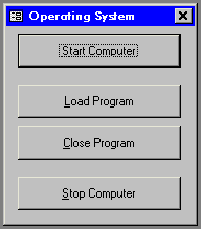
Figure 2 - The Operating System Form
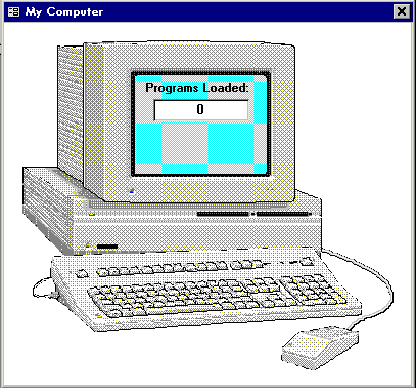
Figure 3 - The Computer Form
As you press buttons on the operating system form, it communicates with the computer form to simulate loading or closing programs. This is done in Access 2.0 with Access Basic code that looks like this:
Code for the Operating System Form:
Private Sub cmdClose_Click()
  Forms!frmComputer_AB!txtPrograms = Forms!frmComputer_AB!txtPrograms - 1
End Sub
Private Sub cmdLoad_Click()
  Forms!frmComputer_AB!txtPrograms = Forms!frmComputer_AB!txtPrograms + 1
End Sub
Private Sub cmdStart_Click()
  DoCmd.OpenForm "frmComputer_AB"
End Sub
Private Sub Command2_Click()
  DoCmd.Close acForm, "frmComputer_AB"
End Sub
This code interacts with the Computer form by setting a value into a textbox on the form. The Computer form has the following code. Notice how it uses a Timer event to check to see if it has crashed:
Code for the Computer Form:
Private Sub Form_Load()
  Me!txtPrograms = 0
End Sub

Private Sub Form_Timer()
  Call Interrupt
End Sub

Sub Interrupt()
  If Me!txtPrograms > 10 Then
    If Not Me!txtCrashed.Visible Then
      Beep
      Me!txtCrashed.Visible = True
    End If
  End If
End Sub
There are obvious problems with this approach. First, the Operating System form has to know internal details about the Computer form, such as the name of its text box. Secondly, the Computer form has to use a Timer event to detect if the Operating System form has loaded too many programs.
To take advantage of VBA, custom properties and custom methods, we rewrite the Operating System form's code to look like this:
Dim frm As Form
Private Sub cmdClose_Click()
  frm.CloseProgram
  GetUsage
End Sub

Private Sub cmdLoad_Click()
  frm.OpenProgram
  GetUsage
End Sub

Private Sub cmdStart_Click()
  DoCmd.OpenForm "frmComputer_VBA"
  Set frm = Forms!frmComputer_VBA

End Sub

Private Sub Command2_Click()
  frm.Shutdown
End Sub

Sub GetUsage()
  Me!txtUsage = frm.Usage
End Sub
This approach removes the need to know about internal details of the Computer form. Instead, it uses custom properties and methods of the Computer form, which can be documented much like the Access built-in properties.
The new VBA code in the Computer form's module looks like this:
Private Sub Form_Load()
  Me!txtPrograms = 0
End Sub

Function CloseProgram()
  Me!txtPrograms = Me!txtPrograms - 1
End Function

Function OpenProgram()
  If Me!txtPrograms = 10 Then
    Beep
    If MsgBox("Starting another program will crash the computer.", vbQuestion + vbYesNo) = vbYes
Then
      Me!txtPrograms = Me!txtPrograms + 1
    End If
  Else
    Me!txtPrograms = Me!txtPrograms + 1
  End If
  If Me!txtPrograms > 10 Then
    Beep
    Me!txtCrashed.Visible = True
  End If
End Function

Property Get Usage() As Integer
  Usage = CInt(Me!txtPrograms) * 10
End Property

Function Shutdown()
  DoCmd.Close acForm, Me.Name
End Function
You will notice how we can call the CloseProgram, OpenProgram and Shutdown functions just as if they were methods. And the Usage property allows us to retrieve a value without knowing about specific objects on the form.
One of the more powerful VBA functions that exists in Access 95, is (as far as I can tell), completely undocumented. C++ programmers have long enjoyed the capability of overloading functions. C++ code that contains two or more functions with the same name, but different parameters is considered to be overloaded. This opens up powerful opportunities for writing your own versions of built-in functions that behave in a way more applicable to your needs. Well, surprise of surprises, VBA has its own version of overloading. You can create your own function that has the same name as any internal VBA built-in function-when you call that function, your version will be used instead of the VBA function.
For example, assume that you are unhappy with the fact that VBA's built in Right function can only accept a string, and can only return a string. In your application, you want the Right function to be able to handle variants also. So you could write the following overloaded Right function:
Public Function Right(varIn As String, intCount As Integer) As Variant
  Right = CVar(VBA.Right(CStr(varIn), intCount))
End Function
When your application's code calls the Right function, the above procedure is used. It converts the passed value to a string, and then calls VBA's Right function, and finally, converts the return value from a string to a variant.
Of course, you can quickly get into deep trouble with this feature. Consider the following code:
Public Function DBEngine() As Integer
  DBEngine = -1
End Function

Public Function BadCall()
  ' This won't work
  Debug.Print DBEngine.Properties(0).Name
  ' This will
  Debug.Print DAO.DBEngine.Properties(0).Name
End Function
In this example, we have overloaded the DBEngine object by creating a function with the same name. This means that any reference to DBEngine in our existing code will now fail, because our DBEngine function returns an integer instead of the expected object. Look at the BadCall() function to see this in action. The first reference to DBEngine won't even compile, because it is calling our version of DBEngine. The second reference will compile and run because it uses the DAO. qualifier to tell VBA that we are referring the actual DBEngine object as defined by DAO.
As far as terminology, I'm using the term overloading here in a very loose fashion. In C++ overloading is defined by two identically named functions within the same scope having different parameter types. The C++ compiler determines which function you are calling by the type of the parameters you supply. The VBA version of overloading is more of a scoping issue because both your version of a function and the VBA version can have the same parameter types. You identify to VBA which function to call by using (or not using) the VBA. Identifier.
Copyright © 1998, FMS Inc. All rights reserved. This information may not be republished, reprinted or retransmitted in any form without the express written permission of FMS Inc. The information provided in this document is provided "as is" without warranty of any kind.
 Latest Newsletter
 Demos
Demos
 Microsoft Access Developer Help Center
 Microsoft Access Query Help Center
 MS Access to SQL Server Upsizing
 Microsoft Outlook Tips
 Technical Papers
 Tips and Techniques
 Videos
Connect with Us
 Email Newsletter
 Developer Team Blog
 Facebook
 X/Twitter
 Support Forum & Tickets
Additional Resources
 Book
Book Links to Related Sites
 My FMS
Thank you! Thank you! I just finished reading this document, which was part of a link in the recent Buzz newsletter. I have printed it for others to read, especially those skeptical on the powers of Access and its capabilities.
Darren D.
 All Our Microsoft Access Products



