



How Linking Tables at Runtime Affects ActiveX on Microsoft Access Forms and Reports
Provided by the FMS Support Team
We've seen many client/customer databases for testing and debugging. Often the problem is bad data, poor structure, or even corruption. However, we've found many developers are encountering another error: An ActiveX control losing its license at runtime.
Most of the time, these issues can be resolved by simply turning off a few database properties for Name AutoCorrect (a.k.a., "Auto Fix-up") at runtime.
Name AutoCorrect is default functionality in Access databases that causes Access to automatically correct references to a changed object in dependent forms, reports, tables, queries, and controls when you make a change to a table, query, field name, or the data source to which an object is linked (i.e., relink tables).
When you create and design your database, you should be aware when Name AutoCorrect is useful, where you find it, and what Microsoft Access will do when it’s enabled. It's important to note that Name AutoCorrect is available in Microsoft Access 2000 or later and only affects standard Jet .MDB files. Access Data Projects (.ADP or .ADE), executable Access files (.MDE) and any replication (including Design Master and Replica) files don't take advantage of this functionality.
Name AutoCorrect has three distinct properties:
- Track Name AutoCorrect Info
- Perform Name AutoCorrect
- Log Name AutoCorrect Changes.
Each of these has a distinct function that helps you in development. Track Name AutoCorrect Info and Perform Name AutoCorrect are selected by default for newly-created databases, but not databases converted from earlier versions. The Name AutoCorrect options only pertain to the database in use and aren't global options for all databases.
| Track Name AutoCorrect Info | Tracks the changes you make to objects and stores them in a table. However, this option performs no action. The table used to store the tracking information is accessible by Access only, and can't be viewed or used by a developer. Additionally, the table only stores the data for changes made to the database to perform those changes with the next option. |
| Perform Name AutoCorrect | Instructs Access to set the references to the dependent objects based on the stored data from Track Name AutoCorrect Info. |
| Log Name AutoCorrect Changes | Will create a log table of changes made by the Perform Name AutoCorrect function. The table is named Name AutoCorrect Log and users can access it. |
ActiveX licensing typically gives the developer full rights to insert a custom control on a form, and freely distribute it to the user. What's distributed is only a runtime version of the control. Typically, a runtime version allows the user to use the control, but not insert the control onto a form or report like the fully licensed version allows. During the runtime of an application, if Access attempts to perform a save, in design view, of a form or report, that contains an ActiveX control, it will result in one of these errors:
- There is no object in this control.
- You do not have a license to use this control.
- The OLE server isn’t registered.
There are several things that may cause Access to attempt to save a form or report in design view. Barring any specific functionality created by the developer, known triggers are renaming forms, reports, tables, queries, fields, text boxes, and other controls, and making changes to the data source for a linked table.
When you select the Track Name AutoCorrect Info option, Access tracks the changes made and records any changes to its hidden and inaccessible table. Although simply tracking the changes doesn't cause forms or reports to be opened and saved in design view, it causes performance degradation due to the extra step Access must take to record the changes being made.
If the option for Perform Name AutoCorrect is also selected, the changes that were tracked will now be implemented on each object when it opens next. Regardless of the method used to open the object, Access opens and saves the object in design view before opening in the view you requested. This is invisible to the developer and user and is done automatically if you select the Perform Name AutoCorrect option. Note that each object the Name AutoCorrect options affect will be opened in design view, changes applied, then saved by Access the next time a users opens them.
You can see a simple example of this by turning all of the options for Name AutoCorrect "ON" in any database (put a check mark in the check boxes), then make a change to a field name in a table and save the table. Any object that references that field, will change to show the new field name next time the object is opened. For instance: Any text box referencing the field name in the control source for a form bound to the table will show the new field name automatically next time the form is opened.
Log Name AutoCorrect Changes can cause further performance degradation because a table must be populated with all of the changes being made. The table "Name AutoCorrect Log" is created (when you make the changes above) and you can see the changes made by Access. This table is accessible so you can see the changes that Access implemented for each object.
The resolutions are simple and straightforward for developers and users.
Manually
Prior to making any changes to objects in runtime, such as re-linking using the Linked Table Manager, simply go to Tools, Options, General Tab, and turn the Track Name AutoCorrect Info option off (uncheck it). Turning this option off automatically disables the remaining options available.
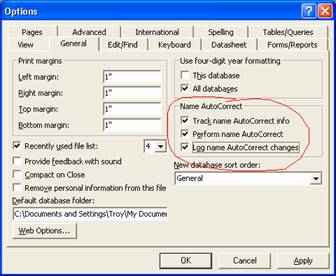
Options Dialog—The Name AutoCorrect options on the General Tab are what need to be disabled manually or programmatically.
Programmatically
Use variables and GetOption and SetOption methods to retrieve and set the Name AutoCorrect values.
For example, you may have to re-link your tables in runtime because of installation locations or users moving your files. In this case, you create variables and set them when first opening the database, re-link the tables, then reset the Name AutoCorrect after you complete the re-link. The following example uses this method:
Private Sub Form_Load()
  ' Variables to hold the values for the Name AutoCorrect options
  Dim fTrackNameAutoCorrectInfo As Boolean
  Dim fPerformNameAutoCorrect As Boolean
  Dim fLogNameAutoCorrectChanges As Boolean

  ' Record the value for Name AutoCorrect options
  fTrackNameAutoCorrectInfo = Application.GetOption("Track Name AutoCorrect Info")
  fPerformNameAutoCorrect = Application.GetOption("Perform Name AutoCorrect")
  fLogNameAutoCorrectChanges = Application.GetOption("Log Name AutoCorrect Changes")

  ' Once the 'Track Name AutoCorrect Info' option is off, nothing else is enabled
  Application.SetOption "Track Name AutoCorrect Info", False

  ' If you want to be safe, you can turn the rest off.
  ' It's not necessary. I just want to show you how.
  Application.SetOption "Log Name AutoCorrect Changes", False
  Application.SetOption "Perform Name AutoCorrect", False
  Application.SetOption "Track Name AutoCorrect Info", False

  ' Now re-link tables if necessary

  ' ADD YOUR RE-LINK CODE HERE
  ' Note: It may be a good idea to incorporate this type of functionality for your users
  ' to save you the hassle of manual intervention for your distributed applications.
  ' See this article's example application for more details on re-link code.

  ' When you're done re-linking the tables, set the Name
  ' AutoCorrect options to their original settings again.
  Application.SetOption "Track Name AutoCorrect Info", fTrackNameAutoCorrectInfo
  Application.SetOption "Perform Name AutoCorrect", fPerformNameAutoCorrect
  Application.SetOption "Log Name AutoCorrect Changes", fLogNameAutoCorrectChanges
End Sub
You can find an example database that shows how this works and includes code to re-link your tables here.
Be sure to follow the instructions in the “INSTRUCTIONS - READ ME FIRST.txt” file!
Technically, you only have to turn off the Perform Name AutoCorrect to prevent Access from fixing-up your objects. However, we recommend disabling the Track Name AutoCorrect Info for the simple reason of improving performance. When this option is off, Access won't spend valuable processor time recording the changes. Also, make sure you are using the latest Service Pack of Microsoft Access.
Whether you're a new developer or a seasoned professional, you can see how Name AutoCorrect may affect your applications at runtime. Understanding the Name AutoCorrect options will help you avoid performance degradation as well as errors at runtime with ActiveX controls. Take extra precaution to ensure you build applications that don't encounter these issues.
For more information on the Name AutoCorrect feature, please read the Microsoft resource Set name AutoCorrect options on the Microsoft Assistance Center.
Microsoft Access 32 and 64-bit Versions are shipping!

for Microsoft Access 365/2021, 2019, 2016, 2013, 2010, 2007, 2003, 2002, and 2000!
Also available for
Access 97/95

Reviews

Components Info

Additional Info