 Importing Microsoft Access Database Tables into SQL Server
Provided by Aparna Pophale, Quality Assurance Specialist
Microsoft SQL Server 2005 and 2008 offer the Import and Export Wizard to move data to and from an external source. You can also create a basic SQL Server Integration Services (SSIS) package which can be used later in the Business Intelligence Development Project.
With the Import and Export wizard, you can access different types of data sources. These sources include database formats such as Microsoft Access, Microsoft SQL Server, flat files, Microsoft Excel, and Oracle. This article discusses importing Access 2007 database tables into MS SQL Server 2005/2008.
Importing Microsoft Access MDB databases is a built in feature of SQL Server. MS Access 2007 and later support a new ACCDB database format. SQL Server Management Studio cannot connect to an Access ACCDB database with the built-in "Microsoft Access" data source. To import data from a Microsoft Access ACCDB database, you must install the OLEDB Provider for Microsoft Office 12.0 Access Database Engine. Refer to the following FMS tip for details:
Errors Importing Data from a Microsoft Access 2007/2010/2013 Format (*.ACCDB) File into SQL Server
After installing this driver, open the Microsoft SQL Server Management Studio and connect to the desired instance of SQL Server database engine. In the Object Explorer, it shows database list available in that instance of SQL Server. Select a desired database or create a new one. Right Click this database and select Tasks -> Import Data.
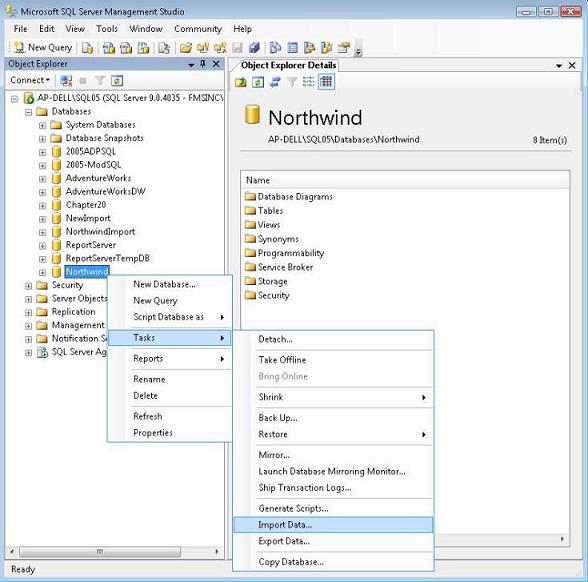
Now follow the several pages of the wizard. The steps below detail how to import data into a SQL Server 2005 database, but the steps are very similar in SQL Server 2008.
On the first page, select the Data source from which you want to import the data. There are several data sources also available such as:
- Microsoft OLEDB provider for SQL Server
- Microsoft OLEDB provider for Oracle
- SQL Native Client
- Microsoft Access
- Microsoft Excel, etc…
Because of the difference between the database engine of Microsoft Access 2007 and earlier versions of Microsoft Access, it is not possible to connect to the Access ACCDB database using data source "Microsoft Access". You can use this if you wish to import data from a MDB format, but not an ACCDB from Access 2007 or later.
If you have properly installed the 2007 Office System driver, you will see another Data Source option: "Microsoft Office 12.0 Access Database Engine."
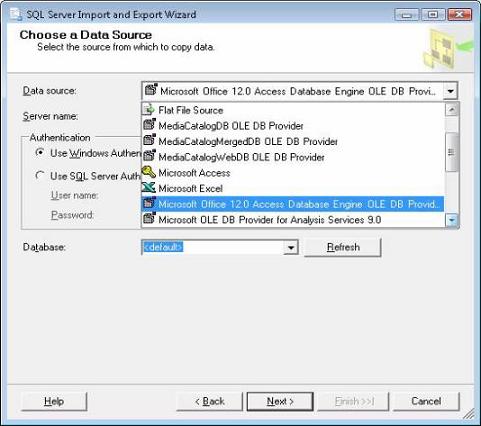
Select this option to import from an ACCDB file. Then click the Properties button to open the Data Link Properties window:
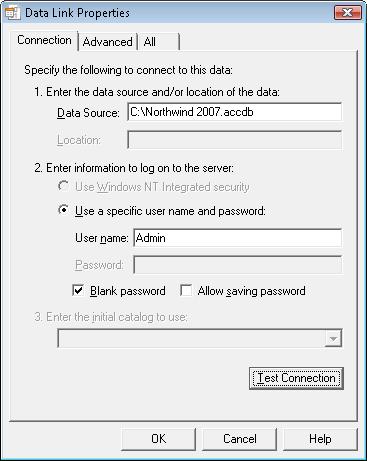
On the Data Link Properties page, provide the location of database in to the Data Source field, and enter the User name and password if applicable. Click on the Test Connection and make sure it succeeds.
Click OK to close the Data Link Properties sheet, and continue to the next page of the Wizard, to choose the Destination.
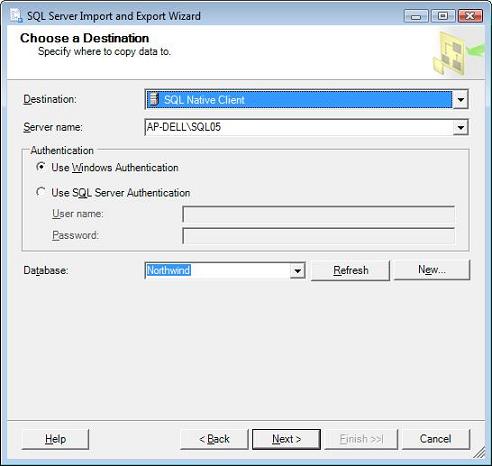
Your destination is SQL Native Client, since you want to import to SQL Server. The server name and database should already contain the database that you want to import to.
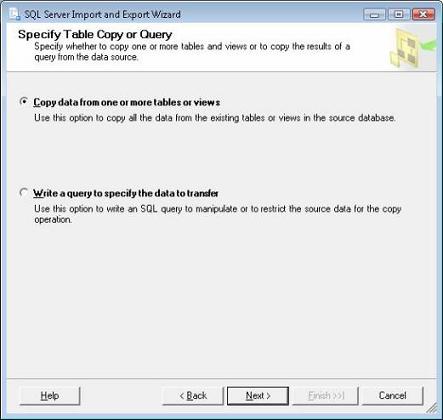
Click Next to continue, and choose option for Copy data from one or more tables or views.
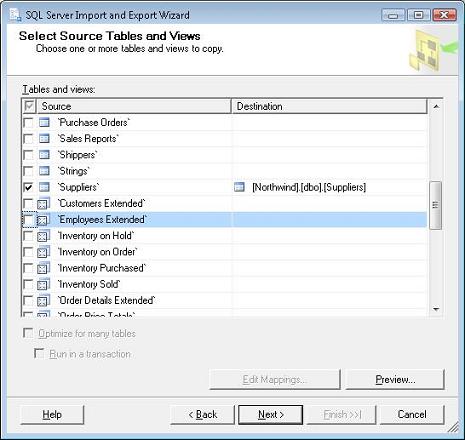
Click Next, and select the Source Tables or Views to import. If necessary use the Edit Mapping button to map the Columns correctly.
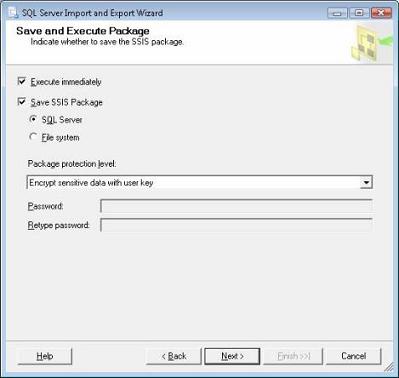
The next screen of the wizard shows two options. First one is to Execute Package Immediately and second one is to save SSIS package which can be used in the Business Intelligence Development Studio Project.
Click Next and Finish the Wizard. It shows all successful action list and errors if any.

Once execution is finished, you can click on the database and see the imported tables from Access database.
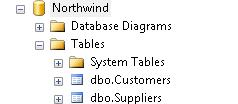
This way you can import data from Access 2007 database tables and also create an SSIS package for a Business Intelligence Development Project.
The limitation of the wizard is it doesn’t share sources with other packages and more advanced logic can't be applied in the wizard.
Microsoft Access ACCDB files support Complex field types: Attachment fields and MultiValue fields. When you import such fields, they're imported as Long Text fields.
- Values from a MultiValue fields are imported to a single Long Text field, with values separated by a semicolon (e.g. Value1;Value2;Value3).
- Values from an Attachment field are stored similarly, except only the name of the Attachment is stored, not the attachment itself (e.g. Picture1;TextFile1)
Additional Resources
- How to: Run the SQL Server Import and Export Wizard
- Importing and Exporting Data by Using the SQL Server Import and Export Wizard
- Choose a Data Source (SQL Server Import and Export Wizard)
- FMS's Microsoft Access to SQL Server Upsizing Center and Resources
Strategic Overview
SQL Server Security
SQL Azure Cloud
What it Means to Information Workers
Link Microsoft Access to SQL Azure Databases
Deploy MS Access DBs linked to SQL Azure
Monitor SQL Server Usage and DTU Limits on Azure
Convert Azure SQL Server to Elastic Pools
SQL Server Tips
Database Backup and Restore on Network
SQL Server Express
SQL Server Express Editions and Downloads
SQL Server Express Automated Backups
Videos
Migrate Your Data Tier to SQL Server: Strategies for Survival
Microsoft Access Database and Migration Challenges
Are we there yet? Successfully navigating the bumpy road from Access to SQL Server
Services
Microsoft SQL Server Consulting Services
Visual Studio .NET programmers for web development
General Microsoft Access consulting services
Additional Resources
Microsoft Access Developer Help Center
MS Access Developer Programming
Connect with Us
 Email Newsletter
 Developer Team Blog
 Facebook
 X/Twitter
 Support Forum & Tickets


