 Microsoft Access Query Tips and Techniques (SQL and VBA)
Provided by Luke Chung, President of FMS, Inc.
This paper is featured on:

Microsoft Access is the most popular Windows database program. A primary reason for its success is its interactive query interface. Once data is collected in a database, analysis and updates need to be performed. Queries offer the ability to retrieve and filter data, calculate summaries (totals), and update, move and delete records in bulk. Mastering Microsoft Access queries will improve your ability to manage and understand your data and simplify application development.
Examples are for Microsoft Access 2016, 2013, 2010 and 2007. Also applies to Microsoft Access 2003 and earlier.
Queries Hide the Complexity of Microsoft Access SQL Syntax
The visual representation of tables and the graphical links between them makes Microsoft Access queries extremely easy to use and hides the complexity of writing the raw Microsoft Access SQL. Fortunately, the nice user interface still allows very powerful and advanced analysis. The entire query engine is modeled on SQL systems and can switch between the graphical query design and SQL syntax. Many Microsoft Access users and developers learned SQL from this feature.
Knowing the many features of Microsoft Access queries allows you to perform advanced analysis quickly without programming. This presentation covers the basics of queries revealing a variety of subtleties. It quickly moves to more advanced topics with hints and techniques for creating sophisticated queries. Finally, programmatic use of queries is presented:
- Query Types
- Basic Select Queries
- Setting Criteria
- Advanced Select Queries
- Action Queries
- Using Queries in Forms, Reports, and Macros
- Using and Running Queries with VBA Code
 Download Sample Microsoft Access Query Database (155K)
Microsoft Access supports many types of queries. Here is a description of the major categories:
- Select Queries
Retrieve records or summaries (totals) across records. Also includes cross-tabulations. - Make Table Queries
Similar to Select queries but results are placed in a new table. - Append Queries
Similar to Select queries but results are added to an existing table. - Update Queries
Modify data in the records. - Delete Queries
Records are deleted from a table.
Select queries are the most common queries and can be used for viewing and a data source for forms, reports, controls, and other queries. The other queries create or change data and are known collectively as Action queries.
The most basic Select queries retrieve the records you specify from a table. You can choose the fields from a table to display, and specify the criteria for selecting records. In the most cases, while viewing the query results you can modify the data and update the original records. These updateable views are extremely powerful.
Selecting Table and Fields
The first step in creating a query is to specify the table or tables to use and the fields to display. Selecting tables is simple. Just choose the table from the list when the query is first created or use the Add Table command from the Query menu. The selected table is placed on the upper portion of the query design window. From there you can select the fields for the query by double clicking on them or selecting several fields (using Shift-Click or Ctrl-Click) and dragging them to the bottom portion: the query by example (QBE) grid. Make sure the Show option is checked to display the field.
Sorting and Reordering Fields
Once the fields are placed on the QBE grid, you can reorder the fields by clicking on the column and dragging it to the place you want. To sort the results, specify the Sort option under the fields to sort. You can choose Ascending or Descending order. Note that you can turn off the Show setting and sort on a field that does not appear in the display.
Renaming Fields
A very nice feature of Microsoft Access queries is the ability to rename fields. You may have your data stored in field names that are not easily understood by users. By using a query expression, you can change the field name the user sees. For instance, a field named "CustID" could be changed to "Customer ID" by placing the new name followed by a colon and the original name in the QBE field cell: Customer ID:[CustID].
Using Calculated Fields (Expressions)
In addition to retrieving fields from a table, a Select query can also display calculations (expressions). Of course, expressions cannot be updated since they do not exist in the original table. Expressions are extremely powerful and allow you to easily display complex calculations. There is an Expression Builder that simplifies the selection of fields and functions. By default, expression fields are named "Expr1", "Expr2", etc.; therefore, you usually want to rename them to something more understandable.
Expression fields are also useful for sorting your records. Here's an example of using a calculated field to Sort on Multiple Date (or Numeric) Fields with Blank Values in a Microsoft Access Query.
Setting Query Properties
While designing a query, you can choose View | Properties or right click on the top portion of the query and choose Properties to see and modify the query properties.
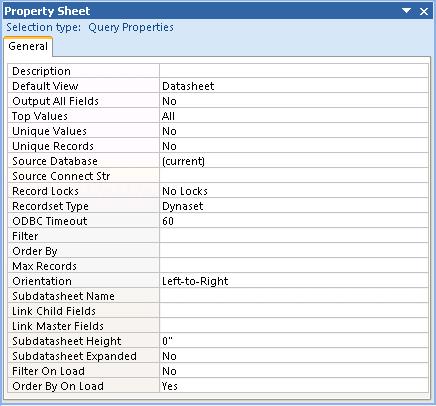
Description
This property lets you provide a description for the query to help you remember its purpose.
Default View
Show the results in a datasheet like a table, or a pivot chart or pivot table.
Output All Fields
This option is usually set to No. If it is changed to Yes, all the fields of all the tables in the query are shown. In general, you should leave this property alone and specify the fields desired in the QBE grid.
Top Values
Rather than retrieving all records, you can specify the top n records or n percent, where n is the value specified here.
Unique Values
By default this is set to No and all records are retrieved. If this is changed to Yes, every record retrieved contains unique values (SQL uses the SELECT DISTINCT command). That is, no retrieved records are identical.
For instance, you can run a query for the State field of the Patient table. With this set to No, the result is a record for each patient. When set to Yes, only the list of unique states is displayed. When set to Yes, the query is not updateable.
Unique Records
By default this is set to No and all records are retrieved. For one table queries, this property is ignored.
For multi-table queries, if it is set to Yes, (similar to using a DISTINCTROW in a SQL statement) only unique records in the underlying tables are retrieved.
The Unique Records and Unique Values properties are linked and only one can be set to Yes (both can be No). When Unique Records is Yes, Unique Values is automatically set to No. When both properties are set to No, all records are returned.
Difference between DISTINCT vs. DISTINCTROW
These options sometimes appear to provide the same results, but there are significant differences.
DISTINCT checks the results of query and eliminates duplicate rows. These queries (Unique Values = Yes) are not updateable. They are a snapshot of your data and don't reflect subsequent data modifications by users. This is similar to running a Totals Query (e.g. using a Group By clause).
DISTINCTROW checks all the fields in the table and then eliminates the duplicate rows. The results of a query with DISTINCTROW (Unique Records = Yes) are updateable and reflect changes to retrieved records (but the query does not automatically run again if the data changes to retrieve different rows).
So the difference is that DISTINCT only checks the fields in the results, while DISTINCTROW checks all the fields in the underlying tables. If your query joins several tables and only displays records from one, the DISTINCTROW option lets you view and edit the results.
For more information, visit Distinct versus DistinctRow in Microsoft Access Queries.
Non-Updateable Queries
Some queries are not updateable. For more information, read our paper addressing the warning message you see: This Recordset is not updateable: Dealing with non-updateable queries in Microsoft Access
SQL Server Properties
There are several properties related to SQL Server tables and are more technical and rarely need to be modified. For more information refer to Microsoft Access' on-line help system.
Filter, Order By, Filter On Load, Order By On Load
Like a form, you can specify the Filter and Order By settings for a query. However, this is usually part of the query's SQL statement. By using the Filter and Order By properties, you have the extra advantage of specifying the Filter On Load and Order By On Load properties to apply them or not.
Subdatasheet Name, Link Fields, and Size
If you want to display a subdatasheet to show a one-to-many relationship between the results in this query with data from another table, you can specify them here. There is a significant performance cost for having subdatasheets, so only add them if you want them.
Setting Field Properties
In addition to query properties, each field also has properties that can be set. Move to a field in the QBE grid and right click. Depending on the field type, different properties are available. The most important properties are for numeric and date fields. You can specify how the fields are formatted when the query is run.
Viewing Results and SQL Equivalent
Once the query is completed, you can view its results by switching from Design to DataSheet view. You can also view the SQL equivalent. You can even edit the SQL syntax directly and view the results and/or switch to Design view.
The bottom section of the QBE grid is several rows for Criteria. These are optional entries to specify which records are retrieved. If you want all the Patients from the state of Virginia, just enter "VA" in the State's criteria. To further narrow the scope, you can enter criteria for several fields.
Multi-Field Query Criteria
Entering criteria on the same row for several fields performs an AND query between the fields. That is, records that match the criteria in field 1 AND the criteria in field 2, etc. are retrieved. If criteria is placed in different rows, an OR query is performed: retrieve all records matching criteria in field 1 OR criteria in field 2, etc.
Criteria Types
The simplest criteria is the exact match. Just enter the value desired in the field's criteria section. Remember that by using the Show option to eliminate the field from the display, you can specify criteria in fields the user never sees.
<>, <, >, Between .. And ..
You can also retrieve records where a field does not have a particular value by using "< >" followed by the value you don't want. Similarly, you can use >, <, >=, or <= for ranges. To select records with values between two values, use the BETWEEN .. AND .. syntax.
Nulls
To select records with Null values, enter Is Null. The opposite is Is Not Null. For text fields, remember that zero length strings ("") are not nulls.
OR and IN(.., .., ..)
To select records where a field can have one of several values, use the OR command. You can simply say: "MD" or "DC" or "VA". Alternatively, the IN command performs the same function: IN("MD", "DC", "VA"). The second syntax is easier if you have many values. Of course, if you have a very large number of values, it is better to keep those values in a table and link your query to it. That is easier to maintain than OR or IN clauses inside queries.
Wildcard Searches
Sometimes, you need to search for a particular letter or digit. Combined with the Like command, wildcards let you specify such criteria. These are the wildcard characters Microsoft Access uses:
- ? Single Character
- * Any number of Characters
- # Single Digit
- [..] Character List
- [!..] not in Character List
For instance, if you are interested in a text field where the second letter is "a", the criteria would be: Like "?a*". If you were seeking values where the second letter could be an "a" or "e", the criteria would be: Like "?[ae]*". The opposite of this (all values that do not have "a" or "e" as the second letter) is performed by adding an "!": Like "?[!ae]*". Finally, to select a range of letters (say "a" through "e"), add a dash between the letters: Like "?[a-e]*".
To search for a wildcard character, enclose the value in brackets. For instance, to find values that end in a question mark, use this: Like "*[?]"
Advanced Select Queries
- Using Parameters
- Using Access Functions
- Using Custom Functions
- Other Advanced Queries
Top Records, Total Queries, Crosstabs, Multi-table Queries, Basing queries on queries - Percent of Total
- Frequency Distribution
- Union Queries to Combine Queries
Often it is not possible to know in advance the criteria for a query field. In such cases, where the filter values are not known until runtime, a variable (parameter) can be used. When these queries are run, the user is prompted for the value of each parameter. (The parameters can also be assigned programmatically). Using parameters in queries is extremely powerful and converts static "hard-coded" queries to flexible, dynamic ones. The use of parameters can significantly reduce the number of queries you need, makes queries more useful, and simplifies database maintenance.
Parameters can be added very easily. Rather than entering the value of a criteria, enter between brackets the prompt you want the user to see when the query is run. The value the user enters replaces the parameter in the query. In the following example, a parameter [Enter State Name:] is the criteria in the [State] field, and [Enter Minimum Age:] is the parameter in the [Age] field. When this query is run, the user is prompted for the state desired and minimum age, and the records matching that value are retrieved.
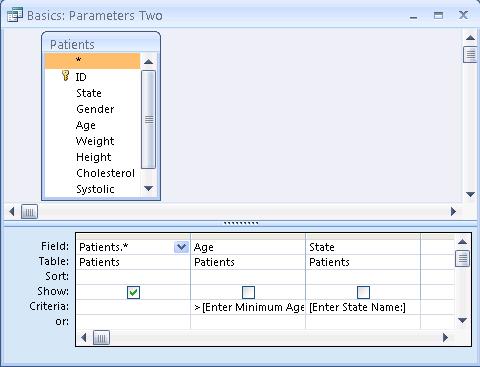
Parameters work provided the parameter definition does not conflict with the field name among the query's tables.
To better define a parameter, you should specify it in the list of parameters. This is an optional step, but there are good reasons to do so. Right mouse click on the top part of the query and choose Parameters. This form appears to let you list each parameter name and its type:
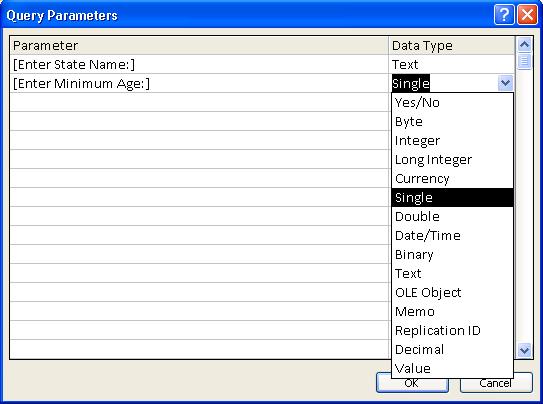
By explicitly defining parameters, users are forced to enter values conforming to the type. While it may not matter for text fields, it is useful for numeric and date fields. This minimizes data entry errors that cause a "Can't evaluate expression" error message to appear.
One of the most powerful features of Microsoft Access queries is their support for Access functions. This is most useful in Update queries, but can also be used in Select queries. The Advanced: Access Functions query is an example of this feature:
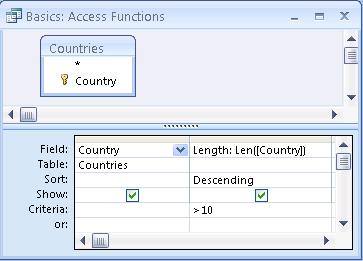
This query selects the Country names in descending order of name length. The second field renames itself to [Length], uses the LEN function to calculate the length of each country name, sorts the length in descending order, and excludes any records with 10 letters or fewer.
While this may not seem particularly useful, there are many situations where using Access functions is extremely useful and eliminates the need to program. The string functions in particular (Left$, Right$, Trim$, Mid$, UCase$, LCase$ etc.) are useful for manipulating portions of strings and changing case.
Here's a paper on using the VBA StrConv function to use a Microsoft Access Query to Convert a Text Field to Proper Case.
In addition to using Microsoft Access functions, queries also support user defined functions. Functions defined in VBA modules must return an appropriate value and can be used to manipulate each record. You can reference field values by passing the field name in brackets.
Here is an example where a function (StripLead) is used to remove the leading word of a phrase if it starts with "The", "An", or "A". This is useful for sorting phrases such as book titles on "real" words:
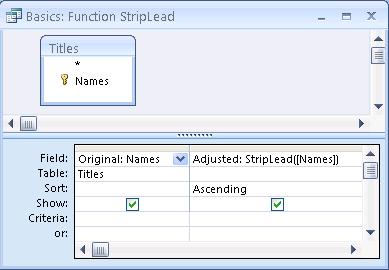
This is the code for the StripLead function. It is passed a string and returns the string without the leading word (if any):
Public Function StripLead(pstrPhrase As String) As String
  ' Comments: Get rid of leading A, An, or The in a phrase.
  '           Used for card catalog sorting.
  ' Params  : pstrPhrase Phrase to examine
  ' Returns : The input phrase without the "useless" first word.
  '           Returns the same phrase if the first word isn't an issue

  Dim strFirstWord As String
  Dim strReturn As String
  Dim intPos As Integer

  strReturn = pstrPhrase
  intPos = InStr(pstrPhrase, " ")
  If intPos > 0 Then
    strFirstWord = Left$(pstrPhrase, intPos - 1)
    Select Case strFirstWord
      Case "A", "An", "The"
        strReturn = Right$(pstrPhrase, Len(pstrPhrase) - intPos)
    End Select
  End If

  StripLead = strReturn
End Function
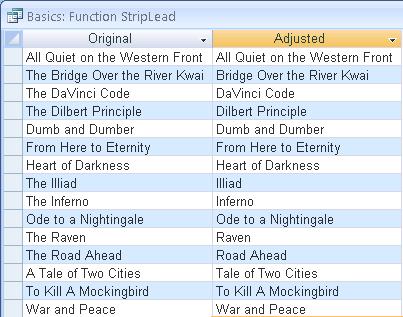
And this is the result. Notice how the sorting of the [Adjusted] field differs from the [Original] field:
Other Types of Select Queries
- Top Records (number and percent)
- Total Queries
- Crosstab Queries
- Multi-table Queries
- Basing Queries on Other Queries
Select queries retrieve all the records that meet your criteria. There are occasions where you only want a subset: the top or bottom number of records. Similarly, you may just want the top or bottom percent of records.
This is easy to do. Just change the query's Top Values property (right mouse click on the top portion of the query), you can specify the number of records to display. The example below (query: Other: Top 10 Auto Companies) has this set to 10:
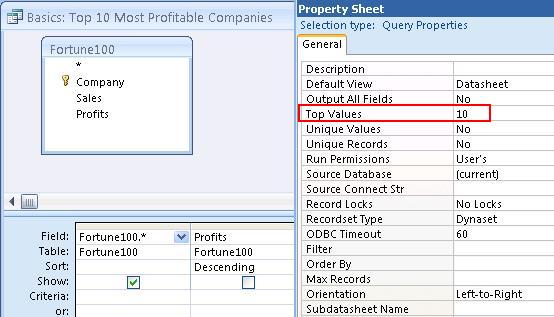
Notice the query is retrieving records in Descending order so the Top Values option retrieves the largest values. It simply runs the query and displays the specified number of records in the query output's order.
To display the lowest values, the query should retrieve records in Ascending order.
Top Percent of Records
Sometimes, you want a percentage of records and not a fixed number. To retrieve the top n% of the query records, enter a percentage (e.g. 10%) rather than just a value in the Top Value option. Similarly but sorting in the opposite direction, you get the bottom percentage of records.
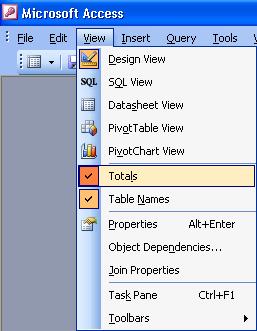
Up to now, we have only retrieved records. With lots of data, it is important to calculate summaries for groups of records or totals on the entire table. This is possible by specifying Totals from the Show/Hide ribbon in Access 2007 or the View menu in Access 2003 or earlier.
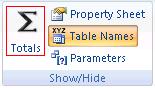
Microsoft Access 2007 and Later
This performs calculations across all the records and creates a summary result. For instance, you can Sum on a numeric field to determine the total for the entire table. Additionally, you can group on fields to calculate totals for each unique combination of values across the group fields.
When Totals is selected, a new "Total" row appears in the query design. You can specify the type of calculation you want in that section:
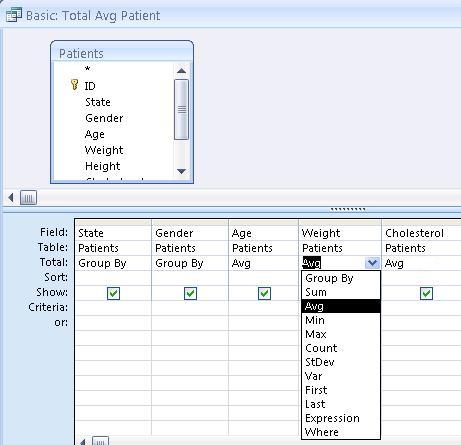
For this query, the result shows average Age, Weight and Cholesterol for patients by State and Gender.
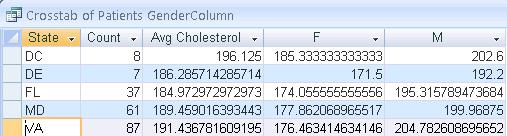
Crosstabs are a powerful analysis tool that lets you quickly see the relationship of data between two fields. The view is a spreadsheet like display with unique values of one field as rows, unique values of another field as columns, and the summary of another field as the cells in the matrix.
For instance, with the previous example, a crosstab can clearly show the average Cholesterol between State (rows) and Sex (columns):
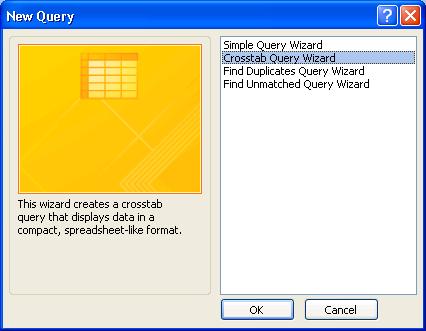
The easiest way to create a crosstab is to use the Crosstab Wizard. When creating a new query, select Query Wizard and follow the Crosstab Query steps:
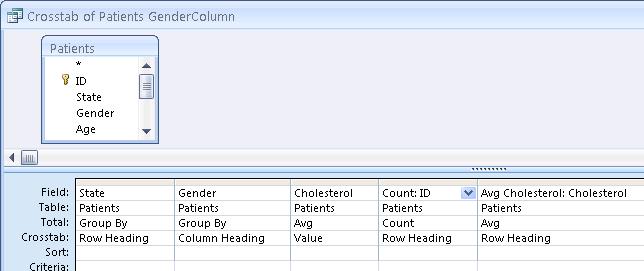
Crosstab queries can also be manually created by selecting Crosstab from the Query menu and specifying the Row and Column Headings:
To this point, all the queries shown were for one table only. Microsoft Access queries allow very sophisticated multi-table queries. Criteria and field selections can be from any of the query's tables. Linking tables on fields is done visually by dragging a line between the fields to link.
For our previous example, we may want to show the full name of each state rather than its abbreviation. With a State table that contains the abbreviation and full names, this can be easily performed:
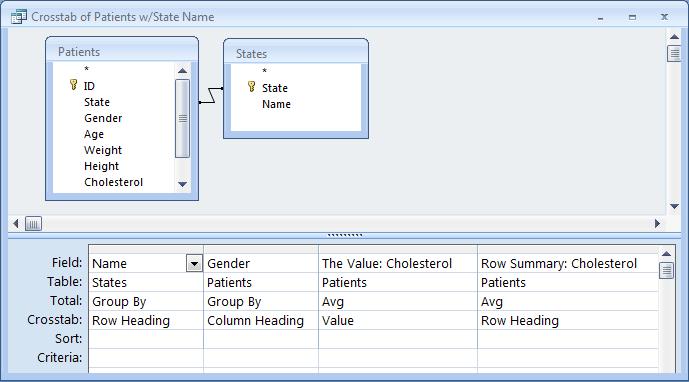
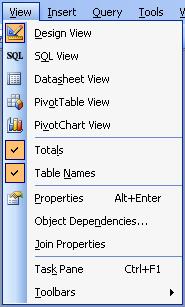
Notice the link on the [State] fields and the [Name] field from the States table in the query. To create multi-table queries, the Table row should be displayed. This can be activated from the View | Table Names menu. Even better, the default query options should set Show Table Names to Yes.
There are several ways to join tables in a query. The previous example was the most common which is an exact match between fields, sometimes called an INNER JOIN. Another join includes retrieving all records from one table regardless of whether there are matches in the second table. This is called a LEFT JOIN. If the logic is reversed (all records from the second table and matching records from the first) it is called a RIGHT JOIN. These options can be selected by double clicking on the linking line and choose among the three options.
Left Join Between Tables
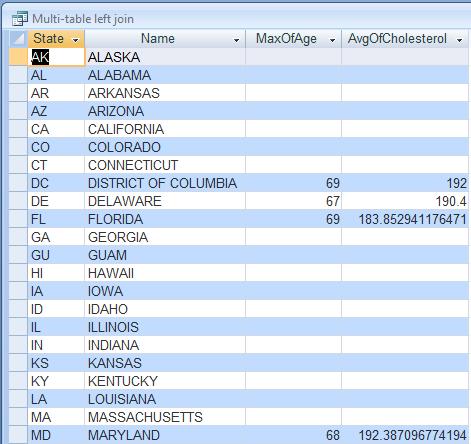
Here is an example of a query with a left join and the results.
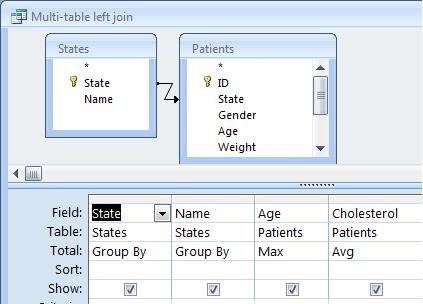
Notice how States that do not have patient data are shown with no value in the [MaxOfAge] and [AvgOfCholesterol] fields:
No Joins Between Tables
Queries with multiple tables do not even require a line between the tables. If no lines are specified, a record by record link is assumed. That is every record in the first table is linked to every record in the second table. This is most useful when one of the tables only has one record. Finally, tables may be linked through an expression that establishes a partial match or match based on a range of values. Examples are shown later.
So far, the queries presented are only based on tables. However, Microsoft Access lets you also base queries on other queries. This ability to filter and analyze data across several levels is extremely powerful. The queries themselves behave identically whether the data comes from tables or queries.
Basing queries on other queries can also simplify maintenance of your database by letting you create standard queries that other queries can use. This can be particularly useful in reports. Of course, you need to be careful modifying the "core" queries.
Additionally, when generating reports in multi-user databases, make sure you don't use queries when you should be using temporary tables generated by Make Table and Append queries. Queries always retrieve the most current data. If you are printing many reports while others are modifying the data, and consistency between reports is important (the numbers need to tie), you must create temporary tables with the data you need prior to printing. You can then base your queries on those "static" tables.
For a field, calculating the percent of each record to the total for an entire table is useful for determining the relative size of each group. This can be achieved by creating a summary query and using that in another query with the original table. In this example, we use the Fortune100 table containing sales and profits data for 100 large corporations; and two queries ("Fortune 100 Totals" and "Fortune 100 PercentOfTotals"). Here's how they work:
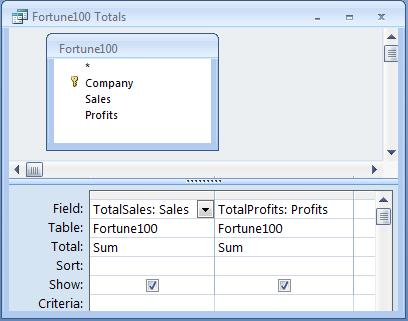
Step 1: Create a Query calculating the Totals
This is a simple query that sums the values in the two fields: [Sales] and [Profits]. For clarity, the resulting fields are named [TotalSales] and [TotalProfits].
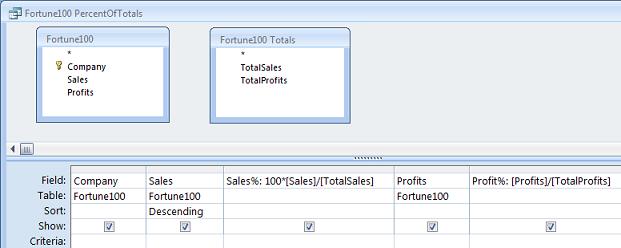
Step 2: Create a Query with the Totals and the Original Table
This is a simple select query that retrieves fields from the Fortune100 table and creates new fields for the Percent of Total calculations. Notice the two tables are not linked with lines between them. They only interact in the Percent of Total calculations where the values in the calculated fields using TotalSales and TotalProfits as divisors:
Step 3: Run the Query
Running the query provides the desired results:
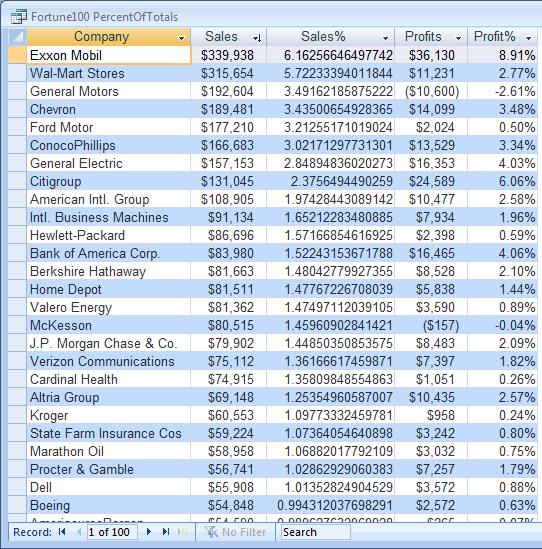
Notice how the [Profit%] field shows data nicely formatted (unlike [Sales%]). The difference is due to formatting settings on the [Profit%] field. While designing the query, right click on the [Profit%] field and notice its format is set to Percent. For the [Sales%] field, it's a standard number. This is the reason that the formula for [Sales%] includes a 100 factor that is not in the [Profit%] column.
Percent of Total in Microsoft Access Reports
Calculating percent of total in Microsoft Access reports is even simpler because queries don't need to be created. The first step is to create a control with the summary (total). Place the text box control in the grouping or report footer and set its control source to "=Sum([FieldName])" where FieldName is the same of the field you want to sum. The value can be the total for the entire report or just the group. Give the text box control a name (e.g. txtTotal). You can then reference that control for the value of the total. In the Details section, you can calculate the percent of total in a text box by setting the control source to "=[FieldName]/[txtTotal]" and set the format to Percent.
Frequency distributions reveal the number of records that contain values within numeric ranges. By using the VBA function, Partition, you can group on that for intervals of identical widths.
In this example, we show how you can define your own groupings of different size ranges, give them your own label and sort the results in the order you expect. All without writing any code!
In this example, we want to know how many patients fall into different age categories (under 25, 25 to 40, 40 to 50, 50 to 60, and 60+).
A simple two table query calculates these results even when the size of the numeric ranges are not identical. In this example, we use two tables (Age Groups and Patients), and one query (Frequency: Age Distribution). Just follow these simple steps:
 Step 1: Create a table defining the groups and numeric ranges
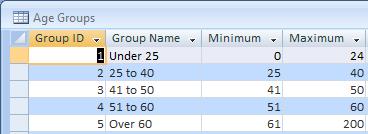
Simply create a table with four fields: Group ID (counter), Group Name (text), Minimum (number), and Maximum (number). For each record, define the groups and its low and high values:
Notice how the [Maximum] value of one record is smaller than the [Minimum] value of the next record. They cannot be identical or else such values would fall into two groups. In our example, the Age data are integers so using integers in this table is okay. Otherwise, you can use numbers very close to each other (e.g. 24.9999999). You can name and specify as many groups as you like.
Step 2: Create multi-table Select query
Create a Totals Select query with the data table and the Group definition table defined above:
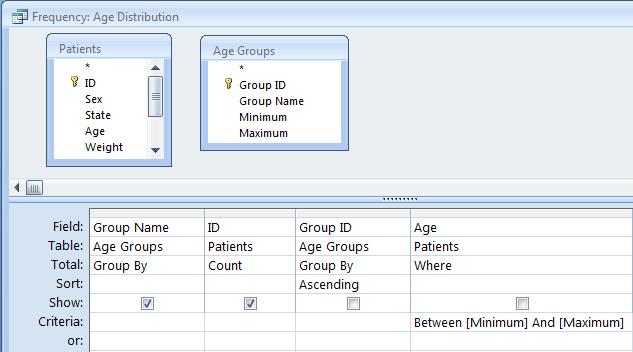
Notice that the two tables boxes are not linked to each other. The first and third fields in the query come from the group table: the [Group Name] description and the [Group ID] field controlling the sort order. The second field is the count of the Patient (data) table's [ID] field (this field is used since it is not null for every record). The final field defines the link between the two tables. Using the Patient table's [Age] field, the criteria is "Between [Minimum] And [Maximum]". This "bins" the Patient data into the age groups defined by the Group table.
 Step 3: Run the Query
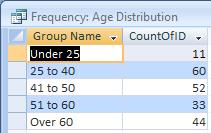
Running the query provides the desired results:
If the Group table's [Group ID] field is not used in the query, the results would be shown in Ascending order by [Group Name] ("Under 25" would be the last record).
 Sometimes
you may want to show the results of multiple select queries as one. While we would normally suggest using a temporary table to
store results from multiple queries just for clarity and maintainability, there are situations where that's excessive.
Sometimes
you may want to show the results of multiple select queries as one. While we would normally suggest using a temporary table to
store results from multiple queries just for clarity and maintainability, there are situations where that's excessive.
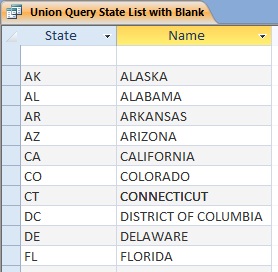
For instance, some combo boxes (for lookups) need to show a blank value when the user is not required to make a selection. Here's a example of how to show a list of states with an initial blank row by combining a dummy record:
SELECT "" AS State, "" AS Name
FROM States
WHERE (States.State)="VA")

UNION

SELECT States.State, States.Name
FROM States
See the query "Union Query State List with Blank" in the sample database to see how this works. The first SELECT statement just creates a dummy record using criteria that only returns one record (State = "VA" for Virginia). Rather than showing the value from the Virginia record, it returns blank values for both the State and Name fields. Open the query "Union Query Blank State" to see this.
For more information on union queries, read our paper on Union vs. Union All SQL Query Syntax.
To this point, we have only covered Select queries. These queries take existing data and display it to you either record for record or in a summarized manner. Action queries actually change data. These queries can modify fields, add records to tables, delete records, and even create tables. To specify the query type, select among the options presented under the Query menu while designing a query:
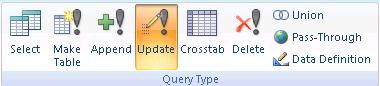
These queries are similar to creating Select queries:
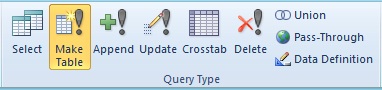
Make Table Queries
Make Table queries are identical to Select queries except rather than creating a datasheet display of the results, a new table is created containing the results. These are particularly useful for creating temporary tables. For instance, if you are generating a series of reports while other people are changing the data, a Make Table query can create a snapshot of your data and allow your reports to work off that table. This lets you create a consistent set of reports.
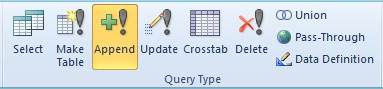
Append Queries
An Append Query in Microsoft Access is similar to a Select query, but the results are inserted as new records into another table. The field names do not need to match and expressions can also be used. The other table may or may not be empty before records are inserted.
Update Queries
An Update Query in Microsoft Access allows you to modify the data in your records. This is often used to update a field with an expression or data from another table.
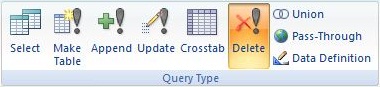
Delete Queries
A Delete Query in Microsoft Access lets you specify the records to remove from a table. You can empty the entire table, remove records based on criteria in its fields or values in other tables.
Using Queries in Forms and Reports
Queries can be used in forms and reports in a variety of ways. The most common is the Record Source of the form or report. Another useful place is the RowSource of a ComboBox.
Running Queries through Macros
Running a query with a macro is very simple. Just use the OpenQuery command and specify the query name to run. If the query has parameters, the user is prompted for the values.
If you are running an Action query, you can do the same thing; however, Action queries usually display warning messages prior to changing data. To eliminate such messages, use the SetWarnings command to turn this off and on before and after the query.
There are many ways to run queries through modules. Here are a few examples:
- Creating and using a RecordSet based on a saved Select query
- Assigning Parameters in Queries
- Using a SQL string to open a Recordset
- Running a stored Action query
- Creating a table with a MakeTable Query SQL string
Creating and using a RecordSet based on a saved Select query
RecordSets let you programmatically move through a table or query. By assigning a Select query to a RecordSet, you can move through the table. Commands such as MoveNext, MoveFirst, MoveLast, MovePrevious, let you control where you are in the query. By checking the EOF status, you can make sure you stop at the end of the table. Field values are referenced with a ! then field name.
Public Sub BrowseQuery_DAO()
   ' Comments: Browse a query and display its fields in the Immediate Window using DAO

   Const cstrQueryName = "Basics: Top 10 Most Profitable Companies"
   Dim dbs As DAO.Database
   Dim rst As DAO.Recordset

   ' Open pointer to current database
   Set dbs = CurrentDb

   ' Open recordset on saved query
   Set rst = dbs.OpenRecordset(cstrQueryName)

   ' Display data from one record and move to the next record until finished
   Do While Not rst.EOF
     Debug.Print "Company: " & rst![Company] & " Sales: " & rst![Sales] & " Sales: " & rst![Profits]
     rst.MoveNext
   Loop

   rst.Close
   dbs.Close
End Sub
This example prints the company name and sales in the Immediate Window.
Assigning Parameters in Queries
Earlier we showed how to use parameters in queries. If you want to run from code a query which has parameters you need to specify the parameters in your code. Otherwise, the user is prompted for the parameter value when the query is executed.
To pass a parameter value to a query, you need to create a QueryDef and reference its parameters collection. From there you can specify each of the query's parameters. When you are finished, you can create a recordset from it (if it is a Select query) or execute it if it is an Action query. To learn more about QueryDefs and the parameters collection, refer to the on-line help section under QueryDefs.
Public Sub RunParameterQuery_DAO(pstrState As String)
  ' Comments: Runs a query containing parameters
  ' Params  : pstrState       Name of state to select records

  Const cstrQueryName As String = "Basics: Parameters"
  Dim dbs As DAO.Database
  Dim qdf As DAO.QueryDef
  Dim rst As DAO.Recordset

  Set dbs = CurrentDb()
  Set qdf = dbs.QueryDefs(cstrQueryName)
  qdf.Parameters("State Abbreviation") = pstrState

  ' Open recordset on the query
  Set rst = qdf.OpenRecordset()
  Do While Not rst.EOF
    Debug.Print ("ID: " & rst![ID] & " State: " & rst![State])
    rst.MoveNext
  Loop

  rst.Close
  qdf.Close
  dbs.Close
End Sub
Using a SQL string to open a Recordset
Often it is not possible to know a query's specifications in advance. In these situations, the query needs to be programmatically created. This is done be creating a SQL string containing the query to run. The example below shows a simple case, but one can easily create a more complex example where the query string (strSQL) is based on other situations (field values, user selections, etc.).
Public Sub RecordsetFromSQL_DAO()
  ' Comments: Browse the results of a SQL string and display it in the Immediate Window

  Dim dbs As DAO.Database
  Dim rst As DAO.Recordset
  Dim strSQL As String

  strSQL = "SELECT Left([Company],1) AS Letter, Count(Company) AS [Count], " & _
           "Avg(Sales) AS AvgOfSales, Avg(Profits) AS AvgOfProfits " & _
           "FROM Fortune100 " & _
           "GROUP BY Left([Company],1)"

  ' Open pointer to current database
  Set dbs = CurrentDb()

  ' Create recordset based on SQL
  Set rst = dbs.OpenRecordset(strSQL)

  Do While Not rst.EOF
    Debug.Print "Company Letter: " & rst![Letter] & _
                " Sales: " & rst![AvgOfSales] & _
                " Profits: " & rst![AvgOfProfits]
    rst.MoveNext
  Loop

  rst.Close
  dbs.Close

End Sub
Running your own query string is identical to the previous examples. Just base a RecordSet on the query string.
Running A Stored Action Query
To run a saved Action query like an Update Query, use the query Execute command. The simple procedure below lets you easily run a saved query. Just pass the name of the query and it is performed:
Public Sub RunActionQuery_DAO(pstrQueryName As String)
  ' Comments: Sample code of running a stored (action) query
  ' Params  : pstrQueryName            Name of the query to run

  DoCmd.SetWarnings False
  CurrentDb.Execute pstrQueryName
  DoCmd.SetWarnings True

End Sub
This procedure sets up a database variable referencing the current database, and creates a QueryDef based on the query name. The Warning message is temporarily turned off before executing the query and reset afterwards. DoEvents and DBEngine.Idle commands are used to make sure the Jet Engine has completed its tasks and releases its locks.
Creating a table with a MakeTable Query SQL string
A MakeTable query is an Action query and can be run with the Action Query example shown earlier. The only wrinkle here is to make sure the new table is deleted prior to the Make Table query's execution. Also, the example below shows another way to execute a query without using a QueryDef.
Public Sub MakeTableFromSQL_DAO()
  ' Comments: Sample code running an action query created in a SQL string
  '           Includes simple error trapping to handle problems creating table

  Const cstrNewTableName As String = "Fortune100 LetterSummary"
  Dim strSQL As String
  Dim strError As String

  ' SQL string to create a new table
  strSQL = "SELECT Left([Company],1) AS Letter, Count(Company) AS [Count], " & _
           "Avg(Sales) AS AvgOfSales, Avg(Profits) AS AvgOfProfits " & _
           "INTO [" & cstrNewTableName & "] " & _
           "FROM Fortune100 " & _
           "GROUP BY Left([Company],1)"

  ' Delete table if it exists
  On Error Resume Next
  DoCmd.DeleteObject acTable, cstrNewTableName

  Err.Clear

  ' Execute (run) the query
  CurrentDb.Execute strSQL
  If Err.Number <> 0 Then
    strError = Err.Description
  End If

  On Error GoTo 0

  If strError = "" Then
    MsgBox "Table: [" & cstrNewTableName & "] created"
    DoCmd.OpenTable cstrNewTableName
  Else
    MsgBox "Error creating table: " & strError
  End If

End Sub
Additional code is provided in the sample database with this paper.
Total Access Emailer 2022
Email Everyone in Your Access List!

Total Visual Agent 2021
Automate Access Database Chores!

Updated Microsoft Access to SQL Server Upsizing Center with whitepapers, resources, and SQL Server Express Downloads
 Latest Newsletter
 Blog with us
 Follow us on Twitter
 Query Blog
Retrieving Data
Action Queries
Statistical Analysis

The most popular Microsoft Access Number Cruncher
Source Code Library

SQL Server Upsizing

Microsoft Access to SQL Server Upsizing Center
Additional Resources
Connect with Us
 Email Newsletter
 Developer Team Blog
 Facebook
 X/Twitter
 Support Forum & Tickets


