


Emailing Microsoft Access Reports and Data Filtered for Each Recipient
Microsoft Access lets you create all kinds of great reports combining data from multiple tables, and letting you sort, aggregate, and format it in a variety of ways. With the use of sub-reports, you can easily display data in multiple sections to illustrate one-to-many relationships and linked data.
However, emailing Access reports to your contacts is more challenging. Fortunately, Total Access Emailer gives you many ways to leverage your existing Access reports so that you can disseminate your data to all your contacts.
 Assuming you have a list of contacts with email addresses
in a table, Total Access Emailer lets you easily create a personalized email for everyone in your list. The message can be text or HTML and can include references
to fields in your data source. That lets you easily customize messages to include things like "Dear [FirstName] [LastName]..."
Assuming you have a list of contacts with email addresses
in a table, Total Access Emailer lets you easily create a personalized email for everyone in your list. The message can be text or HTML and can include references
to fields in your data source. That lets you easily customize messages to include things like "Dear [FirstName] [LastName]..."
You can also include an attachment in formats such as text or Excel with data from a table or query. The data can be the entire list or filtered by values in your data source. This makes it easy to limit the data by an ID value and only email personal information to each contact.

Because Total Access Emailer runs within Microsoft Access, it gives you the full power of Access including its reports. Easily personalize your messages with Access reports in a variety of ways depending on your needs:
 An attachment in Adobe PDF, text, HTML, Excel, CSV, rich text
(RTF), report snapshot (SNP), or XPS formats
An attachment in Adobe PDF, text, HTML, Excel, CSV, rich text
(RTF), report snapshot (SNP), or XPS formats
(PDF and XPS are available in Access 2007 or later; snapshots are not supported by Access 2010 or later)- The HTML body of your message
- The text body of your message
Total Access Emailer can email the report output to everyone in your list. Choose the file format such as Adobe PDF, text, HTML, RTF, or XPS. It gets attached to your email message and everyone on your list gets the same report or reports.
A more powerful feature is filtering a report to only send the appropriate data to each recipient. Total Access Emailer can automatically limit your report by the filter field(s) you specify. This lets you send each recipient information private to them. No one else sees their data and pages.
For example, you can take your existing Invoice report and email late invoices to everyone who should receive one. Simply create a query that defines who should get late invoices and link the invoice report to them.
Imagine how quick and easy it is, and all the paper and postage you save by distributing your reports this way! You can even compress your attachments into a zip file and password protect it with a unique value from a field in your data source.
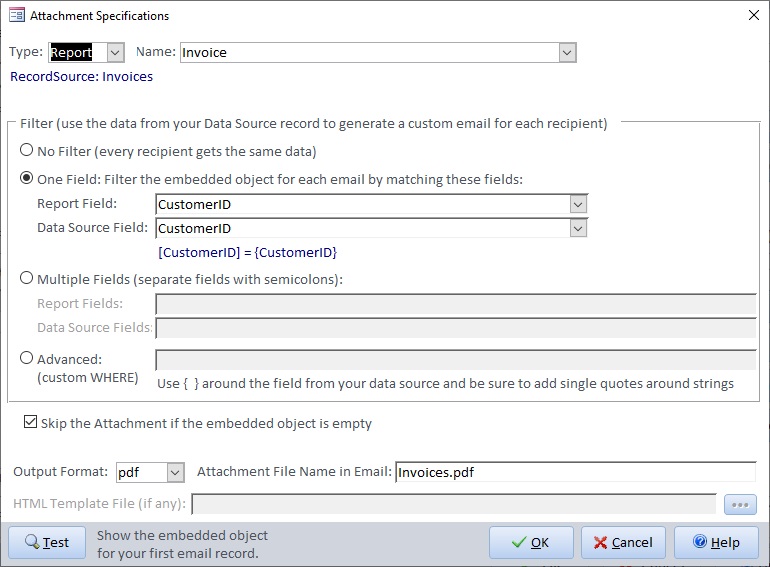
Example of Attaching the Invoice report as a PDF file filtered by CustomerID
For more advanced and customized use of Access reports, you can use its HTML output feature as your message itself!
Microsoft Access lets you export reports to HTML format. This powerful feature lets you leverage the power of the MS Access report generator to create very complex and sophisticated reports in HTML.
Total Access Emailer takes advantage of this feature so you can use Access reports as the designer of your HTML messages. Simply create an Access report with the message you want to send to each recipient, place your fields, format them, aggregate your data, etc. You can export it to HTML to verify it's designed exactly the way you want. Once you're satisfied, have Total Access Emailer generate the HTML output for you.
Without a filter, everyone gets the same message. By filtering the report from your data source with the email addresses, Total Access Emailer sends each recipient their own information.
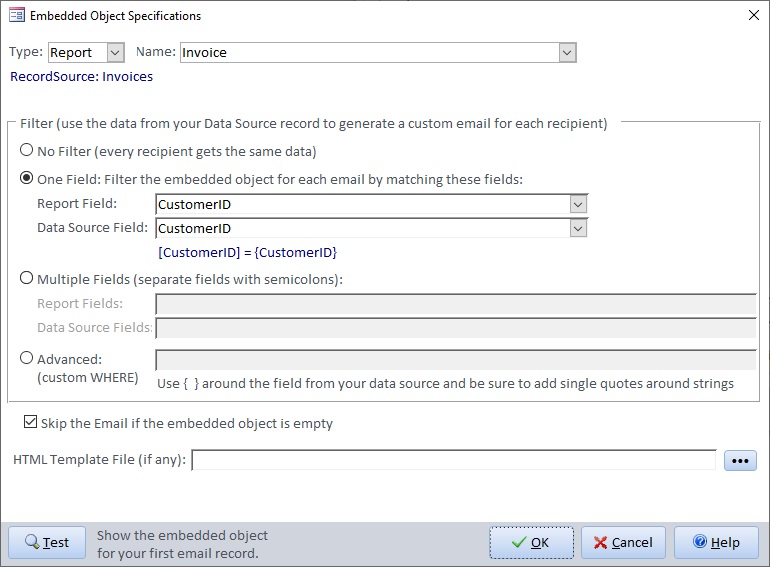
Example of the Invoice report filtered by CustomerID as the HTML message
Similarly, Microsoft Access can export reports to Text format. This is sometimes better for displaying columnar data in an email. Simply specify the report for the text message, and Total Access Emailer sends them out.
 Total
Access Emailer lets you compress all your file attachments into one zip file and password protect it. You can use the same zip file name and
password for everyone, or apply values from fields in your data source so each recipient has their own zip file name and password (e.g. last four digits of
their social security number).
Total
Access Emailer lets you compress all your file attachments into one zip file and password protect it. You can use the same zip file name and
password for everyone, or apply values from fields in your data source so each recipient has their own zip file name and password (e.g. last four digits of
their social security number).

Total Access Emailer 2022 is shipping for Access 365/2021/2019!

New X.81 Versions for Microsoft Access 2016, 2013, and 2010!
X.7 Version for Access 2007
X.6 Versions for Access 2003, 2002, and 2000

Reviews
"I was thrilled with how easy it was to run and I appreciated that I didn't need to build any special tables or queries."
Sandra Daigle
Microsoft Access MVP
Emailer Info

Additional Info