



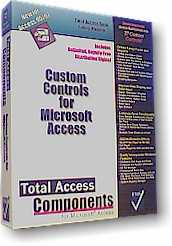
 Enhance your Access Forms and Reports with 27 Powerful Custom Controls Designed Exclusively for Access 95 and 97
Click here for the Latest Version!

Best ActiveX Control
Best Interface Design Tool
"Add some zing to your apps!"
- Product Review, Access/VB Advisor
"If you want to make your work distinct from others ... or you want to be well remembered by clients and get noticed, or you
want to impress other people in general, or you just want to have fun, then these controls are for you."
- Product Review, DAAUG Newsletter
Microsoft Access has supported ActiveX controls since version 2.0. Unfortunately, ActiveX controls designed for Visual Basic do not necessarily work in Access.
Total Access Components is the only collection of ActiveX controls specifically designed and tested for Microsoft Access. 27 ActiveX controls are included in Total Access Components. You can place them on your forms and reports to enhance your application’s ease of use, appearance, and operation. Many controls allow you to provide new and enhanced display effects, while others allow you to use properties and methods to perform complex operations with little or no programming.
Make sure you try our fully functional demo programs illustrating how the controls work. You won't believe you're looking at Access forms! (Download Demo).
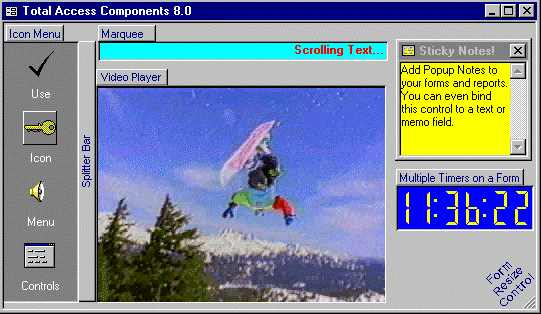
The following image gives examples of several of the visual controls available in the Total Access Components. For more information about a specific control, click on the image or see the table below.
The following tables give you a listing of the features available in Total Access Components. The controls are divided into five categories:
Enhance Form Functionality
Control |
Description |
| Form Resizer | Automatically adjusts every control when a User resizes a form. |
| Splitter Bars | Use a vertical or horizontal splitter to allow users to change the relative size of two parts of your Access forms. |
| Multiple Timer Events | Add multiple timers to your form, when Access is normally limited to one timer per form. |
Create Fancy Forms and Reports
Control |
Description |
| Analog and Digital Clock | Display a graphical analog or digital clock in a variety of styles. |
| Bitmap Animation Effects | Create catchy effects, fades, and transitions between bitmaps. |
| Buttons with Text Effects & Graphics | Go beyond the standard Access button control by combining a variety of text effects, animation, and bitmap styles. |
| Horizontal and Vertical Tab Strips | Create applications using the popular tabbed-dialog interface with support for different styles and positions (top, bottom, left, right). |
| Icon "Outlook" Style Menu | Choose from many alternate forms of menu selection. This control displays a series of icons similar to Microsoft Outlook 97. |
| Pop-up Menus | Add customized menu support to your forms. You can specify a popup menu to appear when a user right-clicks on objects in your application. |
| Rotated Text with 3-D & Other Effect | Display rotated text with custom display styles including 3-D and drop-shadows. |
| Rounded Borders with Beveling and 3-D Effects | Create rectangular frames with a variety of styles: standard, 3-D, shadowed, and rounded. |
| Scrolling Marquees | Display scrolling text within a control. This text can be set for different 3-D styles, and the direction of the scrolling can be se for left, up, right, or down. |
Improve Data Display and Data Input
Control |
Description |
| Digital "Calculator" Displays | Display numbers using a digital display similar to those found on calculators. |
| Gauges and Odometer Dials | Use this control to provide feedback to your users on the progress of an operation or the size of a value. The Gauge control simulates an analog gauge such as a gas gauge or a pressure meter. |
| Pop-up Yellow "Sticky" Notes | Add pop-up notes to your application. |
| Progress Meters | Provide feedback to your users with standard or segmented progress meters in a variety of styles. Choose from flat, Windows 95, or the unique segmented meter styles. |
| Slider Bars | Add horizontal or vertical slider bars for user input or showing values. |
| Spin Buttons | Increase or decrease values by pressing on the up/down or left/right buttons of this control. |
Add Multimedia Effects
Control |
Description |
| Movie/Video Player for AVI Files | Play Windows digitized video .AVI files. You can play, pause, stop, rewind, and navigate in these video files, and set repeat play. |
| CD Player | Play audio Compact Discs through your PC’s CD Player. |
| Audio Player for Wave and MIDI Files | Play Windows digitized audio .WAV files, and MIDI sequences through your PC’s sound card. |
Easily Incorporate Windows Features
Control |
Description |
| Clipboard | Easily add cut, copy, and paste features. |
| Computer and System Information | Retrieve a variety of useful information about your user’s PC, including free memory and resources, and other hardware information. |
| INI File Manager | Read and write to a Windows initialization file without using Windows API calls. |
| Professional About Box | Display information about your program in an easily-customized dialog box. You can optionally supply a help file and access to the Windows System Information program if it is available on your users’ machines. |
| Windows Common Dialogs | Use the Windows common dialog controls from your application. Easily add File Open/Save dialogs, Font and Color choosers, Printer Setup, and customized Help support to your application. |
| System Registry Manager | Read and Write to the Windows Registry without using Windows API calls. |
Total Access Components is designed exclusively for Access, fully tested on Access, and optimized for Access and the needs of Access developers. If you are considering using ActiveX controls in Access, make sure the vendor understands Access and verifies their controls work in it. Very few do.
Easy to Use
Total Access Components is easy to use. Simply place a Total Access Components control on your form or report just like a built-in Access control (e.g. text box, combo box, etc.). You can set its properties interactively or programmatically. Many controls can even be bound directly to a field.
There are visible controls like tabs, gauges, progress meters, etc. and invisible controls such as clipboard functions, common dialogs, form resizer, etc. Invisible controls are also placed on forms and reports but are not visible to the user. Simply set its properties and invoke a one line method to run it. That's all it takes to add Windows dialogs, form resizers, etc.!
All Controls in One File
All 27 controls in Total Access Components are stored in one OCX file. Most commercial ActiveX controls for Visual Basic store each control in a separate OCX file. The one file design for Total Access Components is superior and very important for Access developers:
- Performance: If you use more than one control, the loading time for the second control is much faster when they are stored in one file.
- Size: The entire OCX file of 27 controls is under 550K. That may be a lot for a VB program, but it is not much for an Access application. By using just one file, a lot of overhead is eliminated and it is much smaller than 27 individual files.
- Distribution: Access doesn't tell you which ActiveX controls are used in a database. Trying to remember which of the 27 controls you used would be a pain and subject to error. Thankfully, you do not need to remember that. With Total Access Components if you remember using any of its controls, add its OCX file in your distribution (setup) program and that's it. No need to wonder whether you missed one or not.
Pricing and Availability
Total Access Components has two versions: Version 8.0 for Access 95 and 97, and Version 12.0 for Access 2000 and later. Both versions are currently available. Total Access Components is available in the Total Access Ultimate Suite. Licensing is on a per developer basis.
|
Total Access Components Pricing for Microsoft Access |
|||
| Microsoft Access Version | |||
| Licenses | Price | 365/2024, 2021, 2019, 2016, 2013 & 2010 2007, 2003, 2002, 2000 (32 and 64-bit) |
|
| Single | $199 | Buy Now | |
| 5-Seat | $599 | Buy Now | |
|
Upgrades |
|||
| Single | $119 | Buy Now | |
| 5-Seat | $349 | Buy Now | |
|
Upgrade to the Latest Version within the Same Version |
|||
| Update 14.1 | |||
| Single | $79 | Buy Now | |
| 5-Seat | $249 | Buy Now | |
|
Premium Support Subscription |
|||
| Single | $299 | ||
| 5 Seat | $999 | ||
|
Also Available as part of: |
|||
|
Total Access Ultimate Suite |
|||
|
Runtime/Redistributable Version |
|||
|
Royalty-free runtime distributions rights are included in the purchase price. Add Total Access Components to your databases and distribute them to non-Total Access Components owners. |
|||
|
Licensing Information |
|||
|
Total Access Components is licensed on a per developer basis. Each developer who inserts Total Access Components controls into applications must have a license. |
|||
Microsoft Access 32 and 64-bit Versions are shipping!

for Microsoft Access 365/2021, 2019, 2016, 2013, 2010, 2007, 2003, 2002, and 2000!
Also available for
Access 97/95

Reviews

Components Info

Additional Info