 Delay Sending Your Emails in Microsoft Outlook 2019 and 2016
Provided by: FMS Development Team
Have you ever sent a message in Microsoft Outlook and immediately wished you could get it back?
Do you remember something you need to change immediately after pressing Send? Maybe a related email came in while you composed your message. Maybe you forgot to add the attachment you mentioned in your email.
Or maybe you just need to cool down and reflect a little more before sending your message. Having the ability to stop and delete that message could save your job, relationship, or client!
Solution! Add a Short Delay Before Your Messages are Actually Sent
Fortunately, there's a simple solution to tell Outlook to delay sending your message. By setting an Outlook rule, you can delay all your messages for a few minutes.
How does this helps?
You can Retrieve the Message from Your Outbox!
Before a message is sent, Microsoft Outlook places it in your Outbox prior to sending it to your Exchange Server. The default behavior is for Outlook to immediately send all messages that are put in the Outbox.
By adding the rule to delay this, your message will sit in the Outbox giving you the opportunity to open it again to edit it, or simply delete it. You can specify the number of minutes you'd like like the message to wait before it's sent. You can also create exceptions, like not delaying any messages that are marked as Important.
The example below is for Outlook 2019 and 2016. If you are using an earlier version of Outlook, please visit: Delay Sending Your Emails in Microsoft Outlook 2013, 2010, 2007 and Earlier
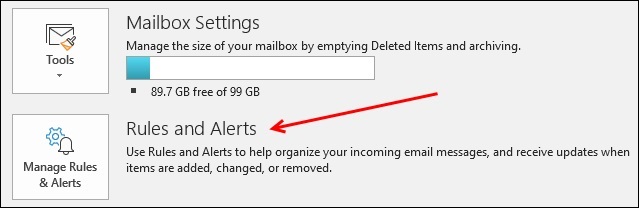
From the File menu, choose the Manage Rules & Alerts button.
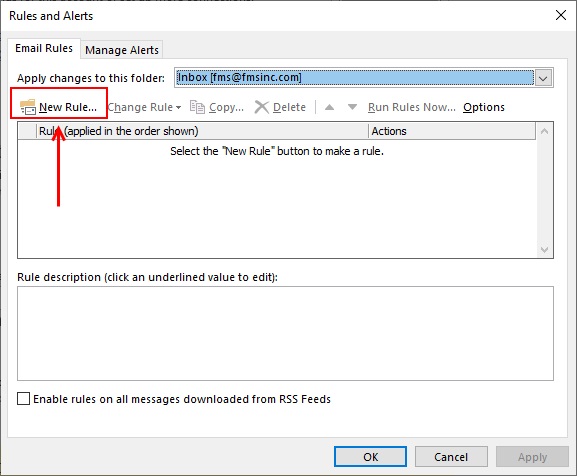
Click [New Rule...]
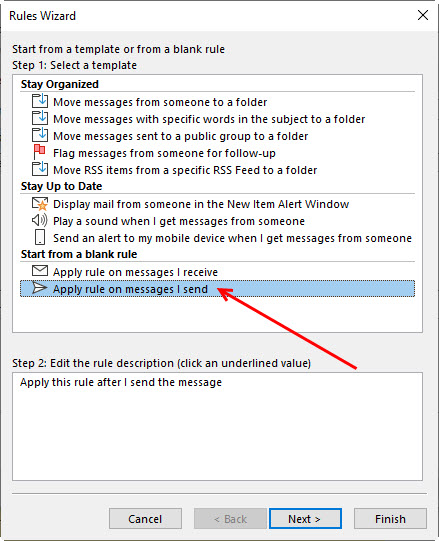
In the "Start from a blank rule" section, select [Apply rule on messages I send]. Click [Next].
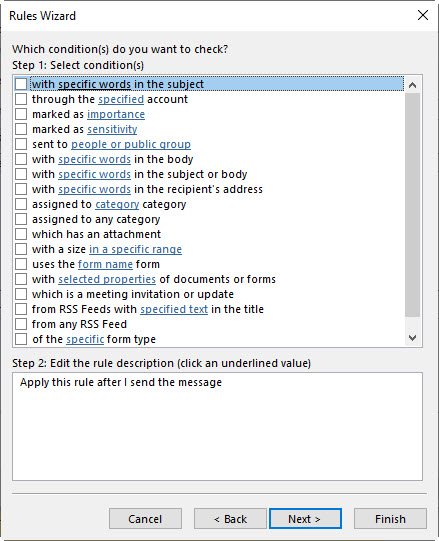
For the next screen, you can limit the rule based on certain conditions. Select any options you want. Click [Next].
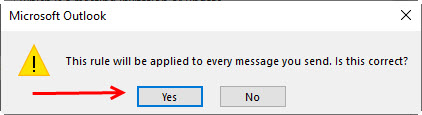
A box will appear displaying the following prompt: "This rule will be applied to every message you send. Is this correct?". Click [Yes].
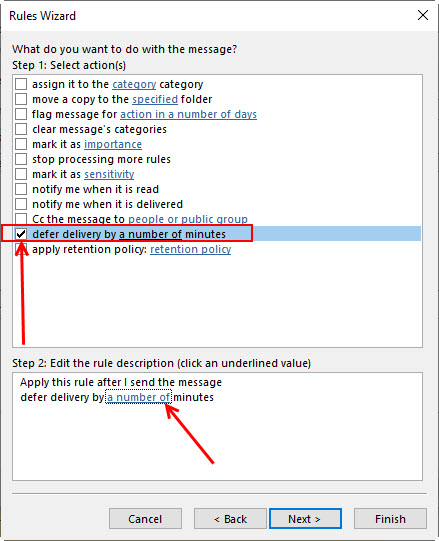
Check the option box [defer delivery by a number of minutes]. Then in the 'Step 2: Edit the rule description' section, click the underlined "a number of" minutes.
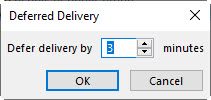
Specify how many minutes you'd like to delay your deferred delivery.
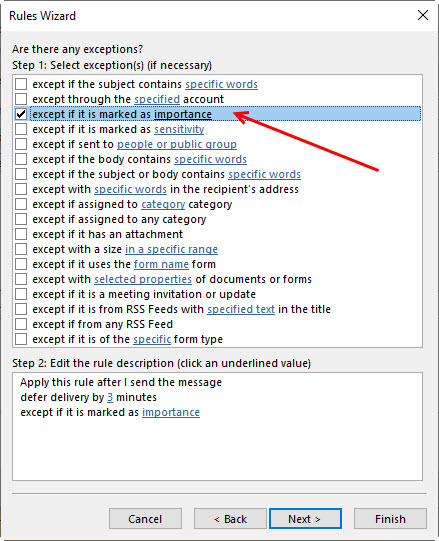
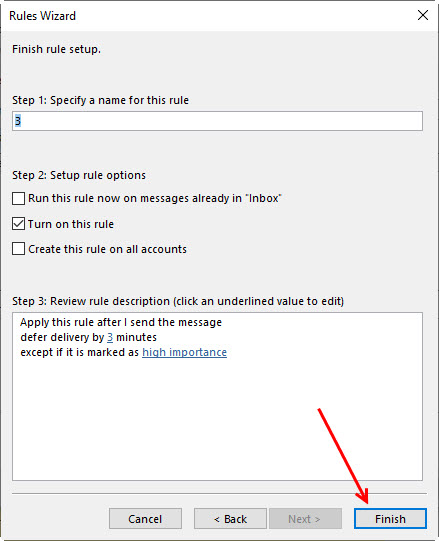
You can then specify exceptions. We like to create an option to bypass the rule when a message is marked as important. Click [Next].
You can then specify a name for your new rule, then click [Finish].
From your Outlook Mail folder, you can display the list of folders and Favorites. The Outbox folder contains the messages that are sent but being delayed due to your rule. For simplicity, drag the Outbox folder to your Favorites section:
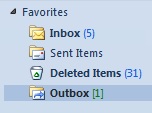
This lets you easily grab any messages before they actually go out. You now have a few minutes to edit your message, add a forgotten attachment, or delete the message.
Note that after you edit and hit the Send button, the clock does not restart. In Outlook 2010 and earlier, the email would sit in the Outbox for another 3 minutes, but in Outlook 2013 and later, if the original 3 minutes as passed, the email is sent immediately.
Hope this helps!
Messages
Email Aliases and Forwarding Microsoft Office 365 Messages to Another Mailbox
Delay Sending Your Emails in Microsoft Outlook
Create an Email Message by Dragging and Dropping
Eliminate Incorrect Email Addresses/Aliases from your AutoComplete List
Calendar
Microsoft Access
Link Microsoft Access databases to Outlook data
Use Microsoft Access with Outlook to Automate Unsubscribe Requests
Unblock or Allow Microsoft Access Databases and Other File Attachments in Microsoft Outlook Emails
Email Automation

Additional Resources
 Microsoft Access Developer Help Center
 Microsoft Access Query Help Center
 MS Access to SQL Server Upsizing
 Microsoft Access Tools
 Technical Papers
Connect with Us
 Email Newsletter
 Developer Team Blog
 Facebook
 X/Twitter
 Support Forum & Tickets


