



Summary List of Reports Generated by Total Access Analyzer for Your Microsoft Access Databases
Total Access Analyzer includes 400+ reports, making it the most powerful documentation and analysis program for Microsoft Access professionals.
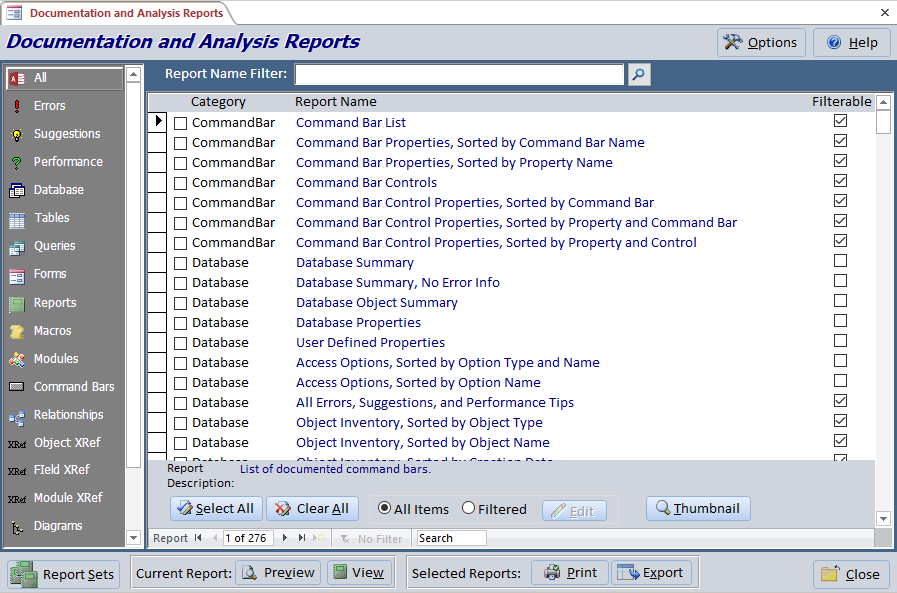
You can customize the header and footer of the reports from the [Options] button. Many of the reports allow you to filter the objects or issues.
Each database's documentation is stored separately, so you can always go back to your previously documented data.
The reports are organized into these major categories:
- Database Summary
- Cross Reference Analysis
- Diagrams
- Errors, Suggestions and Performance Tips
- Module Analysis
- Basic Documentation
This page features a subset of reports with links to images and details. Click here for a complete list of all Total Access Analyzer documentation reports.
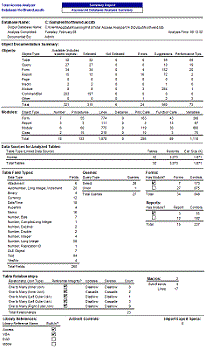 Database Summary
An overview of what's in your database.
Object Cross Reference Analysis
Cross-Reference reports show where and how objects are used. Knowing this information is critical before making modifications to individual objects
- Where are my fields used and referenced?
- Where are my tables used and referenced?
- Where are my queries used and referenced?
- Where are my macros used and referenced?
- Where are my Temporary Variables (TempVars) used and referenced?
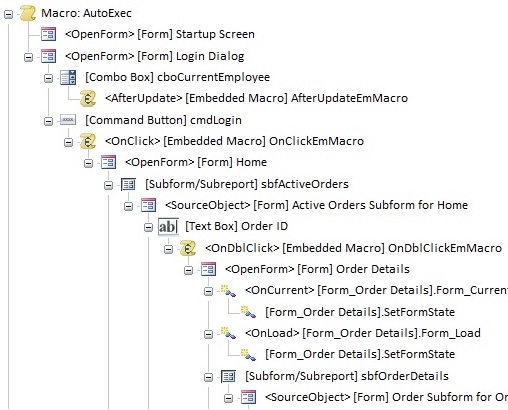
Hierarchical diagrams visually reveal how objects reference each other through multiple levels.
Application Flow Diagram
Procedure and event flow for the entire database
Data Diagram
How data flows from tables into queries, forms, reports, etc.
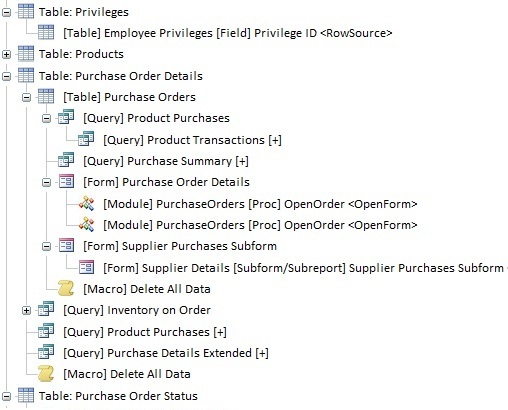
Object Diagram
What objects are referenced by a form, report, or query
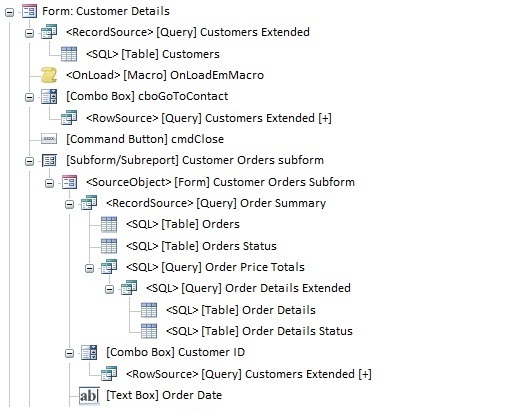
For detailed analysis and comprehension, select an item and redraw the hierarchy of a single object. The redrawn diagram can be printed from the Documentation Explorer, allowing you to create a report of a single object's diagram.
Errors, Suggestions, and Performance Tips
List of Issues DetectedTotal Access Analyzer detects a wide range of issues to help you create better Access applications by flagging items that will cause it to crash, and offering suggestions to improve your application and performance.
Error Reports
Errors are problems that will most likely cause your Access application to crash. For instance, references to objects that were deleted or renamed crash when the user encounters them. When Total Access Analyzer detects these errors, you should examine them carefully and fix them before deploying your database.
Suggestion Reports
Suggestions incorporate our knowledge of Best Development Practices for creating professional Access applications. Suggestions cover items that are not necessarily going to cause your application to crash or perform poorly, but may make it easier to maintain, support, and appear more polished.
For instance, we may note that certain objects or code are unused, but that doesn't mean you have to delete them. Most suggestion reports are lists of issues. These two powerful reports are the results of analysis that you should review them to determine next steps:
Performance Tips
Performance tips are ideas where you may be able to enhance the speed of your application. Certainly, many tips are not relevant because you've already implemented the most efficient solution. Nonetheless it's helpful to consider these ideas or objects that may be made more efficient.
 Module Analysis
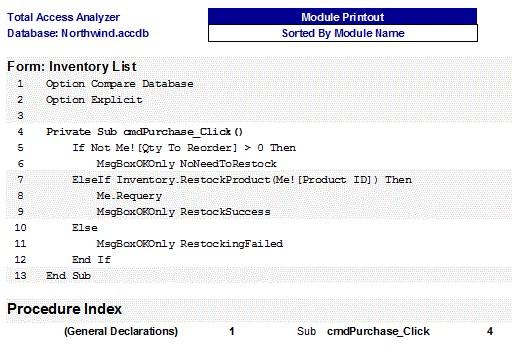
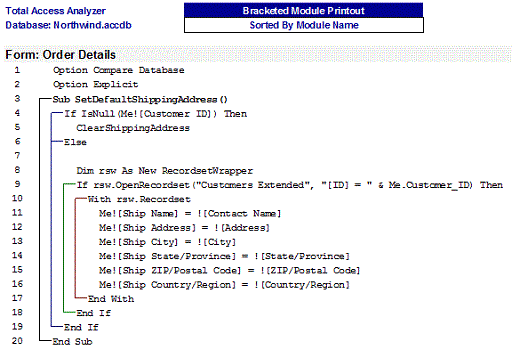
Module Printouts
Total Access Analyzer offers two reports to print your modules. The first is the standard display of your code as is, the second formats your code to indent the logic loops and show brackets around loops and exit arrows from them:
Module VBA Code Analysis
- Module Analysis Summary (across all documented forms, reports, and standard modules)
- Single Module Overview
- Procedure Lists
- Procedure Usage
Plus many other reports on module contents such as VBA functions, labels, variables, DoCmd, constants, compiler conditions, etc.
Basic Documentation
There are a large number of reports for each Access object type. Here are some examples.
Form and Report Blueprints
Quickly see what each form and report looks like with each control annotated:
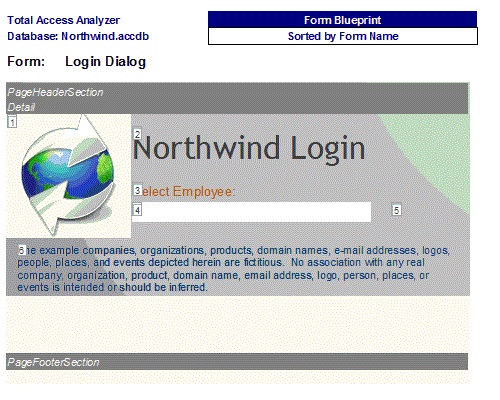
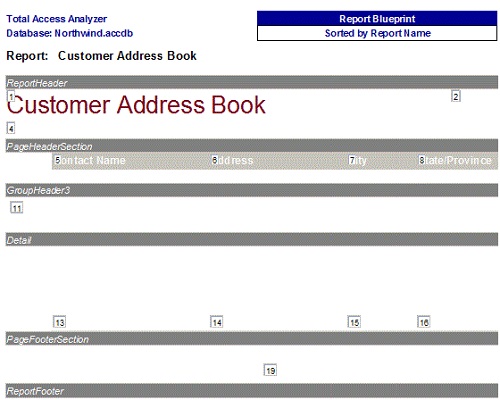
Table Documentation
- Table List, Sorted by Table Name
- Table List with Sizes, Sorted by Number of Records
- Table List with Sizes, Sorted by Table Size
- Table Fields, Sorted by Table Name (see all the fields for each table)
- Table Fields, Sorted by Field Name (see all the tables with the same field name)
- Table Field General Properties (field information on the General tab)
- Table Field Lookup Properties (field information on the Lookup tab for combo boxes)
- Table Field Property Slice Format (see all the fields with a Format property)
- Table Field Property Slice Input Masks (see all the fields with an InputMask property)
- Table Indexes, Sorted by Table Name
- Table Dictionary
Query Documentation
Form Documentation
Report Documentation
Macro Documentation
- Macro Dictionary listing all macro lines with indentations for IF..ELSE..ENDIF loops
(available for standard and embedded macros in forms and reports)
Additional Reports
- Database
- Import Export Specifications
- Object Inventory
- Relationships
- Ribbons
- ActiveX Controls
- Command Bars
- Data Macros
- System Reports
- Workgroup and Security Permissions
ADP Documentation
- Database Diagrams
- Stored Procedures
- Views
Microsoft Access 2019 / 365 Version is shipping!

Version 16.7 for
Microsoft Access 2016
Version 15.7 for
Microsoft Access 2013
Version 14.7 for
Microsoft Access 2010
Version 12.97 for
Microsoft Access 2007
Version 11.95 for
Microsoft Access 2003
Version 10.8 and 9.8 for
Access 2002 and 2000

Awards and Reviews



"Total Access Analyzer is an amazing product that I've relied on and recommended for years. It's a huge time saver."
Sal Ricciardi, Programming Writer, Microsoft Corporation
Analyzer Info


Why Analyzer?
Additional Info