Microsoft Access Split Database Architecture to Support Multiuser Environments, Improve Performance, and Simplify Maintainability
 Provided by Aparna Pophale, Quality Assurance Specialist; updated by Luke Chung, President
Microsoft Access lets you easily create databases to store and present your data in forms and reports. When starting, a database may be very simple and trivial, but over time, it becomes more important as you add data, features, and even share it with others. It gains a life of its own and the overall design becomes critical.
One of the most important architectural designs is splitting the database into a front-end and back-end database. This is how Access is designed to let you support multi-user databases and simplify how you enhance the application over time.
Separating your application and data databases enables you to support multiple users and upgrade the application without wiping out data. Assuming the application doesn’t change that often, the separation also makes it easier to just backup the data database since only that is changing everyday. It also improves performance and reduces the incidents of database corruption.
Splitting a database is a relatively simple concept. You take an existing Access ACCDB/MDB database with its tables, queries, forms, reports, macros, modules, etc. and divide it into two databases:
- The "Back-End" database just contains the tables
- The "Front-End" database contains the application objects (everything except the tables) and links to the tables in the back-end database
This design is especially useful in multiuser environments where the back-end database is stored on a network and contains the shared data. Each user then has a copy of the front-end database on their local desktop pointing to the shared database.
In multiuser environments, the front-end database can also contain tables that are private to the user. These local tables can store the user’s settings, selections, temporary or intermediate tables for processing data or reports, etc.
Here are some of the major reasons to use a split database architecture:
Multiuser Support
Each user has the application and private tables in their copy of the front-end database. They share the back-end database without locking it exclusively.
With temporary tables for each user in their front-end database, conflicts and collisions among multiple simultaneous users are avoided.
Deploy Updates without Worrying about Data
Application enhancements are simplified since they are made in the front-end database without worrying about changes to the data in the back-end database. Releasing new versions and bug fixes becomes much easier since only the application part needs to be distributed which automatically uses the current data. Of course, if you modify table structures or add/delete/rename tables, you’ll need to apply those changes to the back-end database.
Without a split database architecture, when you create a new version, you’ll need to update the database AND any data your users changed since your last copy.
Improve Performance and Minimize Database Corruption
Performance can be significantly enhanced and network traffic reduced when the user has a copy of the front-end database installed on their desktop rather than running it off the network each time they use it.
Without splitting a database, multiple users running the same database on the network increase the chance of database corruption. The split database design minimizes this problem and avoids code corruption from impacting data corruption.
Simplify System Administration and Maintenance
Since the data is stored centrally and can be backed up and compacted, database administration is simplified. A single master front-end application database is copied to each user’s machine, but is not necessary to back up.
Scalability
The split database architecture provides an opportunity to expand a database size beyond the 2 GB limitation of Access since the front-end database can link to multiple back-end databases if necessary.
This also sets the stage for migration to SQL Server or SQL Azure. If the application evolves to need the features of SQL Server, you can still use the front-end database and link to data stored in SQL Server.
You can manually split your database by:
- Copy it
- Delete all the non-table objects from one of them and make that your back-end database
- Delete all the tables from the front-end database
- Link the front-end database to the tables in the back-end database
Or, you can use the Microsoft Access Database Splitter Wizard to split the Access database. Consider this example:
After making a backup, open the database that you want to split. Launch the Database Splitter Wizard from the Database Tools ribbon, Move Data pane, Access Database:
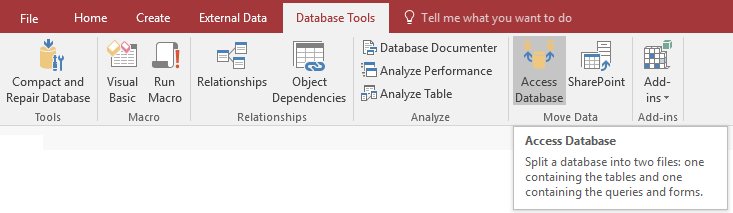
The Database Splitter wizard starts.
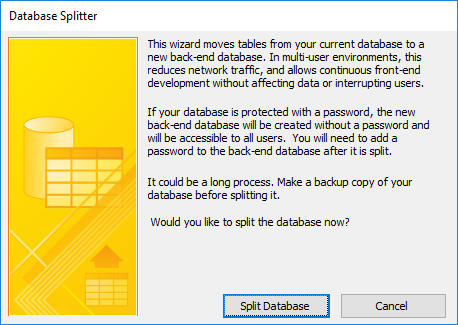
Click on the [Split Database] button and it opens the Save dialog window. Provide the name for new back-end database.
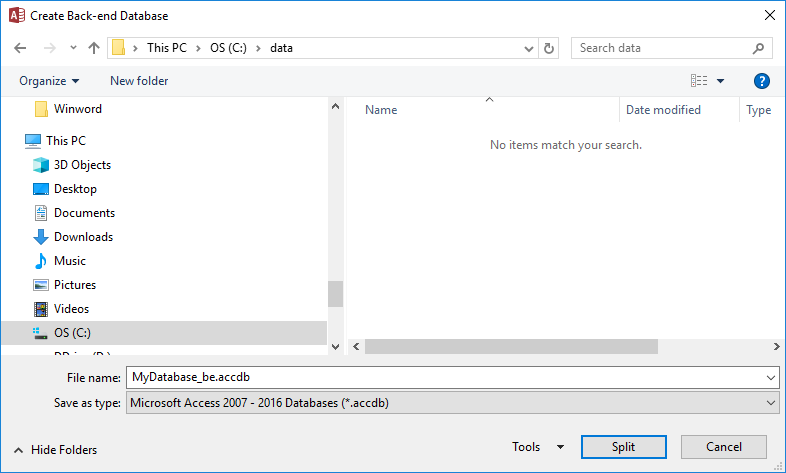
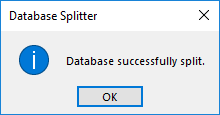
This back-end database copy can be saved on a network to share among multiple users while the front-end copy is installed for each user separately on their own desktop. When the confirmation message box shows, click the [OK] button.
Take a look at the tables in the Navigation pane. Small arrows appear on the left side of each table to indicate it's a linked table residing in the back-end database.
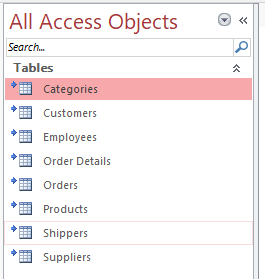
The front-end copy has all the forms, reports, queries (no tables), macros and modules. The back-end database only stores tables. Data changes to the linked tables in the front-end copy update the tables in the back-end database.
This way all users work on the same data in the back-end database while having their own front-end copy. Data changes are reflected in the back-end database. Split database architecture gives a look of Client-Server database technology by storing database tables at back-end server and all programming such as forms, reports, VBA code, and queries reside on the front-end client side.
Access databases can also link to older versions of Access database formats. So even if the front-end database is in an Access ACCDB format, the linked back-end database can be an MDB in Access 2000 or 2002-2003 formats or an ACCDB.
Test the Linked Table
As a test:
- Run Access and open the front-end database
- Open a linked table from the front-end database and add a record
- Open another instance of Access and open the back-end database
- Open that table and you'll see the new record.
Changes are Automatically Updated with Access Back-end Databases
You can also edit the table on the back-end database and the front-end database sees the changes.
Unlike SQL Server databases, Access databases automatically updates what's displayed when the underlying data changes. If you're looking at a datasheet grid and someone changes the data you're viewing, it's automatically updated in your view. If the back-end database were SQL Server, you'd have to requery the table to see the change since SQL Server displays are snapshots and not live connections.
If you want to have private tables in the front-end database, you’ll want to import them into your front-end database and remove them from your back-end database. One of the amazing and powerful features of Microsoft Access is its ability to use data from a local or linked source in its queries, forms, reports, macros, and modules. If you need to change the table’s location later, you can move it without impacting the objects that depend on it.
One caveat is that if you have tables with field lookups to other tables, those tables should be in the same database. Otherwise, if you open that source database and that table, its lookups won’t appear which can cause data entry and data integrity issues.
Tables can be relinked interactively with the Linked Table Manager or programmatically via VBA.
Linked Table Manager
Once the database splitting procedure is finished, you can relink the linked tables using Linked Table Manger.
- In Access 2010, 2013, 2016 and 2019, from the External Data ribbon, select Linked Table Manager
- In Access 2007, it's on the Database Tools ribbon
- In Access 2003 and earlier, it's under Tools, Database Utilities

Select the table names which you want to update and click on Ok button. If you want to link to a database located in another drive or folder, check the Always prompt for new location box. This is common if you develop the front-end database on your local drive with a local copy of your back-end database (to avoid testing on the live data), then need to deploy it.
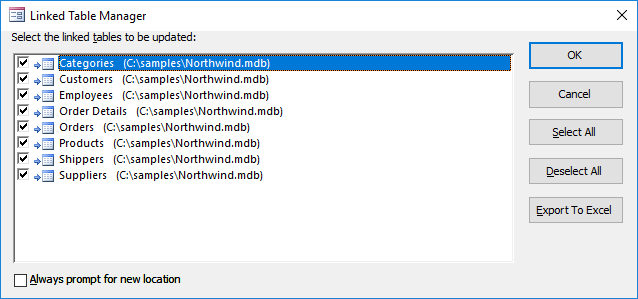
Always make sure that links are correct before you distribute them. It shows message for successfully linking.
Relinking Tables Programmatically using VBA
You can also write some VBA module code to update a linked table (from our royalty-free source code library Total Visual SourceBook):
Function ReLinkTable(strTable As String, strPath As String) As Boolean
  ' Comments: Re-links the named table to the named path
  ' Params  : strTable     Table name of the linked table
  ' strPath : full path name of the database containing the real table
  ' Returns : True if successful, False otherwise

  Dim fOK As Boolean
  Dim dbs As DAO.Database
  Dim tdf As DAO.TableDef
  Dim strPrefix As String
  Dim strNewConnect As String

  fOK = False

  On Error GoTo PROC_ERR

  Set dbs = CurrentDb()
  Set tdf = dbs.TableDefs(strTable)

  strPrefix = Left$(tdf.Connect, InStr(tdf.Connect, "="))
  strNewConnect = strPrefix & strPath

  tdf.Connect = strNewConnect
  tdf.RefreshLink

  fOK = True

PROC_EXIT:
  dbs.Close
  ReLinkTable = fOK
  Exit Function

PROC_ERR:
  Resume PROC_EXIT
End Function
Adjusting Seek Statements
For the most part, separating the data into a data database does not affect your application. The queries based on the linked tables remain the same, as do your forms, reports, and code. The main exception is Seek statements. Seek statements are used in code to find a record. They are very fast because they use an index you specify. For example, for a given table (strTable), index (strIndex), and search values (varValue1 and varValue2):
Dim dbs As DAO.Database
Dim rst As DAO.Recordset
Dim fFound As Boolean

Set dbs = CurrentDb
Set rst = dbs.OpenRecordset(strTable)
rst.Index = strIndex
rst.Seek "=", varValue1, varValue2
fFound = Not rst.NoMatch
However, this code fails if the table is linked. This is very frustrating and many developers resort to the FindFirst command instead. Unfortunately, FindFirst is very inefficient. It does not use an index and performs a slow sequential search through the entire table. This can be very painful for large tables. The good news is that you can use Seek on linked tables. It’s a matter of properly identifying the database where the table resides. Often, you will know the linked database name and you can easily set the database variable (where strLinkedDB is the linked database name):
Set dbs = DBEngine.OpenDatabase(strLinkedDB)
The example below is a general solution where the code tests a table and changes the database variable if it is linked:
Dim dbs As DAO.Database
Dim tdf As DAO.TableDef
Dim strConnect As String
Dim strLinkedDB As String
Dim rst As DAO.Recordset
Dim fFound As Boolean

Set dbs = CurrentDb
Set tdf = dbs.TableDefs(strTable)

' Connect = "" if it is not a linked table
strConnect = tdf.Connect
If strConnect <> "" Then
  ' Database name follows the "=" sign
  strLinkedDB = Right$(strConnect, Len(strConnect) - InStr(strConnect, "="))

  ' Change database handle to external database
  dbs.Close
  Set dbs = DBEngine.Workspaces(0).OpenDatabase(strLinkedDB)
End If

Set rst = dbs.OpenRecordset(strTable)
rst.Index = strIndex
rst.Seek "=", varValue1, varValue2
fFound = Not rst.NoMatch
Your front-end database is now properly linked and ready for deployment across your network.
With a split database design, you'll need to distribute the front-end database to each user. By residing on their local machine, the performance of your application will improve. However, this adds an extra level of complexity when your application changes.
Knowing an Update Exists
If you have a new version of your front-end database, you'll need to replace each user's database with the new one. This means your front end database needs to know what version it is and not run if it's not the current one, and provide a mechanism to get an update.
This can be easily done by adding a version table in the front-end database and the back-end database. You manually update the table in the front-end database with its version number when you create a new build. The back-end database contains the latest version number. When the front-end database starts, it compares the two tables and proceeds if the version is okay and stops if not. You'll then need a process to replace it.
Automating the Version Detection and Update Process
FMS offers a commercial software product, Total Access Startup, to simplify the deployment of your Access applications. It lets you centrally manage each Access application by identifying the master front end database, the location where it should be installed on each user's desktop, and its version.
Rather than running the Access database directly, a shortcut is provided to each user so the Total Access Startup program verifies the right version of Access is being launched with the right version of your front-end database. If the current local database doesn't exist or is out of sync, the latest version is installed on the user's desktop along with any setup routines that are required. The process is seamless and you can easily change the deployments centrally. Only one copy is needed to manage all the Access applications across your network.
Multi-user Microsoft Access applications are pretty important to your organization. FMS offers additional resources designed for this environment:
- Total Access Analyzer to help you create and diagnose your databases to find errors, suggest enhancements, and improve performance.
- Total Visual Agent to ensure your database maintenance tasks like database backups and compacts are scheduled and executed. Can also launch processes on a recurring basis.
- Total Access Admin to monitor in real-time who’s entering and exiting in your Access database.
Performance Tip
Microsoft Resource
Microsoft Access is a very powerful platform that lets you easily create solutions that can significantly improve the productivity of your team. With a properly split database architecture, you’ll find it even easier to create, enhance, and share your application.
Good luck!
Strategic Overview
Microsoft Access within an Organization's Database Strategy
How many simultaneous Microsoft Access users?
Blaming Microsoft Access instead of the Developer
History of Access
Microsoft Access Version Feature Differences
Microsoft Access Versions, Service Packs and Updates
Microsoft Office 365 Access Update Version Releases
Best Practices
Taking Over Legacy MS Access Databases

Winner of Every Best Access Add-in Award
Table Design
Set AutoNumber Starting Number Other than 1
Avoid Unnecessary or Duplicate Indexes
Query Design

Form Design
Copy Command Button and Keep Picture
Module VBA to Forms and Controls
Subform Reference to Control Rather than Field
Report Design
Suppress Page Headers and Footers on the First Page of Your Report
Annual Monthly Crosstab Columns
Design Environment
Add Buttons to the Quick Access Toolbar
Collapse the Office Ribbon for more space
VBA Programming
Avoid Exits in the Body of a Procedure
Send Emails with DoCmd.SendObject
Source Code Library

VBA Error Handling
Error Handling and Debugging Techniques
Error Number and Description Reference
Performance Tips
Deployment
Remote Desktop Connection Setup
Terminal Services and RemoteApp Deployment
Missing Package & Deployment Wizard

System Admin
Database Corruption
Remove 'Save to SharePoint Site' Prompt from an Access Database
Class Not Registered Run-time Error -2147221164
SQL Server Upsizing

Microsoft Access to SQL Server Upsizing Center
When and How to Upsize Access to SQL Server
SQL Server Express Versions and Downloads
Cloud and Azure
Deploying MS Access Linked to SQL Azure
SQL Server Azure Usage and DTU Limits
Visual Studio LightSwitch
Additional Resources
Connect with Us
 Email Newsletter
 Developer Team Blog
 Facebook
 X/Twitter
 Support Forum & Tickets


