Decompile Your Microsoft Access Database to Improve Performance, Fix Corruption, and Avoid Strange VBA Errors
Provided by: Luke Chung, FMS President
Periodically, Microsoft Access databases with VBA module code perform oddly. Code that previously worked suddenly fail or behaves incorrectly. Here are some examples of errors that come up.
The database cannot be opened because the VBA project contained in it cannot be read.

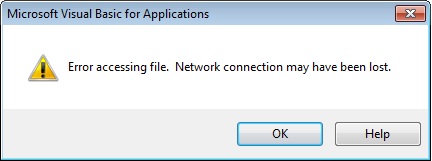
Error accessing file. Network connection may have been lost.
This error is particularly confusing if your file is local and not on the network:
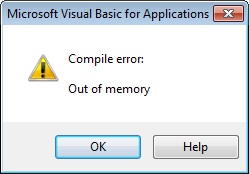
Compile Error: Out of Memory
It's all very confusing, especially when Compact and Repair does not help.
The initial assumption is that the database is corrupt, which is partially true. People then resort to creating a new database and importing their objects into it which is time consuming and a pain. It solves the problem, but there's a better alternative to check first.
Fortunately, Microsoft Access offers a way to fix the VBA compiled state with the /decompile command line option. The Compact and Repair feature only applies to the tables and does not impact VBA code. The decompile command does.
When Access is started with this and you open your database, it discards all the old VBA compilations, and leaves just your VBA source code. You'll need to compile again to get the compiled state. After compacting, your database may be significantly smaller.
To decompile your database, follow these steps:
- From Windows Explorer, locate where your Access program is installed by searching for MSACCESS.EXE. If you have multiple versions of Access installed on your machine, you need to identify the path to the Access version you want.
- From the Windows, Start, Run command line, type: msaccess.exe /decompile where msaccess.exe includes the complete path. For example, the 32-bit version of Access 2016 is commonly installed here:
C:\Program Files (x86)\Microsoft Office\root\Office16\MSACCESS.EXE /decompile - From Access open the database you want to decompile (with trusted authority for Access 2003 or later)
- Open up any module. Compile it via Debug, Compile.., then File, Save.
- Go back to the database and Compact it. The location of the Compact command varies by Access version.
The database size should be reduced and the strange errors related to the VBA code should be gone.
The example above is for Microsoft Access 2016, but it also applies to Microsoft Access 2013, 2010, 2007. 2003, 2002, 2000, 97 and earlier.
To simplify doing this in the future (and you'll likely need this again), create a shortcut on your Windows desktop pointing to where your copy of Access is located:
C:\Program Files (x86)\Microsoft Office\root\Office16\MSACCESS.EXE /decompile
Then, whenever your database is acting oddly, you can easily launch the decompile version of Access to open your database and decompile it. In a few minutes, you're back up and running with a smaller database.
Good luck!
- Creating a Backup and Disaster Recovery Plan for Microsoft Access Database Applications
- Compact on Close command
- How the decompile command eliminates VBA related errors
Decompile Your Microsoft Access Database to Improve Performance, Fix Corruption, and Avoid Strange Errors - Microsoft Access Inconsistent Compile Error for a Field Reference in a Form
- All Microsoft Access Error Numbers and Descriptions
- Microsoft Access Developer Corner
Total Visual Agent manages an unlimited number of databases across your network and schedule database chores in the middle of the night. Perform compact, backups, data extracts, running macros, command lines, and other tasks. Schedule events hourly, daily, weekly, monthly or just one time. Complete audit trail with email notification if anything goes wrong. Try the Free Trial today!

Total Access Admin lets you monitor Access databases in real-time to see who's currently in it and when they leave. It flags users who disconnect in a suspect manner which may indicate a source of database corruption. It can also perform tasks after everyone has exited such as compact. Try the Free Trial today!
Strategic Overview
Microsoft Access within an Organization's Database Strategy
How many simultaneous Microsoft Access users?
Blaming Microsoft Access instead of the Developer
History of Access
Microsoft Access Version Feature Differences
Microsoft Access Versions, Service Packs and Updates
Microsoft Office 365 Access Update Version Releases
Best Practices
Taking Over Legacy MS Access Databases

Winner of Every Best Access Add-in Award
Table Design
Set AutoNumber Starting Number Other than 1
Avoid Unnecessary or Duplicate Indexes
Query Design

Form Design
Copy Command Button and Keep Picture
Module VBA to Forms and Controls
Subform Reference to Control Rather than Field
Report Design
Suppress Page Headers and Footers on the First Page of Your Report
Annual Monthly Crosstab Columns
Design Environment
Add Buttons to the Quick Access Toolbar
Collapse the Office Ribbon for more space
VBA Programming
Avoid Exits in the Body of a Procedure
Send Emails with DoCmd.SendObject
Source Code Library

VBA Error Handling
Error Handling and Debugging Techniques
Error Number and Description Reference
Performance Tips
Deployment
Remote Desktop Connection Setup
Terminal Services and RemoteApp Deployment
Missing Package & Deployment Wizard

System Admin
Database Corruption
Remove 'Save to SharePoint Site' Prompt from an Access Database
Class Not Registered Run-time Error -2147221164
SQL Server Upsizing

Microsoft Access to SQL Server Upsizing Center
When and How to Upsize Access to SQL Server
SQL Server Express Versions and Downloads
Cloud and Azure
Deploying MS Access Linked to SQL Azure
SQL Server Azure Usage and DTU Limits
Visual Studio LightSwitch
Additional Resources
Connect with Us
 Email Newsletter
 Developer Team Blog
 Facebook
 X/Twitter
 Support Forum & Tickets


