Error Pasting Data from Microsoft Excel 2007 to Microsoft Access
Provided by: Luke Chung, President
Date: December 2008, Revised May and July 2009
Update: On April 24, 2009, Microsoft released the 2007 Office Suite Service Pack 2 (SP2) which resolved this problem.
The article below still applies if you haven't or can't install the service pack.
To discuss it further, visit our FMS Development Team Blog on this topic.
This article describes three workarounds for a disturbing change in the interoperability in Microsoft Office between Excel and Access. One of the nice things about Microsoft Access is that it's easy to copy and paste data to and from Excel spreadsheets. Unfortunately, all of a sudden in December, an error appears when you try to copy data from Excel and paste it into Access.
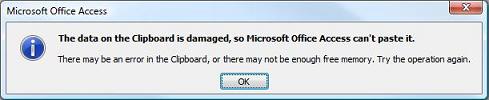
The additional text says:
There may be an error in the Clipboard, or there may not be enough free memory. Try the operation again.
At first, you may think it's a problem with your spreadsheet data, or maybe you need to reboot. But no matter what Excel data or how much data you copy to your Clipboard, it still fails. Same for trying to close programs to free more memory.
It turns out you can still import an Excel spreadsheet into Access without a problem. So what's going on with Paste when it's been working for years?
It turns out that this behavior is due to one of two Microsoft security patches.
- The first was distributed on 9 December 2008, visit KB958437.
- The second was distributed on 24 February 2009.
Most PCs automatically install these patches when Microsoft releases them. Unfortunately, this patch has side effects. All of a sudden, Excel and Access no longer work together properly.
There are two workarounds that allow you to paste Excel data into Access without uninstalling the Excel security update. (Special thanks to FMS Bloggers Jason Kelley and Kari for providing these workarounds.)
Workaround 1: Close Excel
After copying the data to the clipboard, close Excel. If prompted with this message:
There is a large amount of information on the clipboard. Do you want to be able to paste this information into another program later?
Click Yes to keep the data on the clipboard. Now you can paste it into Access without problems.
Workaround 2: Paste from the Office Clipboard
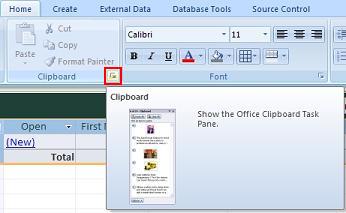
To paste the data without closing Excel, you can paste from the Office clipboard. First, open the Office Clipboard from the Home ribbon:
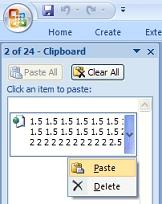
Then paste the data from the Office clipboard:
The workarounds are useful but a hassle if you need paste data repeatedly. To fix the problem so you don't need to change your normal behavior, you can uninstall the Excel security update that is causing the problem. Make sure Excel is not running when you do this.
Uninstall the security patch from the Windows Control Panel.
In Vista, go under Programs, Uninstall a Program, and choose the "View installed updates" option on the left pane:
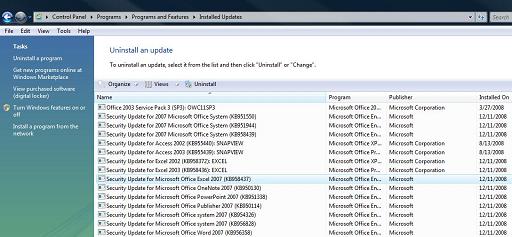
Select the offending patch:
- Security Update for Microsoft Office Excel 2007 (KB958437)
- Security Update for Microsoft Office Excel 2007 (KB967699)
and choose Uninstall. Reboot and you'll be able to cut, copy and paste your Excel data into Access.
To prevent Windows from automatically applying this patch again the next time it seeks an update, you'll need to turn off automatic updates. Unfortunately, this has security implications, so you may not be allowed to do this.
Because of problems I've encountered in the past, I've set my Windows updates to be downloaded and manually installed.
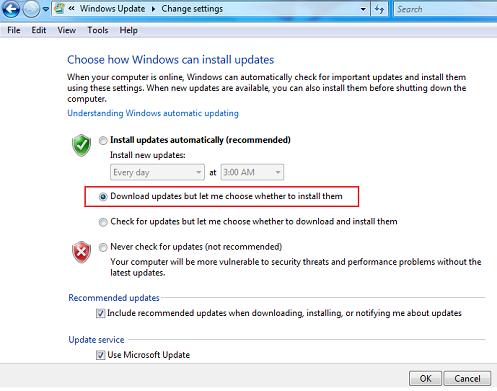
When updates are available, an icon appears in the task bar. Click that and select which updates to install while intentionally avoiding:
- Security Update for Microsoft Office Excel 2007 (KB958437) dated December 9, 2008
- Security Update for Microsoft Office Excel 2007 (KB967699) dated February 24, 2009
Yes, this is a pain but until you install SP2, you need to do this or lose the interoperability functionality.
 Discuss this issue further on our blog post
Security Patch for Excel Prevents Pasting into Access Tables, where additional suggestions are offered by our community.
Discuss this issue further on our blog post
Security Patch for Excel Prevents Pasting into Access Tables, where additional suggestions are offered by our community.
Here are some related resources:
 Complete list of Microsoft Access Error Numbers and Messages
- Microsoft Help and Resources from FMS
- More Tips and Techniques
- More Technical Papers
- Custom Microsoft Access Database Development
Hope this helps. Good luck!
Strategic Overview
Microsoft Access within an Organization's Database Strategy
How many simultaneous Microsoft Access users?
Blaming Microsoft Access instead of the Developer
History of Access
Microsoft Access Version Feature Differences
Microsoft Access Versions, Service Packs and Updates
Microsoft Office 365 Access Update Version Releases
Best Practices
Taking Over Legacy MS Access Databases

Winner of Every Best Access Add-in Award
Table Design
Set AutoNumber Starting Number Other than 1
Avoid Unnecessary or Duplicate Indexes
Query Design

Form Design
Copy Command Button and Keep Picture
Module VBA to Forms and Controls
Subform Reference to Control Rather than Field
Report Design
Suppress Page Headers and Footers on the First Page of Your Report
Annual Monthly Crosstab Columns
Design Environment
Add Buttons to the Quick Access Toolbar
Collapse the Office Ribbon for more space
VBA Programming
Avoid Exits in the Body of a Procedure
Send Emails with DoCmd.SendObject
Source Code Library

VBA Error Handling
Error Handling and Debugging Techniques
Error Number and Description Reference
Performance Tips
Deployment
Remote Desktop Connection Setup
Terminal Services and RemoteApp Deployment
Missing Package & Deployment Wizard

System Admin
Database Corruption
Remove 'Save to SharePoint Site' Prompt from an Access Database
Class Not Registered Run-time Error -2147221164
SQL Server Upsizing

Microsoft Access to SQL Server Upsizing Center
When and How to Upsize Access to SQL Server
SQL Server Express Versions and Downloads
Cloud and Azure
Deploying MS Access Linked to SQL Azure
SQL Server Azure Usage and DTU Limits
Visual Studio LightSwitch
Additional Resources
Connect with Us
 Email Newsletter
 Developer Team Blog
 Facebook
 X/Twitter
 Support Forum & Tickets


