When Microsoft Access Math Doesn't Add Up (Subtract Accurately)
by Luke Chung, President of FMS
All rights reserved. Originally published in Smart Access October 1997 by Pinnacle Publishing, Inc.; Revised April 2006, July 2013, December 2014, August 2017, May 2018.
All versions of Microsoft Access (and Excel, VBA, Visual Basic 6, C++, and C# and VB.NET in Visual Studio .NET) share quirks that can result in inaccurate mathematical calculations in both code and queries. Understanding these issues will help you avoid unnecessary headaches when the numbers you generate don’t match the mathematically correct values.
 You'd
think that today, software programs like Microsoft Access would
handle mathematical calculations properly. For the most part Access,
VBA, VB, and .NET do, but there are several areas where they generate
unexpected results. In most cases, the discrepancies are minor; however,
if you are trying to determine if two values are identical, looking for
small differences between values, or performing multiple calculations,
these errors can diverge significantly from the correct answer. I first
encountered these problems while writing FMS' statistical analysis
program, Total Access
Statistics. I quickly discovered problems in calculations that used
Taylor Series and other iterative calculations as well as in code that
attempted to trap for division by zero. A little research revealed more
than "rounding error."
You'd
think that today, software programs like Microsoft Access would
handle mathematical calculations properly. For the most part Access,
VBA, VB, and .NET do, but there are several areas where they generate
unexpected results. In most cases, the discrepancies are minor; however,
if you are trying to determine if two values are identical, looking for
small differences between values, or performing multiple calculations,
these errors can diverge significantly from the correct answer. I first
encountered these problems while writing FMS' statistical analysis
program, Total Access
Statistics. I quickly discovered problems in calculations that used
Taylor Series and other iterative calculations as well as in code that
attempted to trap for division by zero. A little research revealed more
than "rounding error."
Rounding errors aren't uncommon in programs because computers store and perform mathematical calculations using binary representations of decimal numbers. This causes rounding errors in inexact calculations such as division. One can certainly excuse computers for accuracy problems in the 15th significant digit. That’s expected. What I didn’t expect, however, is much larger and more obvious errors that must be corrected for using code.
Subtraction is an area where you shouldn't face rounding problems. By definition, the result of subtraction can't have more decimal places than either of the initial numbers. If binary math results in an inaccurate number, MS Access VBA should round the results accordingly. Unfortunately, this doesn't happen in many cases.
A simple example reveals the problem. Examine the difference between 100.8 and 100.7. You would expect the solution to be 0.1, but look what happens when you try this in the debug window:
? 100.8 - 100.7
9.99999999999943E-02
The error is in the 14th most significant digit.
The error worsens if the numbers are larger:
? 10000.8 - 10000.7
9.99999999985448E-02
The error is now in the 11th digit. Now you may wonder why an error in the 11th digit would be a problem. In most cases it probably isn’t.
However, this error is significant enough to cause unexpected results.
Clearly, you can’t have something like this:
Const X = 100.8
Const Y = 100.7
If X - Y = .1 Then ...
A general rule when working with real number calculations, is to avoid directly comparing two double (or single) numbers to see if they are equal. Due to rounding problems, you'd expect differences in the 15th digit. Therefore, you would normally use a function such as the following to test for identity of two double numbers:
Function IsEqual(dblValue1 As Double, dblValue2 As Double) As Integer
  Const dblSmall = .000000000000001
  If Abs(dblValue1 - dblValue2) <= dblSmall Then
    IsEqual = True
  Else
    IsEqual = False
  End If
End Function
By calculating the absolute difference between two values, you can consider the two values equivalent if the difference is less than a tiny, non-zero number (in this case 10-15). However, this fails if Access introduces larger differences.
For instance, you might use this function to compare the difference between 100.8 and 100.7 to 0.1:
IsEqual(100.8-100.7, .1)
Unexpectedly, the result is False in Access, which is troublesome. To get around this, you need to increase the dblSmall value in the IsEqual() function. Unfortunately, the value can be increased so much that two numbers that aren't really equal return True.
Not being able to determine if two numbers are equal is especially problematic for division. Here’s a simple function that tries to prevent division by zero:
Function CalcDivision(dblNumerator As Double, dblDenominator As Double) As Double
  If IsEqual(dblDenominator, 0) Then
    ' Should be undefined.
    CalcDivision = 0
  Else
    CalcDivision = dblNumerator / dblDenominator
  End If
End Function
To witness this problem, type the following into the debug window:
? CalcDivision(10, 100.8 - 100.7)
100.000000000006
While it isn't completely accurate, it’s reasonably close with the error in the last digit. But look what happens when division by close-to-zero occurs:
? CalcDivision(10, 100.8 - 100.7 - .1)
-1.757502293608E+15
The CalcDivision function should have trapped 100.8-100.7-0.1 as zero. Instead, it used the small error as the divisor and created a huge resulting answer (10 to the 15th power!).
These problems stem from VBA’s subtraction inaccuracies for numbers with decimals. Fortunately, there's a way to work around this problem by using the built-in convert decimal function: CDec.
Function FMS_Subtract(dblValue1 As Double, dblValue2 As Double) As Double
  FMS_Subtract = CDec(dblValue1) - CDec(dblValue2)
End Function
With this function, you’ll get the correct result:
? FMS_Subtract(100.8, 100.7)
.1
Applying this to the earlier division, you’ll find that division by zero is properly trapped:
Sub TestDivision()
  ' Perform: CalcDivision(10, 100.8-100.7-.1) which returned
  '          -1.757502293608E+15 due to subtraction inaccuracies

  Dim dblDiff As Double

  ' Rather than setting dblDiff to 100.8-100.7-.1 use the FMS_Subtract function for subtraction

  dblDiff = FMS_Subtract(100.8, 100.7)

  dblDiff = FMS_Subtract(dblDiff, .1)

  Debug.Print (CalcDivision(10, dblDiff))

End Sub
Certainly, you don’t want to call a special function every time you want to perform subtraction. This is needed only when you're calculating the difference between two numbers that include decimals, and need to compare the result with another number or want to use it as a divisor.
Cannot Use the CDec Function in Queries
Rather than using our simple subtraction function, you may think you could simply use the subtraction formula with CDec directly in the query.
MS Access queries let you use VBA functions to create calculated fields. One would expect CDec would work.
Unfortunately, if you try to use CDec, you get this message: The expression you entered has a function containing the wrong number of arguments.
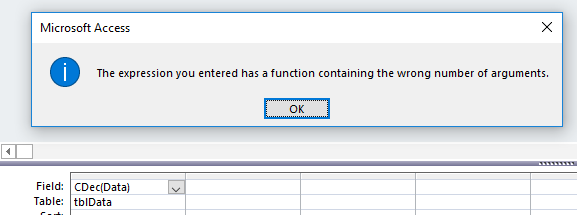
The error message is misleading and confusing because the problem isn't the wrong number of parameters. The real reason is that you simply can't use CDec in a query. Not sure why this VBA function isn't available in Access queries compared to other VBA functions, but it simply isn't allowed.
The workaround is to call the user defined function like FMS_Subtract and use CDec inside that.
Another common numeric problem is associated with expressions passed to functions. Before VBA introduced the Round function, the following was a common function used to round numbers to the nearest decimal place. Numbers on the border, *.5, should be rounded up, but are, in fact, always rounded down (note that this is different from the Banker's Rounding behavior of the VBA Round command):
Function RoundBad(dblNumber As Double, intDecimals As Integer) As Double
  Dim dblFactor As Double

  dblFactor = 10 ^ intDecimals
  RoundBad = Int(dblNumber * dblFactor + .5) / dblFactor
End Function
Running this function generates these results:
? RoundBad(100.06, 1) ' Correctly returns 100.1
? RoundBad(100.04, 1) ' Correctly returns 100.0
? RoundBad(100.05, 1) ' Incorrectly returns 100.0 instead of 100.1
The problem stems from the way the Int( ) function processes the expression. It actually rounds the number before applying the Integer conversion. Let’s isolate the problem from the debug window.
As expected, this correctly evaluates to 1001:
? 100.05 * 10 + .5
1001
However, using the same expression inside the Int( ) function gives the wrong result:
? Int(100.05 * 10 + .5)
1000
Therefore, it is imperative that you avoid passing expressions involving real numbers to Access/VBA functions. If the expression is assigned to a variable and then passed to the Int( ) function, it usually works fine. However, there are times when that also fails and adding a null string to is fixes the problem. Here’s the correct way to perform rounding:
Function FMS_Round(dblNumber As Double, intDecimals As Integer) As Double
  Dim dblFactor As Double
  Dim dblTemp As Double

  dblFactor = 10 ^ intDecimals
  dblTemp = dblNumber * dblFactor + .5

  FMS_Round = Int(CDec(dblTemp)) / dblFactor

End Function
With the simple addition of the CDec conversion, FMS_Round() returns the correct result:
? FMS_Round(100.05, 1) ' Correctly returns 100.1
It's sad, but even in this day and age, you can’t assume math is accurate. The problems discussed in this article impact not only module code but also calculations performed in queries, and exists in Microsoft Excel, C++, Visual Basic 6, and VB.NET and C# in Visual Studio .NET. While some of these issues can be considered minor rounding errors, I hope I have shown you that this isn't always the case. Not paying attention to these errors could cause you huge problems in applications that require these types of calculations to be accurate. By recognizing where and how such problems occur, you can take steps to handle or avoid them.
Luke Chung is the president and founder of FMS, Inc., the world's leading Access development firm. He has actively participated in designing all of the FMS products, including solutions for SQL Server, VB, and .NET. He also wrote major portions of Total Access Analyzer, Total Access Analyzer, Total Access Emailer, Total Access Statistics, Total Visual CodeTools, and Total Visual SourceBook.
Strategic Overview
Microsoft Access within an Organization's Database Strategy
How many simultaneous Microsoft Access users?
Blaming Microsoft Access instead of the Developer
History of Access
Microsoft Access Version Feature Differences
Microsoft Access Versions, Service Packs and Updates
Microsoft Office 365 Access Update Version Releases
Best Practices
Taking Over Legacy MS Access Databases

Winner of Every Best Access Add-in Award
Table Design
Set AutoNumber Starting Number Other than 1
Avoid Unnecessary or Duplicate Indexes
Query Design

Form Design
Copy Command Button and Keep Picture
Module VBA to Forms and Controls
Subform Reference to Control Rather than Field
Report Design
Suppress Page Headers and Footers on the First Page of Your Report
Annual Monthly Crosstab Columns
Design Environment
Add Buttons to the Quick Access Toolbar
Collapse the Office Ribbon for more space
VBA Programming
Avoid Exits in the Body of a Procedure
Send Emails with DoCmd.SendObject
Source Code Library

VBA Error Handling
Error Handling and Debugging Techniques
Error Number and Description Reference
Performance Tips
Deployment
Remote Desktop Connection Setup
Terminal Services and RemoteApp Deployment
Missing Package & Deployment Wizard

System Admin
Database Corruption
Remove 'Save to SharePoint Site' Prompt from an Access Database
Class Not Registered Run-time Error -2147221164
SQL Server Upsizing

Microsoft Access to SQL Server Upsizing Center
When and How to Upsize Access to SQL Server
SQL Server Express Versions and Downloads
Cloud and Azure
Deploying MS Access Linked to SQL Azure
SQL Server Azure Usage and DTU Limits
Visual Studio LightSwitch
Additional Resources
Connect with Us
 Email Newsletter
 Developer Team Blog
 Facebook
 X/Twitter
 Support Forum & Tickets


