



Add Clocks and Alarms to Your Microsoft Access Forms
The Clock control provides analog and digital clocks for your Microsoft Access forms with the option to set an alarm:
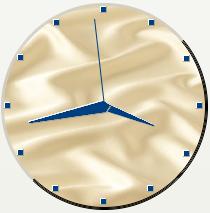
Analog Clock
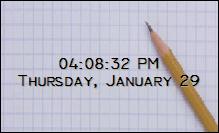
Digital Clock
Using the Clock Control
Just place the clock control on your form and adjust its size. You can then specify:
- Clock Style (digital or analog)
- Background image (bitmap, GIF, icon, or JPG formats)
- Background color
- Another time to support multiple time zones
Analog Clock Options
For analog clocks, you can specify:
- Hand style (modern, line, arrow, or filled arrow)
- Include a second hand
- Effect style (normal, raised, or sunken)
- Show hour ticks
- Show minute ticks
- Clip the background image to just the clock area
Digital Clock Options
For digital clocks, you can specify:
- Whether to display date and/or time with or without seconds
- Display date in long or short format
- 12 or 24 hour clock
- Text font, style and size
- Text style (normal, 3-D, or shadow)
- Background and foreground color
Additionally, you can specify an alarm time. When this time is reached, an event is triggered, allowing you to hook events to specific -times.
Creating an Alarm Clock
To use the Alarm feature, set the AlarmTime property. When the time is reached, an OnAlarm event is triggered. Write the code in this Event Procedure to perform the desired action.
Programmatic Options
Other than the alarm event, no programming is required to use and run the Clock control. All the clock properties can be set via VBA, and there are events with mouse clicks and key presses.
Menus
 Icon Menus
 Popup Menus
Form Design
 Form Resizers
 Splitter Bars
 Tab Strips
 Cursors
 Timers
Relative Values
 Gauges
 Progress Meters
Data Entry
 Date Time Pickers
 Popup Notes
 Slider Bars
 Spin Buttons
Animation
 Bitmaps
 Marquees
Visual Effects
 Borders
 Clocks and Alarms
 Digital Displays
 Enhanced Buttons
 Rotated Text
Windows Dialogs
 About Box
 Browse for Folders and Printers
 Clipboard
 Common Dialogs
 INI Files
 Registry Settings
 System Information
Multimedia
 CD Player
 Music Sound File Player
 Video AVI Player
Supports Microsoft Access 2016, 2013, 2010, 2007, 2003, 2002, and 2000


