



Add Tabs at the Bottom, Left, and Right Sides of Your Microsoft Access Forms
Microsoft Access has a tab control but it only shows tabs on the top.
The Tab control in Total Access Components lets you position tabs at the top, bottom, left, and right sides. These enhanced tabs make it easy to place tabs where it's most intuitive and useful for your MS Access form. If the tabs are placed on the sides, the text is automatically rotated.
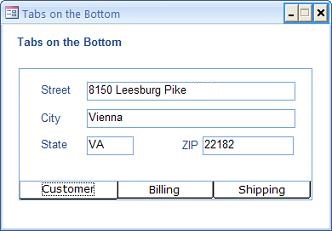
Tabs Along the Bottom
Easily add tabs below your tab pages.
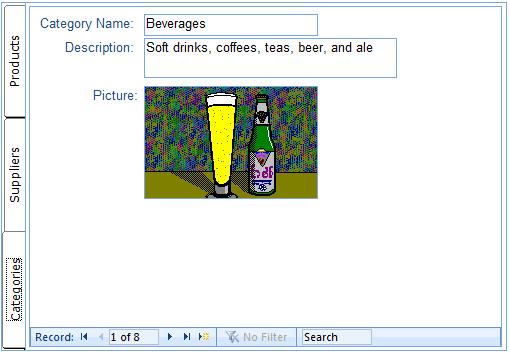
Tabs Along the Left Side
Vertical orientation displays rotated text in each tab:
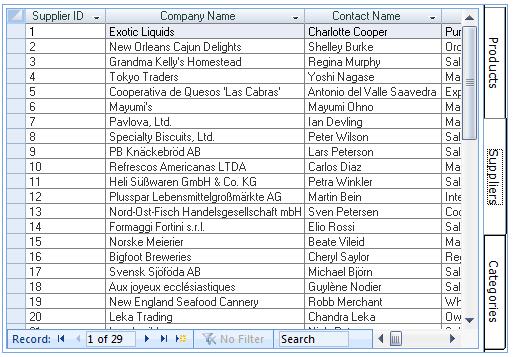
Tabs Along the Right Side
Use tabs like separators in a physical binder:
Use the Tab Control with the Built-in Access Tab
For simplicity, you can use the Total Access Components Tab Control with the built-in tab control in Access. If you already have your tab pages designed but want to have the tabs not on the top, simply set your Access tab's Style property to None. This removes the tabs from your tab control, but the pages remain.
Insert the Total Access Components Tab Control on your form and set its orientation to what you want (bottom, right, or left). Then size and position it next to your existing tab, and set the tab captions and values to your original tab.
When the user clicks on the Total Access Components tab, the OnChange event fires and you can add a line of code to assign the Access tab to the same value to display the corresponding page.
Alternatively, you may want to use a single subform and assign a different source object for each tab page.
Using the Tab Control
These options are available for customizing the tab control:
- Location (top, left, right, or bottom)
- Tab Style
- Caption for each tab page
- Font
Programmatic Features
The Tab has an OnChange event that fires when the user clicks on a new tab. Write the code you need to handle the selection.
Menus
 Icon Menus
 Popup Menus
Form Design
 Form Resizers
 Splitter Bars
 Tab Strips
 Cursors
 Timers
Relative Values
 Gauges
 Progress Meters
Data Entry
 Date Time Pickers
 Popup Notes
 Slider Bars
 Spin Buttons
Animation
 Bitmaps
 Marquees
Visual Effects
 Borders
 Clocks and Alarms
 Digital Displays
 Enhanced Buttons
 Rotated Text
Windows Dialogs
 About Box
 Browse for Folders and Printers
 Clipboard
 Common Dialogs
 INI Files
 Registry Settings
 System Information
Multimedia
 CD Player
 Music Sound File Player
 Video AVI Player
Supports Microsoft Access 2016, 2013, 2010, 2007, 2003, 2002, and 2000


