



Add Rotated Text in Microsoft Access to Save Space and Improve Understanding
 There
are times you may want to display data vertically or at an angle on your Microsoft Access forms and reports.
There
are times you may want to display data vertically or at an angle on your Microsoft Access forms and reports.
The Text Effects control in Total Access Components lets you easily display rotated text on your MS Access forms and reports. You can even bind the control directly to a field from your recordsource.
Save space with vertical text, and spice up the display of text on your forms and reports. You can change the angle that text is displayed, and choose various three-D styles.
Vertical Labels on Reports
Adding rotated text for your column headings can let you squeeze in longer descriptions for your labels so your users better understand their data.
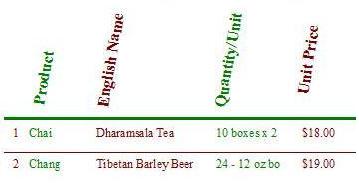
Using the Text Effects Control
Simply insert the Text Effects control on your form or report and size it. Then set these properties to customize your rotated text:
- Angle (from 0 to 360 degrees)
- Text you want to show
- Font, style, and point size
- Colors (back color and fore color)
- Text Style: normal, 3-D or sunken
- Location: center, left, right, top or bottom
- Word wrapping
 Animating Rotating Text
By changing the angle, you can create rotated text animation. This requires a little programming to modify the angle property, refresh the screen with the DoPaint event, and repeat.
Examples are in the sample database.
Programmatic Options
No programming is required to use this control; however, all properties can be set via VBA, and there are events for mouse clicks and key presses.
Menus
 Icon Menus
 Popup Menus
Form Design
 Form Resizers
 Splitter Bars
 Tab Strips
 Cursors
 Timers
Relative Values
 Gauges
 Progress Meters
Data Entry
 Date Time Pickers
 Popup Notes
 Slider Bars
 Spin Buttons
Animation
 Bitmaps
 Marquees
Visual Effects
 Borders
 Clocks and Alarms
 Digital Displays
 Enhanced Buttons
 Rotated Text
Windows Dialogs
 About Box
 Browse for Folders and Printers
 Clipboard
 Common Dialogs
 INI Files
 Registry Settings
 System Information
Multimedia
 CD Player
 Music Sound File Player
 Video AVI Player
Supports Microsoft Access 2016, 2013, 2010, 2007, 2003, 2002, and 2000


