



Microsoft Access Splitter Bars Let Users Adjust the Relative Size of Form Sections
As your Microsoft Access forms get more complex and you add more data on one screen, users often have difficulty seeing all the information they need. This is especially true if you have multiple datasheets or subforms displayed where only a portion of the fields are visible.
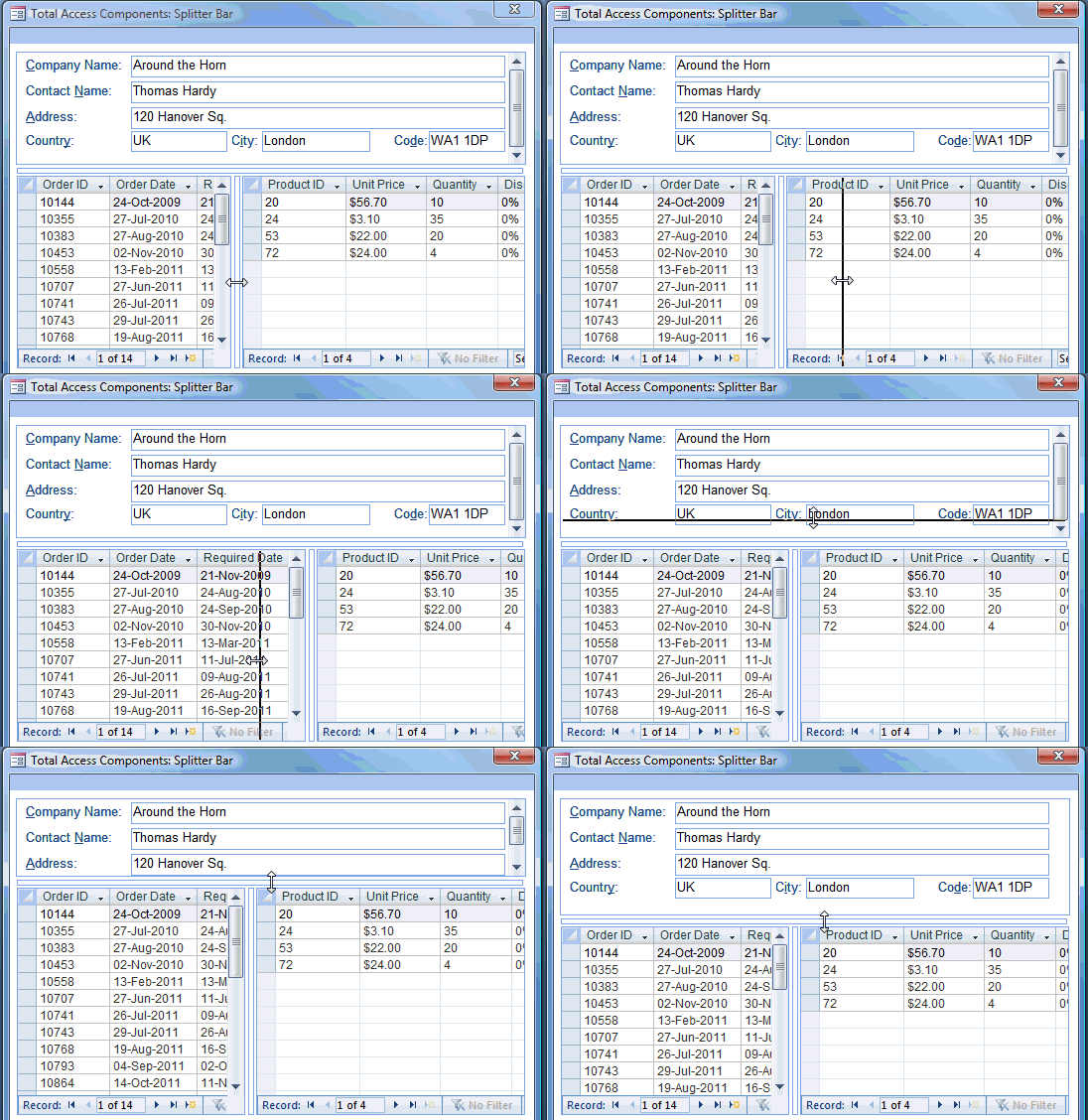
Giving users the ability to adjust the relative size of sections of your form, either vertically or horizontally, can significantly improve productivity. Depending on the situation, one section may need to be larger than the other, but in other situations, the reverse. Giving users the ability to adjust their sections increases their efficiency and simplifies your work since you don't need to create new forms for each case.
Horizontal and Vertical Splitter Bars
The Splitter control provides automatic resizing of controls on your MS Access form. When the Orientation property is set to horizontal, the control resizes any controls that lie above or below it. When the Orientation is set to vertical, it resizes controls that lie to its left or right.
Using the Splitter Control
The Splitter control is very easy and intuitive to use:
- Place the splitter control on your form and specify whether it is horizontal or vertical
- Position and adjust its length between the controls you wish to resize
You can optionally specify the color of the splitter bar and the minimum and maximum values for its location.
No Coding Required
No VBA code is required. The Splitter Bar automatically adjusts the controls around it. For advanced VBA developers, events are provided so you know when users click on the splitter bar or move it.
Menus
 Icon Menus
 Popup Menus
Form Design
 Form Resizers
 Splitter Bars
 Tab Strips
 Cursors
 Timers
Relative Values
 Gauges
 Progress Meters
Data Entry
 Date Time Pickers
 Popup Notes
 Slider Bars
 Spin Buttons
Animation
 Bitmaps
 Marquees
Visual Effects
 Borders
 Clocks and Alarms
 Digital Displays
 Enhanced Buttons
 Rotated Text
Windows Dialogs
 About Box
 Browse for Folders and Printers
 Clipboard
 Common Dialogs
 INI Files
 Registry Settings
 System Information
Multimedia
 CD Player
 Music Sound File Player
 Video AVI Player
Supports Microsoft Access 2016, 2013, 2010, 2007, 2003, 2002, and 2000


