



Microsoft Access Form Resizer with Font Adjustment
Maximize Your User's Workspace
Creating forms that support each user's screen is challenging in Microsoft Access. Developers commonly create forms for the smallest resolution and size, which makes it inefficient for users with larger screens and higher resolutions. Users want to maximize their forms or manually resize them and see more data. MS Access forms have a Resize event, but it's difficult to write the VBA code to resize each control and update the code when controls are added or deleted.
Automatically Resize All the Controls of Your Form
The Resize control in Total Access Components eliminates this complexity and offers features beyond simple resizing. It automatically knows all the controls on your form when it's initialized and adjusts them accordingly.
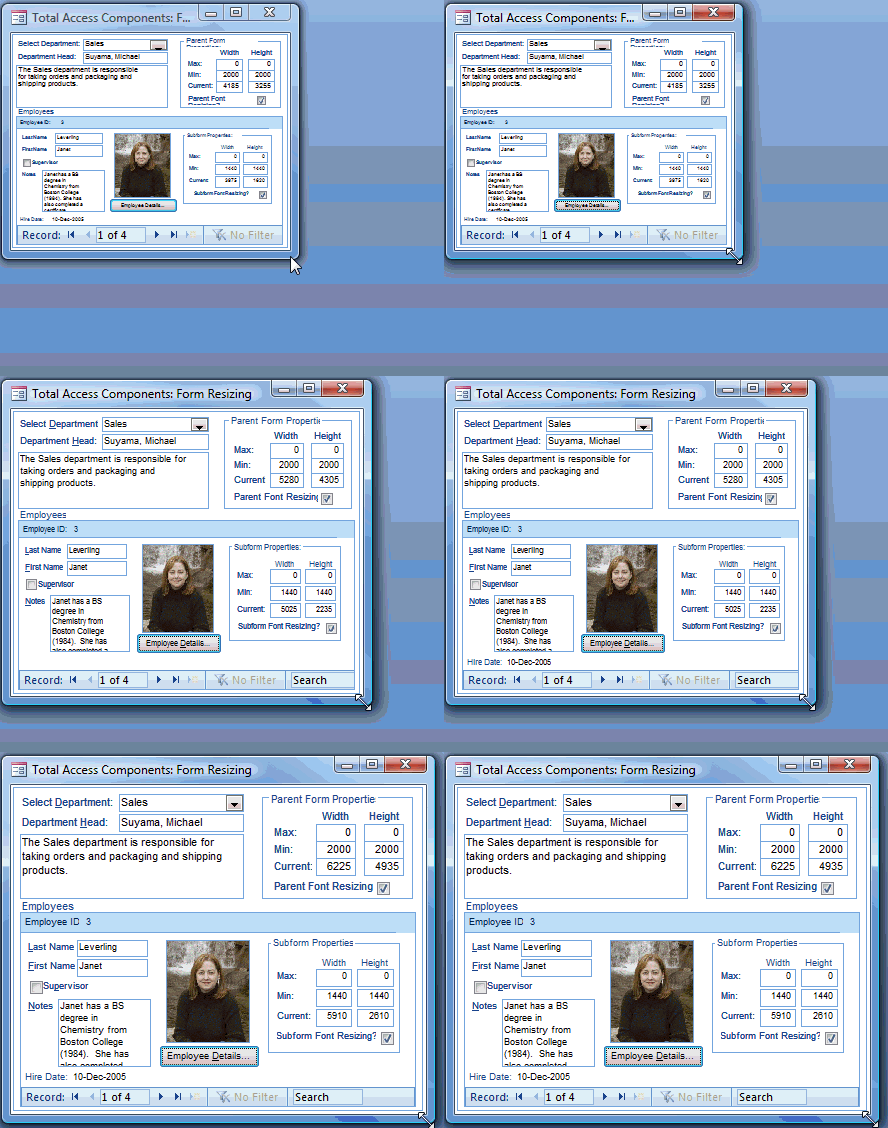
Resize Fonts
You can even adjust font size. This is particularly valuable if the form shrinks and you still want to show the same text in the smaller box.
Using the Form Resize Control
After placing the Resize control on your form, enabling form resizing only requires two lines of VBA code:
- On the form's Load event, initialize the control.
- On the form's Resize event, call the control's Resize method. This automatically resizes the controls when the user adjusts the form size.
Specify Limits
You can optionally set the maximum and minimum height and width to constrain the limits of the resizing.
Menus
 Icon Menus
 Popup Menus
Form Design
 Form Resizers
 Splitter Bars
 Tab Strips
 Cursors
 Timers
Relative Values
 Gauges
 Progress Meters
Data Entry
 Date Time Pickers
 Popup Notes
 Slider Bars
 Spin Buttons
Animation
 Bitmaps
 Marquees
Visual Effects
 Borders
 Clocks and Alarms
 Digital Displays
 Enhanced Buttons
 Rotated Text
Windows Dialogs
 About Box
 Browse for Folders and Printers
 Clipboard
 Common Dialogs
 INI Files
 Registry Settings
 System Information
Multimedia
 CD Player
 Music Sound File Player
 Video AVI Player
Supports Microsoft Access 2016, 2013, 2010, 2007, 2003, 2002, and 2000


