



Use Gauges to Show Relative Values in Microsoft Access
The Gauge control displays quantitative information in a graphical, circular format that is easy to understand. Select between two different styles (half circle and full circle) and a variety of formatting options.
Sample Gauges with Background Images
By using background pictures, you can create interesting gauges on your MS Access forms:
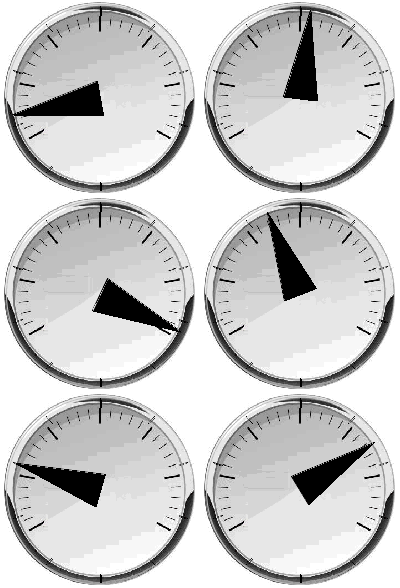
Full Circle Gauge
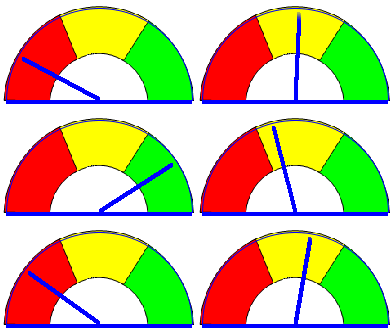
Half Circle Gauge
Using the Gauge Control
Simply place the Gauge control on your Microsoft Access form, size it, and set its properties:
Gauge Style
Two types of styles are available:
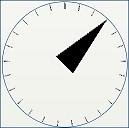
Full Circle Gauge
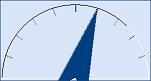
Half Circle Gauge
Appearance
- Effect Style: normal, sunken, raised
- Needle Style: line, arrow, filled arrow, triangle, modern
- Needle Line Width
- Display Tick
- Tick Frequency
- Graphic image behind the gauge (bitmap, GIF, icon, or JPG)
- Enable Windows Themes
- Colors if themes is not enabled
Values
- Current value
- Minimum and Maximum values
- Starting location of the pointer for the minimum value
- Left, top, right, or bottom
To change the position of the needle, set the Value property.
Programmatic Options
No programming is required to use this control; however, all properties can be set via VBA, and there are events for mouse clicks and key presses.
Menus
 Icon Menus
 Popup Menus
Form Design
 Form Resizers
 Splitter Bars
 Tab Strips
 Cursors
 Timers
Relative Values
 Gauges
 Progress Meters
Data Entry
 Date Time Pickers
 Popup Notes
 Slider Bars
 Spin Buttons
Animation
 Bitmaps
 Marquees
Visual Effects
 Borders
 Clocks and Alarms
 Digital Displays
 Enhanced Buttons
 Rotated Text
Windows Dialogs
 About Box
 Browse for Folders and Printers
 Clipboard
 Common Dialogs
 INI Files
 Registry Settings
 System Information
Multimedia
 CD Player
 Music Sound File Player
 Video AVI Player
Supports Microsoft Access 2016, 2013, 2010, 2007, 2003, 2002, and 2000


