



Add Windows Common Dialogs to Your Microsoft Access Forms
There are standard Windows dialogs for opening and saving files, choosing a printer, setting font options, picking a color, and using a help file.
These dialogs are implemented by Windows and are available to developers through the Windows Application Programming Interface (API). Unfortunately, using the API can be difficult because of the complicated interface issues associated with the APIs.
The Common Dialogs control in Total Access Components eliminates much of the complexity by encapsulating the API calls into an easy to use control. This lets you give a standard Windows experience without the need to create your own forms to replicate the Windows dialogs. And because it's calling the Windows API directly, it uses the user's operating system so it's consistent with the rest of their applications.
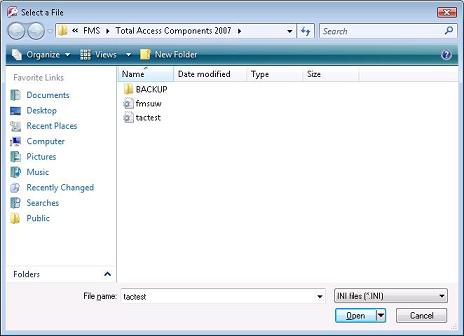
File Open and File Save Dialogs
Prompt your user for the path and name of a file to open, or a new file name to save a file to.
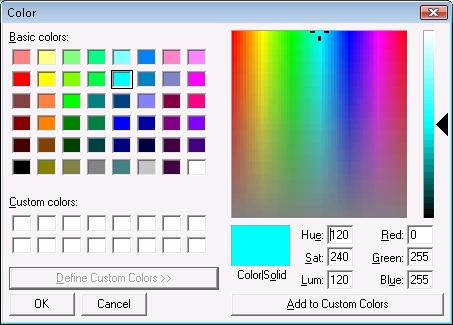
Select Color Dialog
Select a color using the Windows color selector.
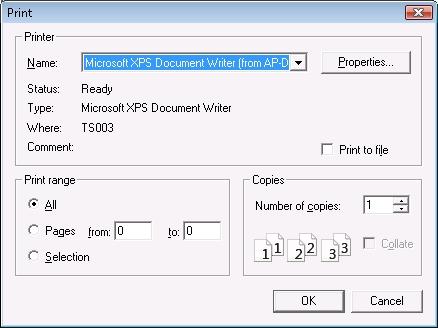
Printer Settings Dialog
Select a printer and adjust its settings.
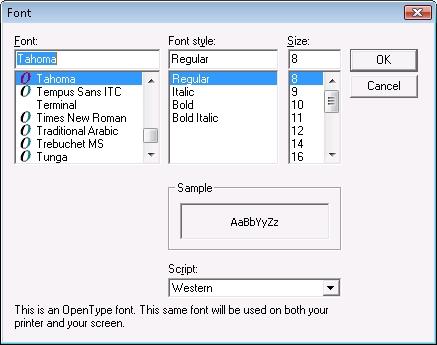
Font Dialog
Select a font, style, and size.
Help Files
Open a help file in HLP or CHM format, and jump to the help ID you specify.
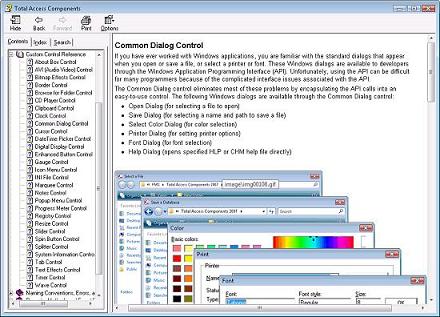
Using the Common Dialogs
Add the Common Dialogs control to your Microsoft Access form. Determine which of the dialogs you want to use and set its appropriate properties. Properties vary depending on which dialog you select.
When you're ready to open the dialog, call its Show method. If the user doesn't press Cancel, get the user's selection and apply it.
All the properties can be set in your VBA module code.
Menus
 Icon Menus
 Popup Menus
Form Design
 Form Resizers
 Splitter Bars
 Tab Strips
 Cursors
 Timers
Relative Values
 Gauges
 Progress Meters
Data Entry
 Date Time Pickers
 Popup Notes
 Slider Bars
 Spin Buttons
Animation
 Bitmaps
 Marquees
Visual Effects
 Borders
 Clocks and Alarms
 Digital Displays
 Enhanced Buttons
 Rotated Text
Windows Dialogs
 About Box
 Browse for Folders and Printers
 Clipboard
 Common Dialogs
 INI Files
 Registry Settings
 System Information
Multimedia
 CD Player
 Music Sound File Player
 Video AVI Player
Supports Microsoft Access 2016, 2013, 2010, 2007, 2003, 2002, and 2000


